
Hello Fordeer users,
Boost your workflow efficiency with our easy-to-follow guide on printing/downloading invoices. Whether you're working from Shopify admin or directly within the Fordeer app, we've got you covered.
How to Print/Download invoices from Shopify admin?
1. From Shopify’s order dropdown
Steps to Follow:
-
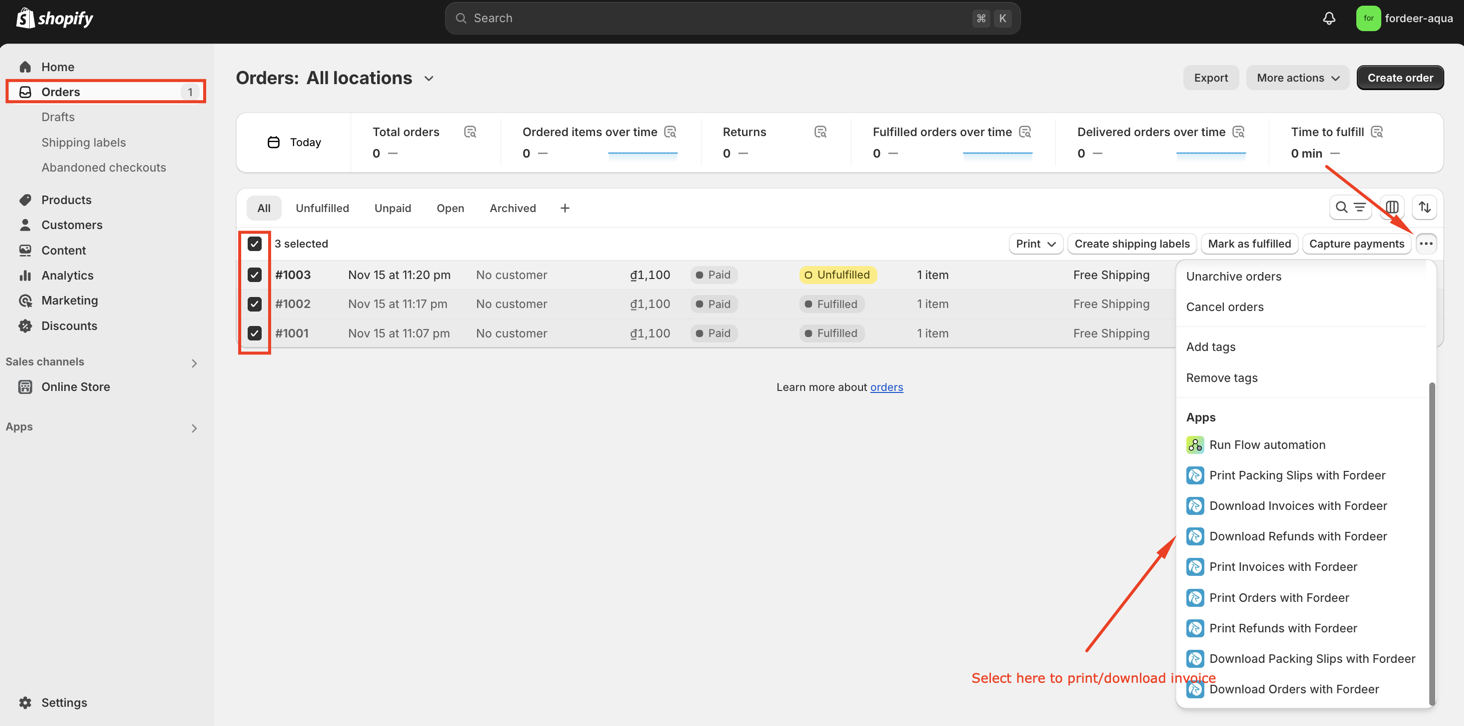
In your Shopify admin, navigate to Orders.
-
Select the order for which you want an invoice by clicking its checkbox.
-
Click on the three dots for more options.
-
Select Print/Download invoices with Fordeer.
2. From Shopify’s order detail page
Steps to follow:
-
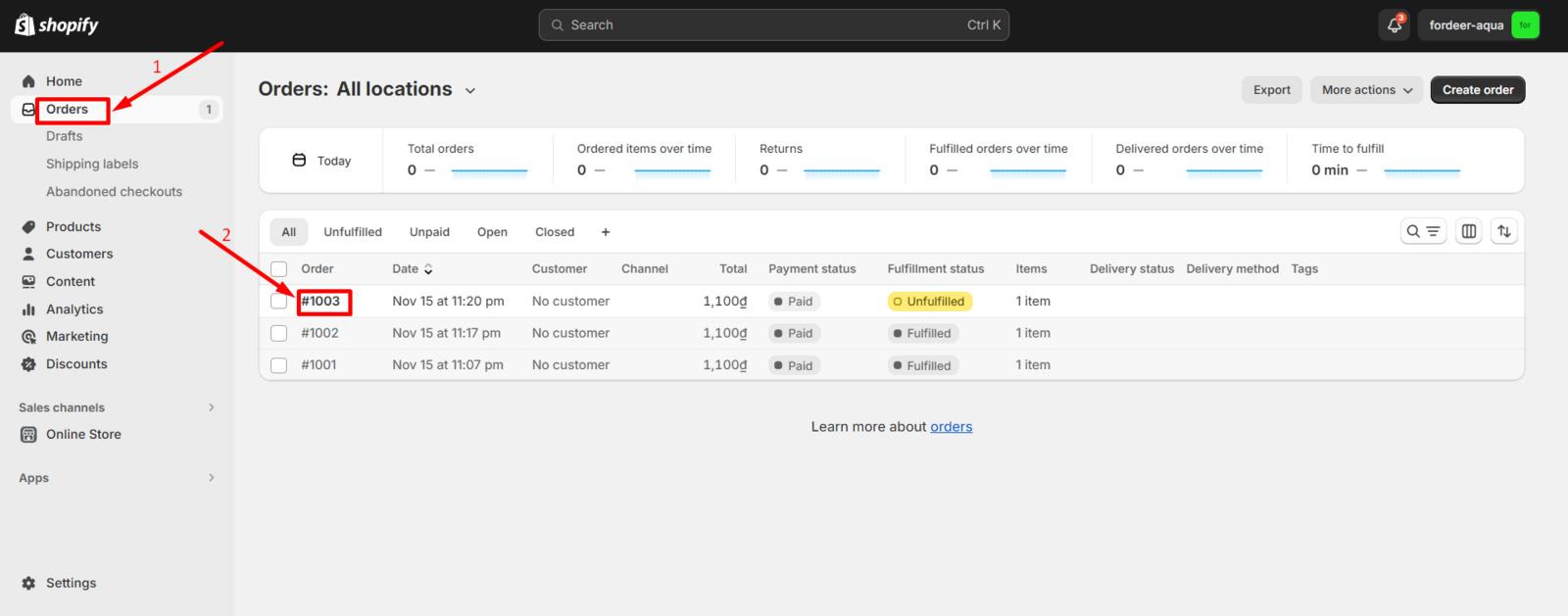
In your Shopify admin, head to Orders.
-
Click on the order whose invoice you need.
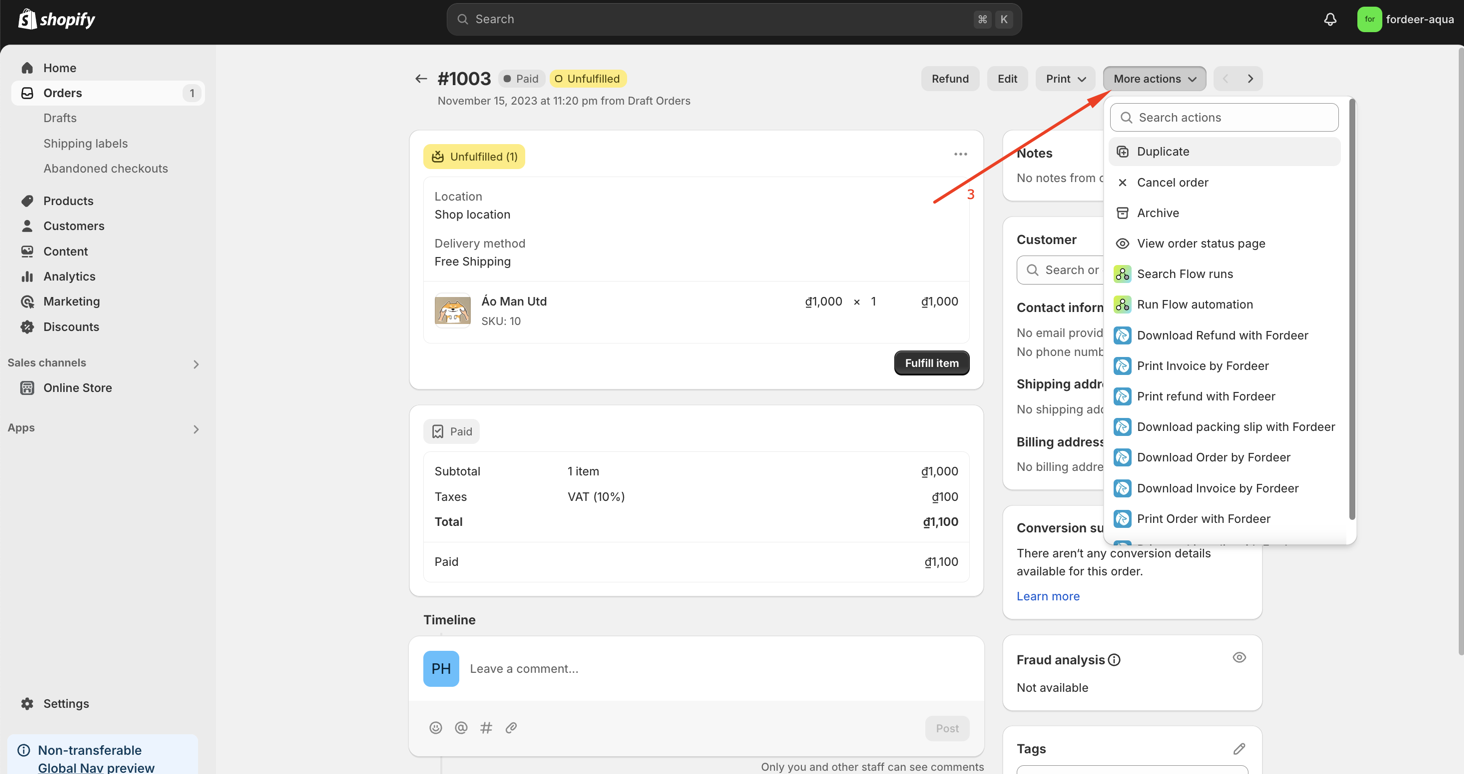
- Choose More actions.
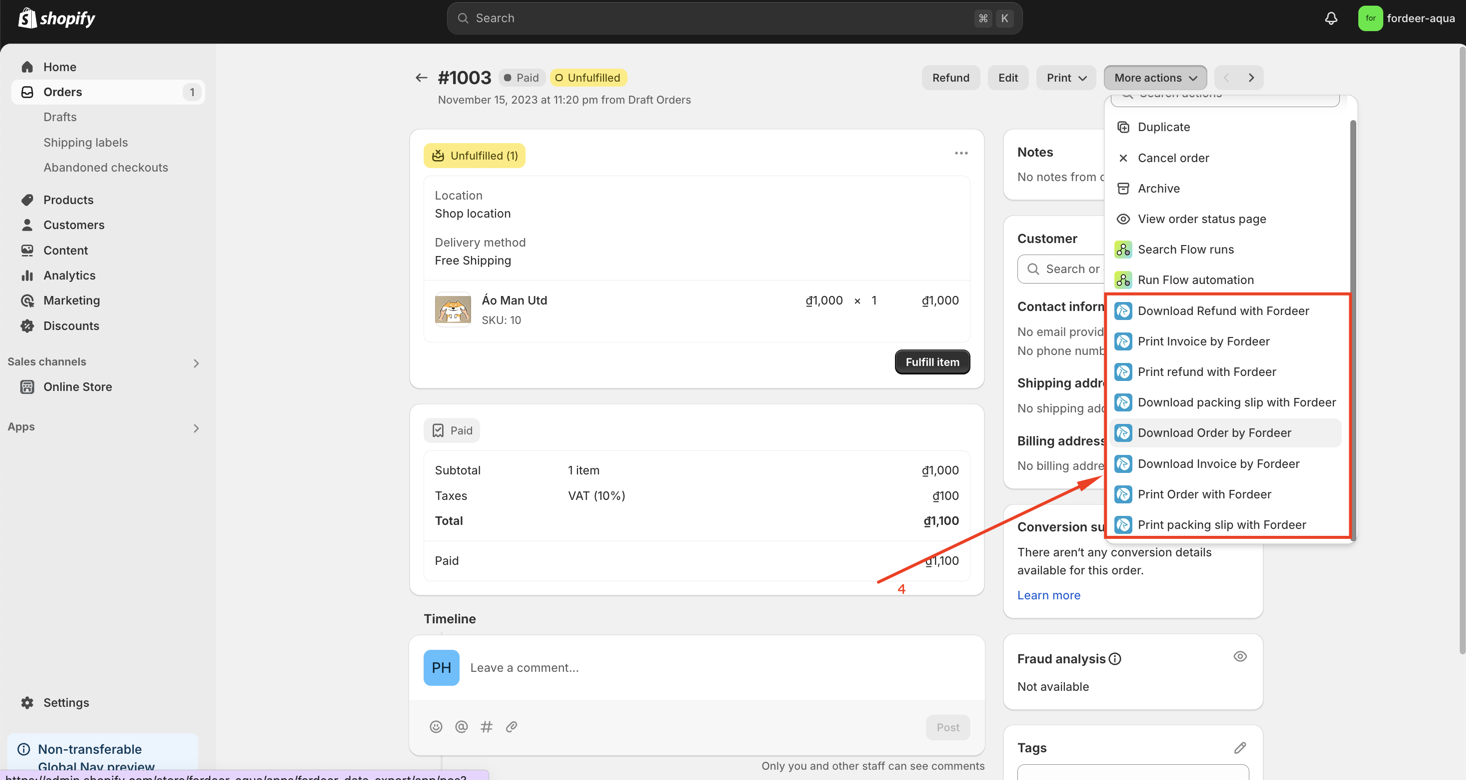
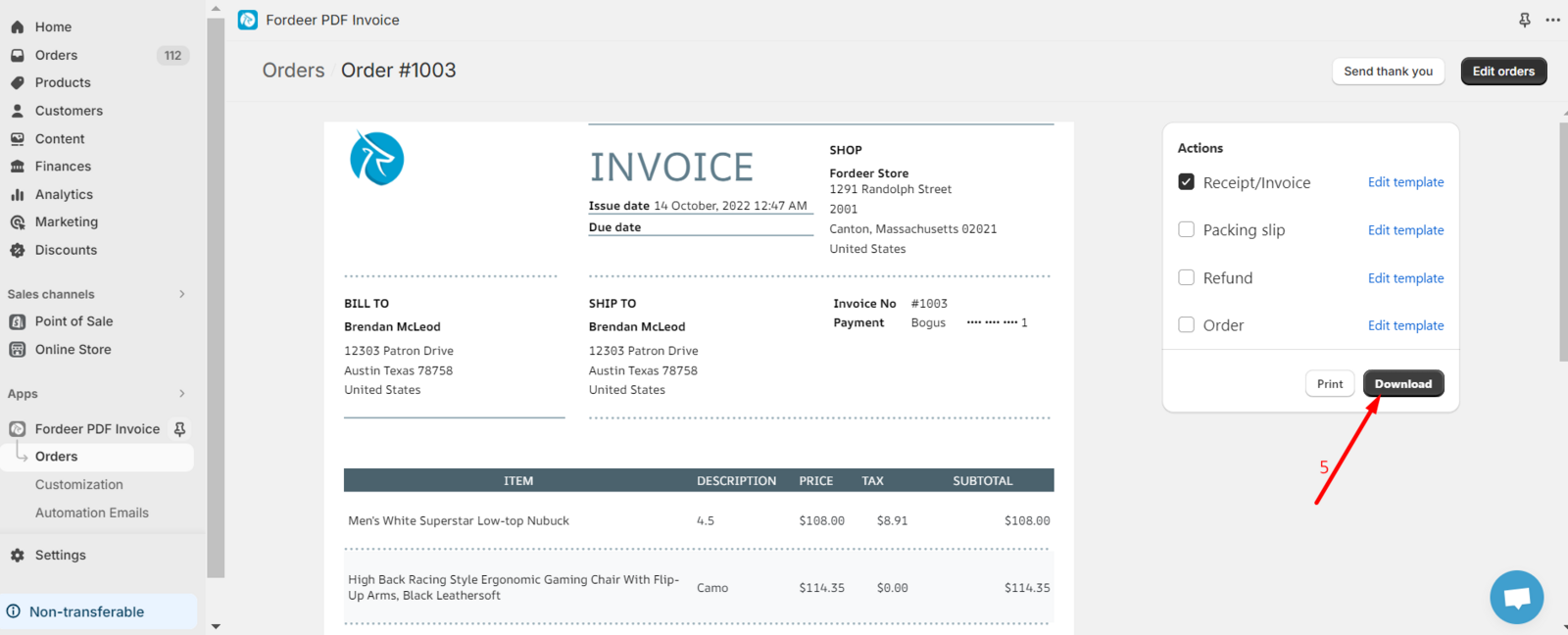
- Here, you can print/download any type of invoice.
- The system will redirect you to the order detail page in our app. Click on Download to get your invoice.
How to Print/ Download invoices from Fordeer?
1. From Fordeer’s order dropdown
Steps to follow:
-
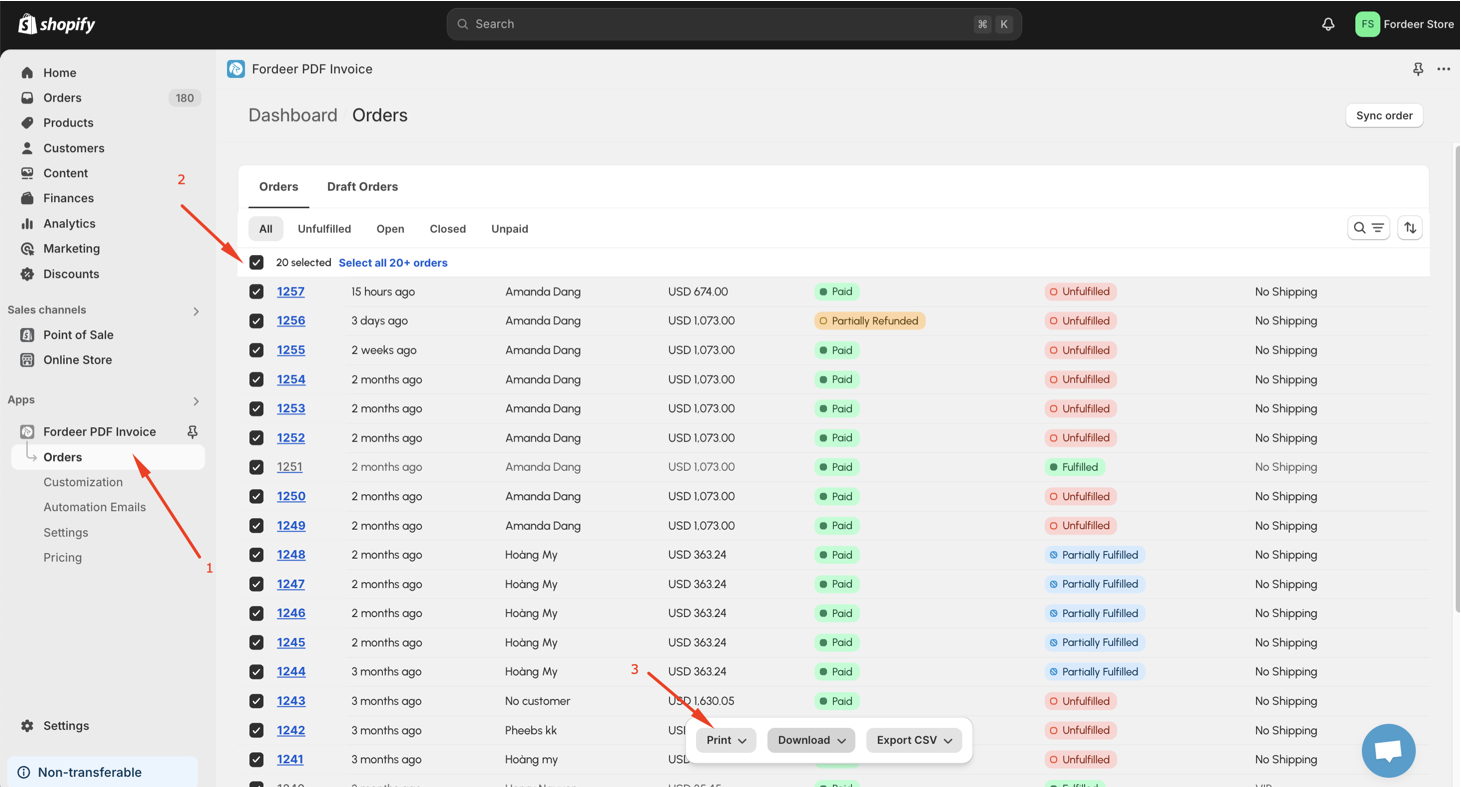
In the Fordeer app, go to Orders on the sidebar menu.
-
Choose the order by clicking its checkbox.
-
Click on the **Print/Download **dropdown button.
-
Select the type of invoice you need and download.
2. From Fordeer’s order detail page
Steps to follow:
-
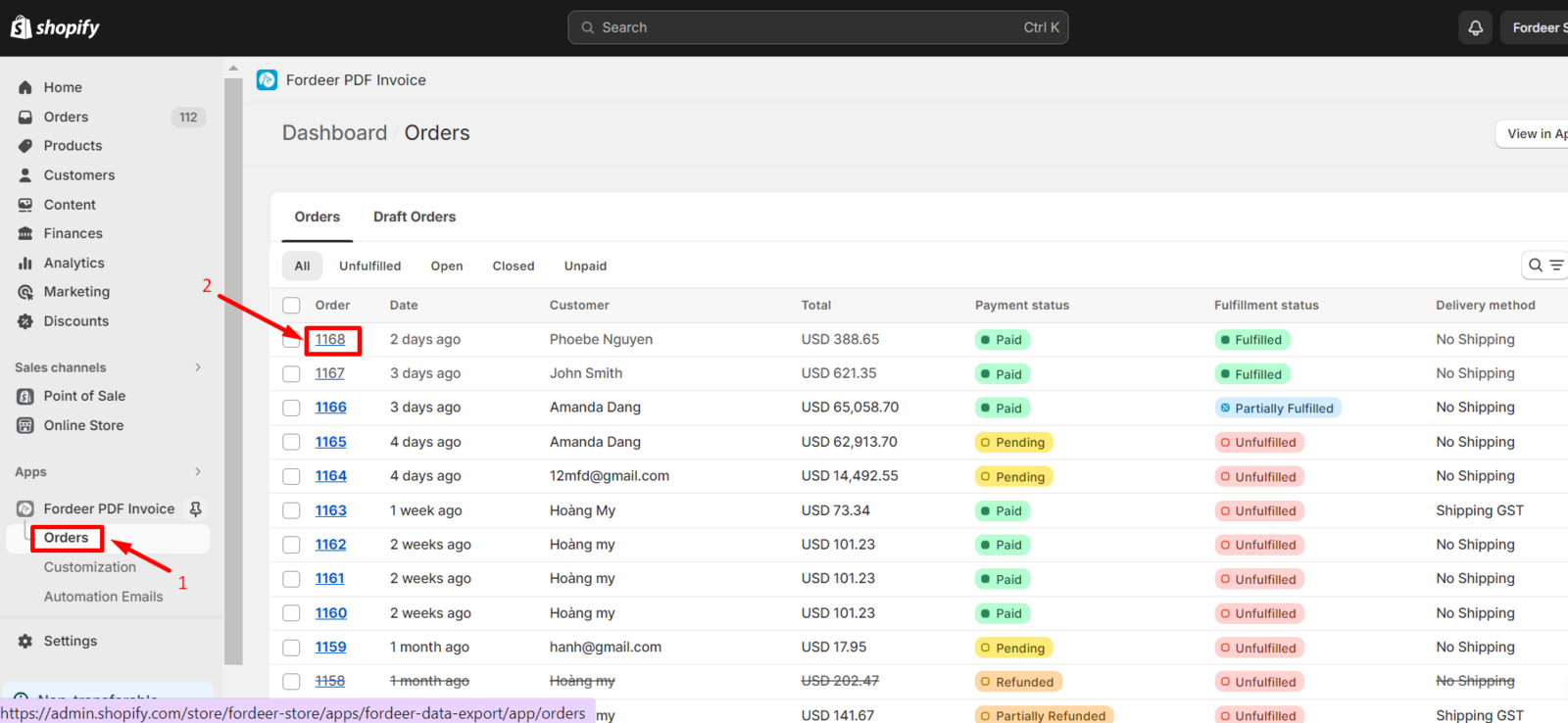
In the Fordeer app, navigate to Orders on the sidebar menu.
-
Click on the order you wish to download the invoice for.
-
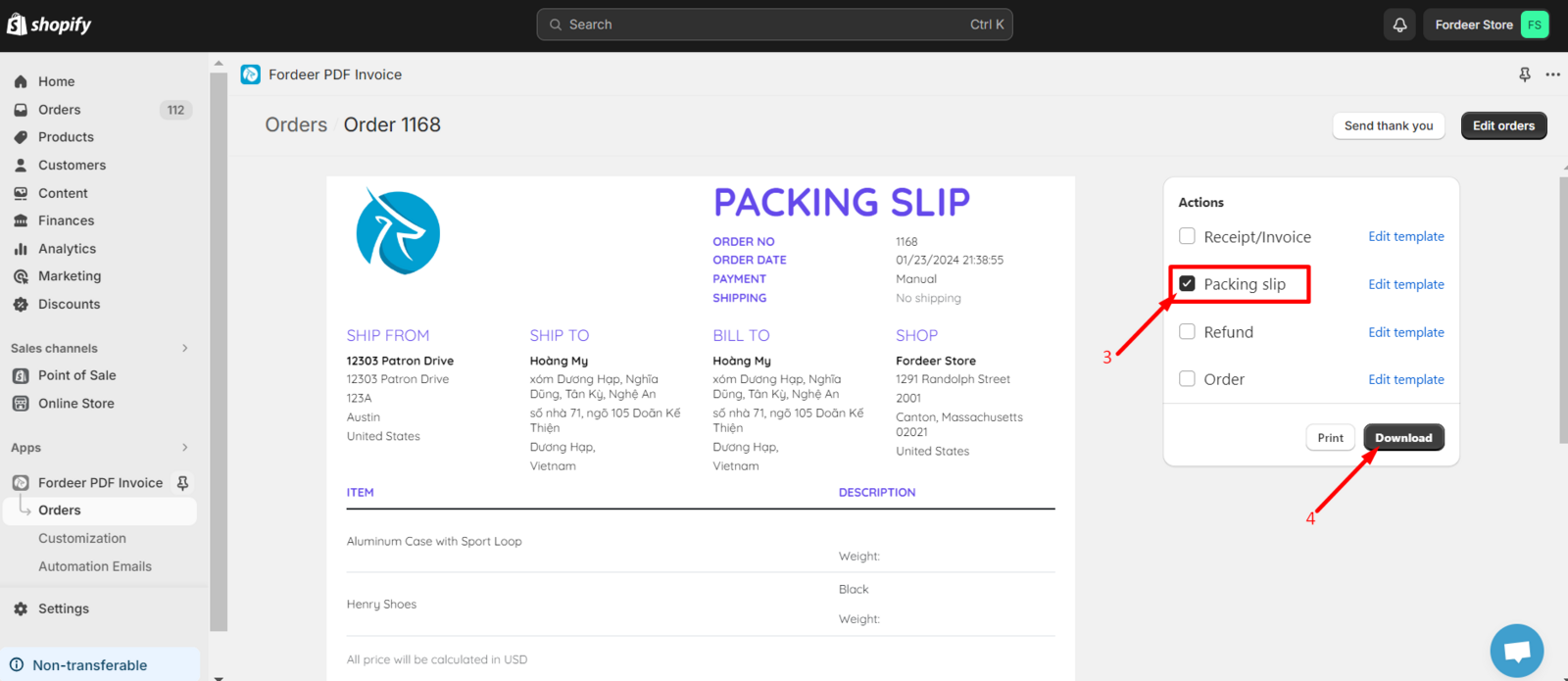
Select the invoice type you require.
-
Hit the Print/ Download button to successfully obtain your invoices.
Besides, we would like to inform you of an important update regarding the process of downloading invoices from our system. This change is designed to enhance your experience and manage the download process more efficiently.
Here's what you need to know:
-
For orders under 20: When you download invoices for fewer than 20 orders, they will be directly available in your computer's download folder. This immediate download ensures quick access for smaller batches of orders.
-
For orders above 20: If you're downloading invoices for more than 20 orders, the process is slightly different. In this case, the invoice files will be sent to your email. You can then easily access and download them from your inbox. This method helps manage larger files more effectively and ensures that you receive them without any hassle.
Download invoice limitation
-
The free plan allows you to print or download freely a maximum of 50 times both orders and draft orders monthly. Once you reach the 50th use, you will no longer be able to print or download invoices for the rest of the month. To continue, you can either upgrade to a higher pricing plan or wait for the monthly limit to reset.
-
For those requiring bulk invoice downloads, we have created a comprehensive guide available here: How to download invoices in bulk?
By following these simple steps, you can seamlessly download invoices to fit your business needs. If you have any questions or need further assistance, please don't hesitate to reach out.
We value your feedback — it helps us continuously improve app and provide you with a better experience.
👉 Chat with us: Share your feedback directly with our team.
👉 Explore more apps: Discover more Fordeer apps. special deals.
🕐 Working hours: 8:30 AM – 5:00 PM (UTC+7), Monday–Friday.
We typically reply to live chats within minutes and emails within a few hours.
Need help? Feel free to reach out anytime via live chat or email!