
Hello from Fordeer,
This guideline will help you learn more about how to add the Download invoice button to Shopify’s confirmation email.
Step 1. Set up and modify the Download button
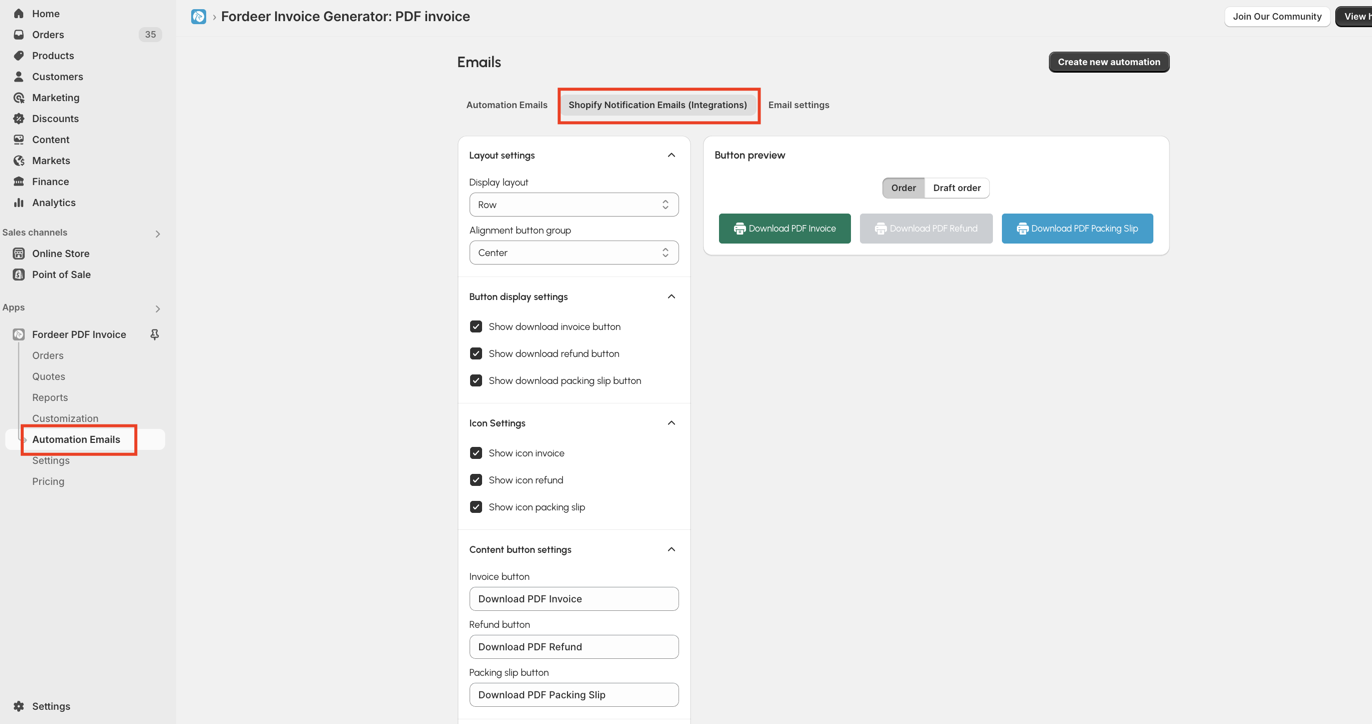
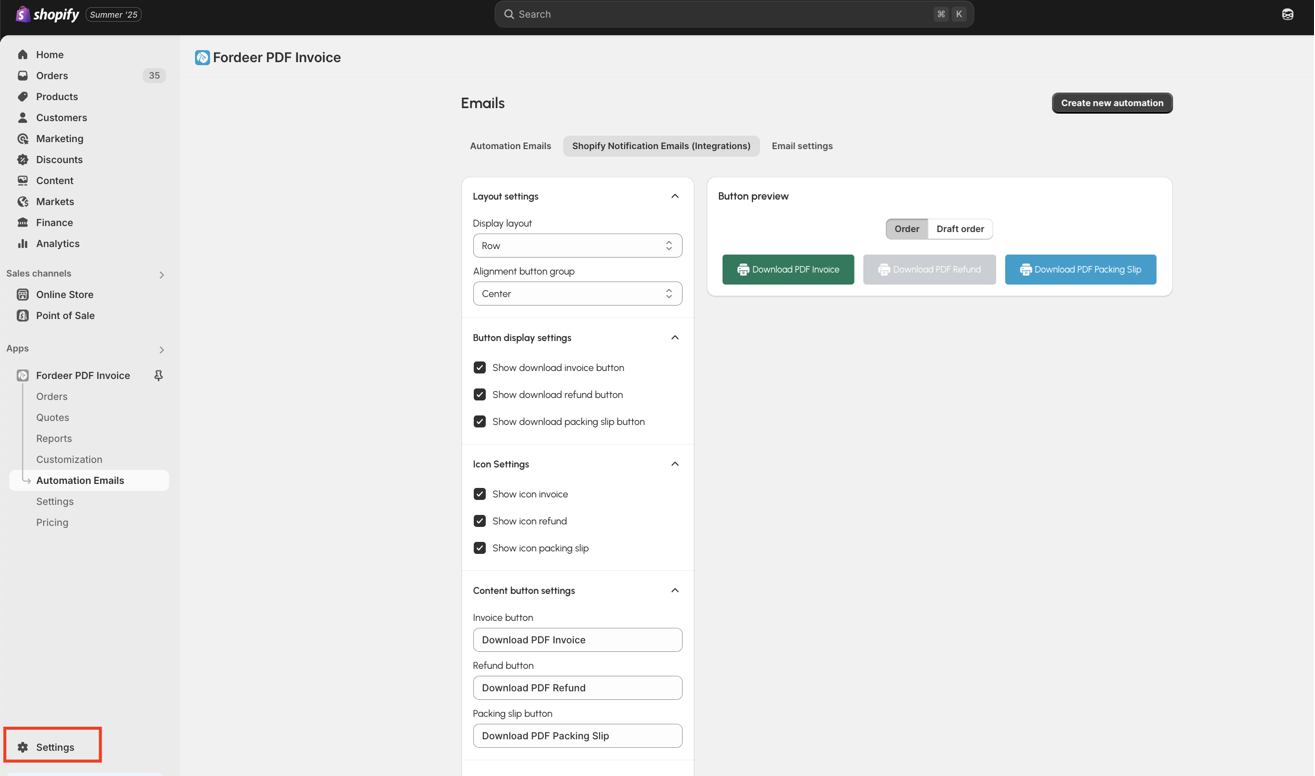
- Firstly, you need to access the Automation Emails page on the sidebar. Then select Shopify Notification Emails ( Integrations)
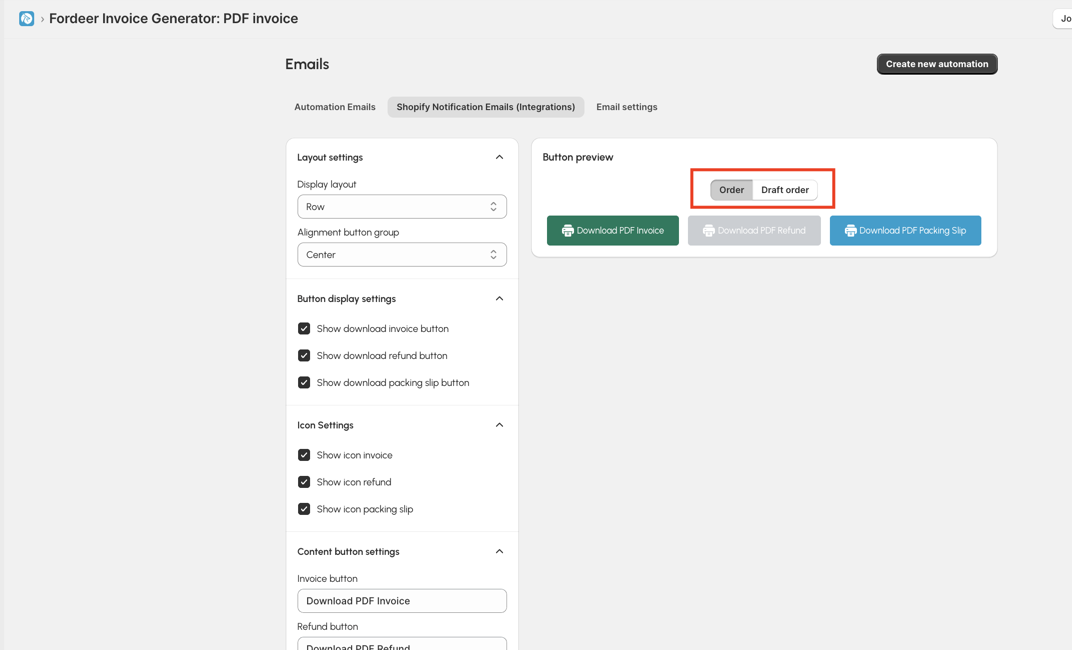
- After that, you select Order or Draft Order to continue modifying the button.
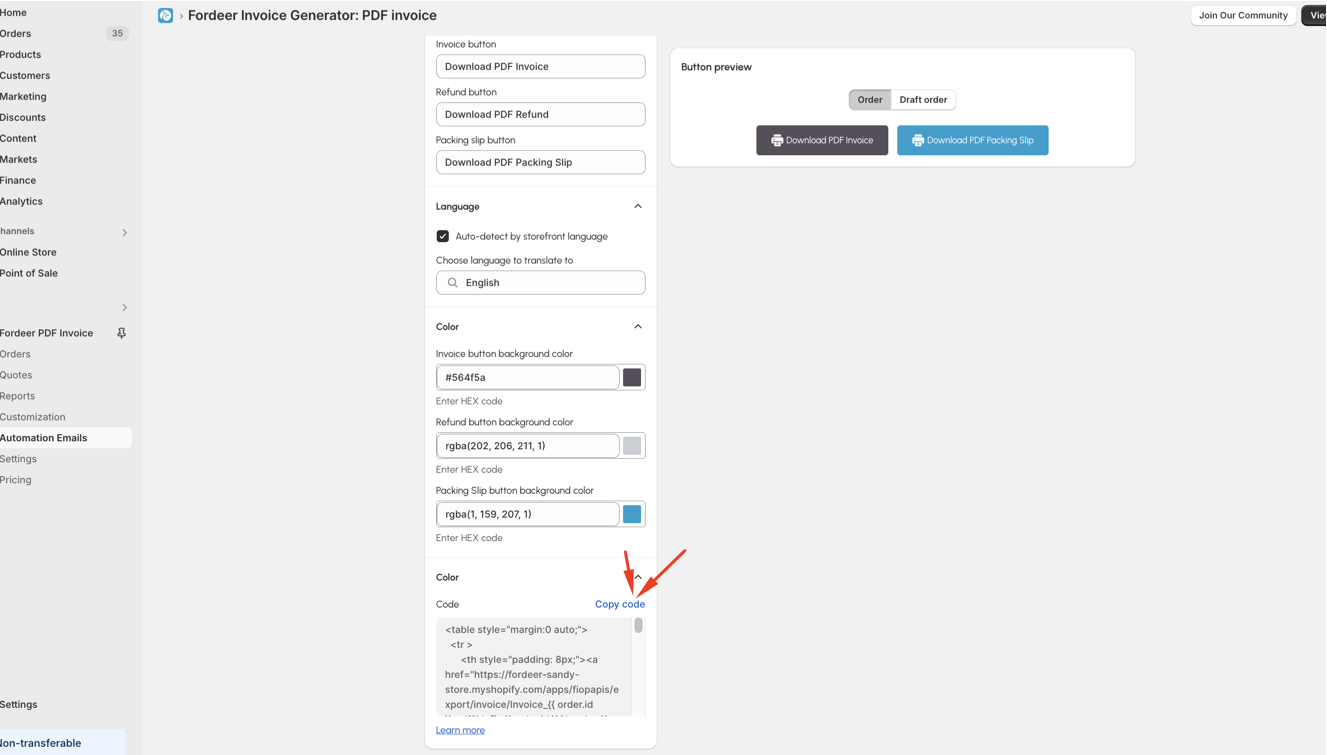
- Modify the buttons as you wish on the right side menu including: layout settings, button display settings, icon settings, button content, button color and code
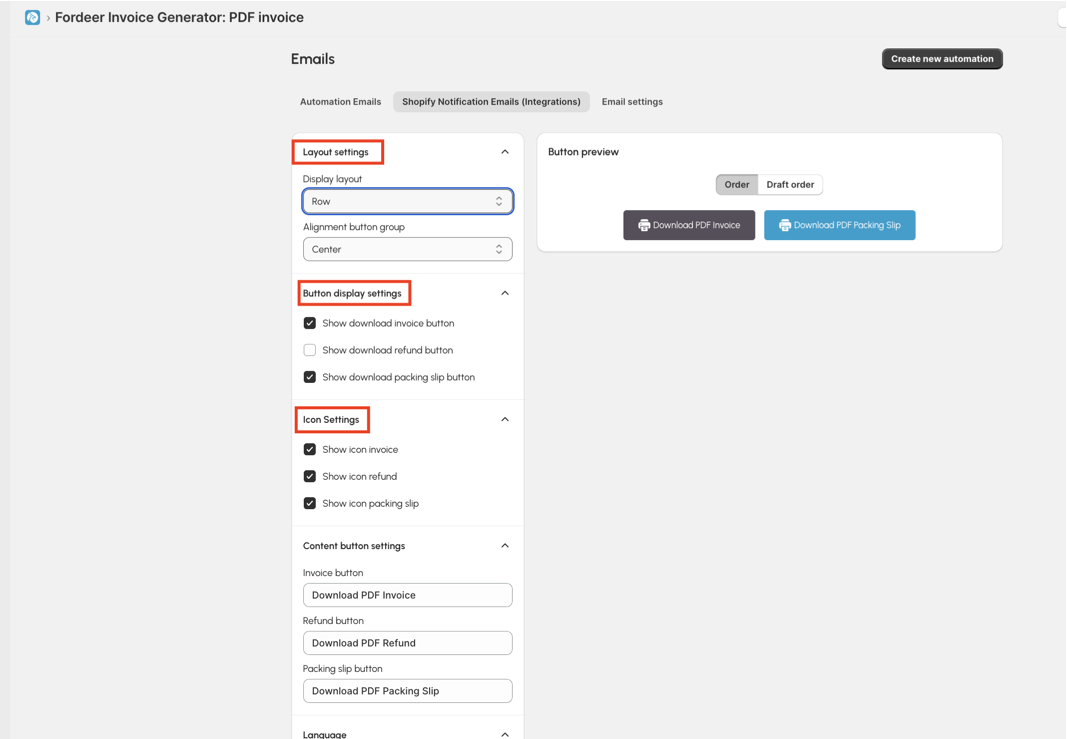
We recommend you not editing code by yourself. Contact us before you made any changes to prevent problems in the future
- Scroll to the end and hit the Copy code button after setting up the button display
Step 2. Add the code to the default forms
- First of all, on your Shopify Admin page, go to Settings on the sidebar.
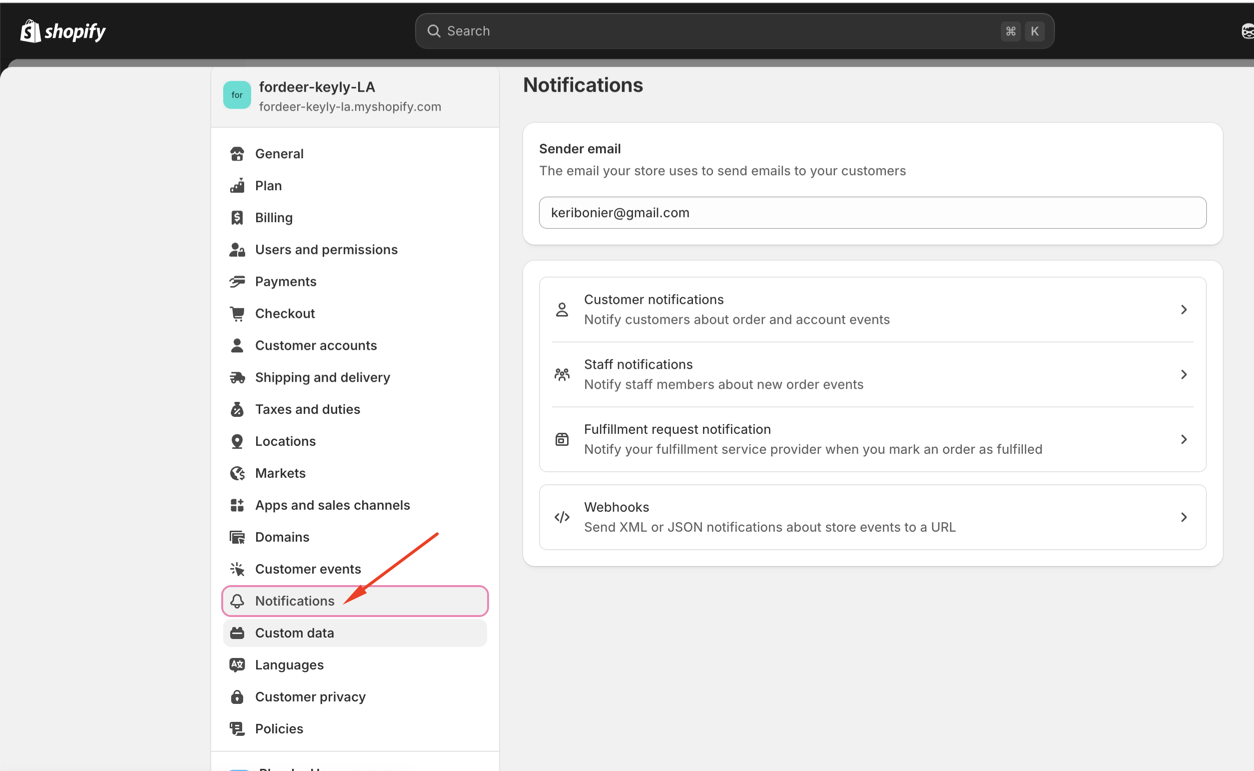
- Then click Notifications.
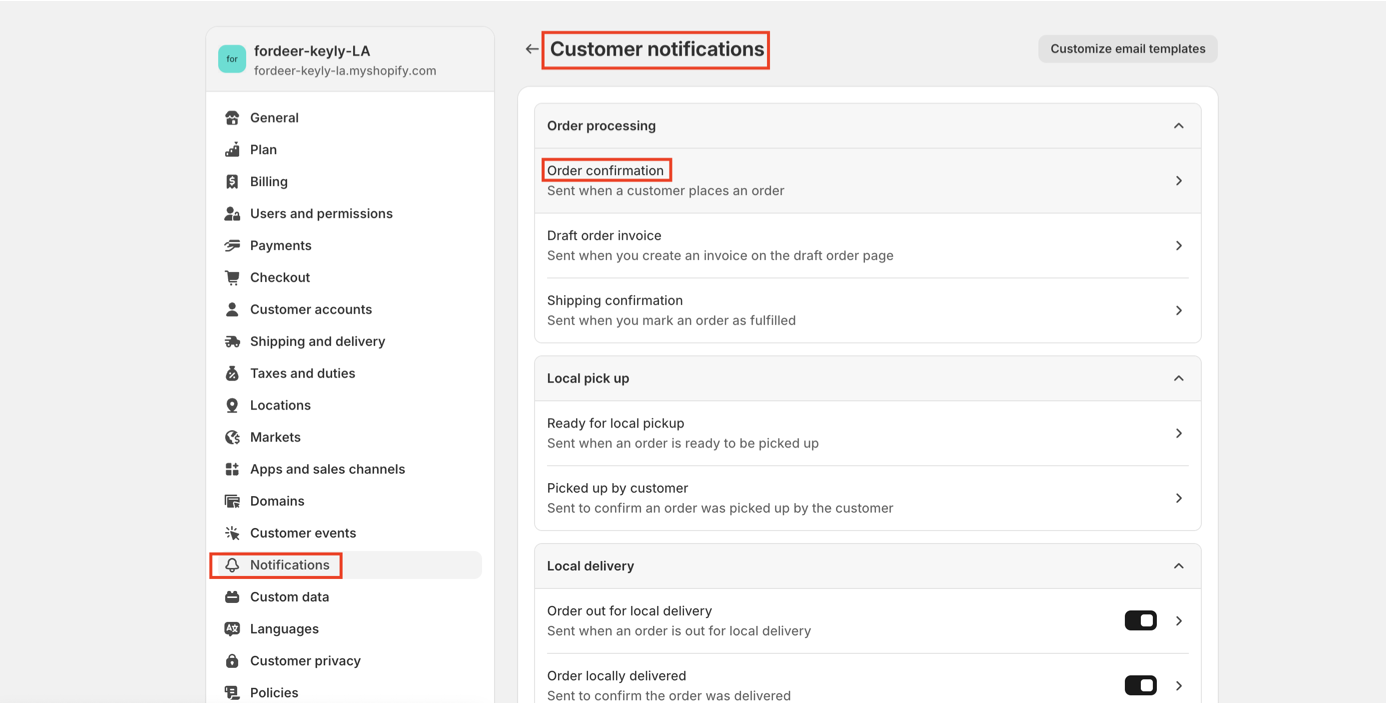
- After accessing the Notifications page, select Customer notifications, then select Order confirmation or any available email templates here
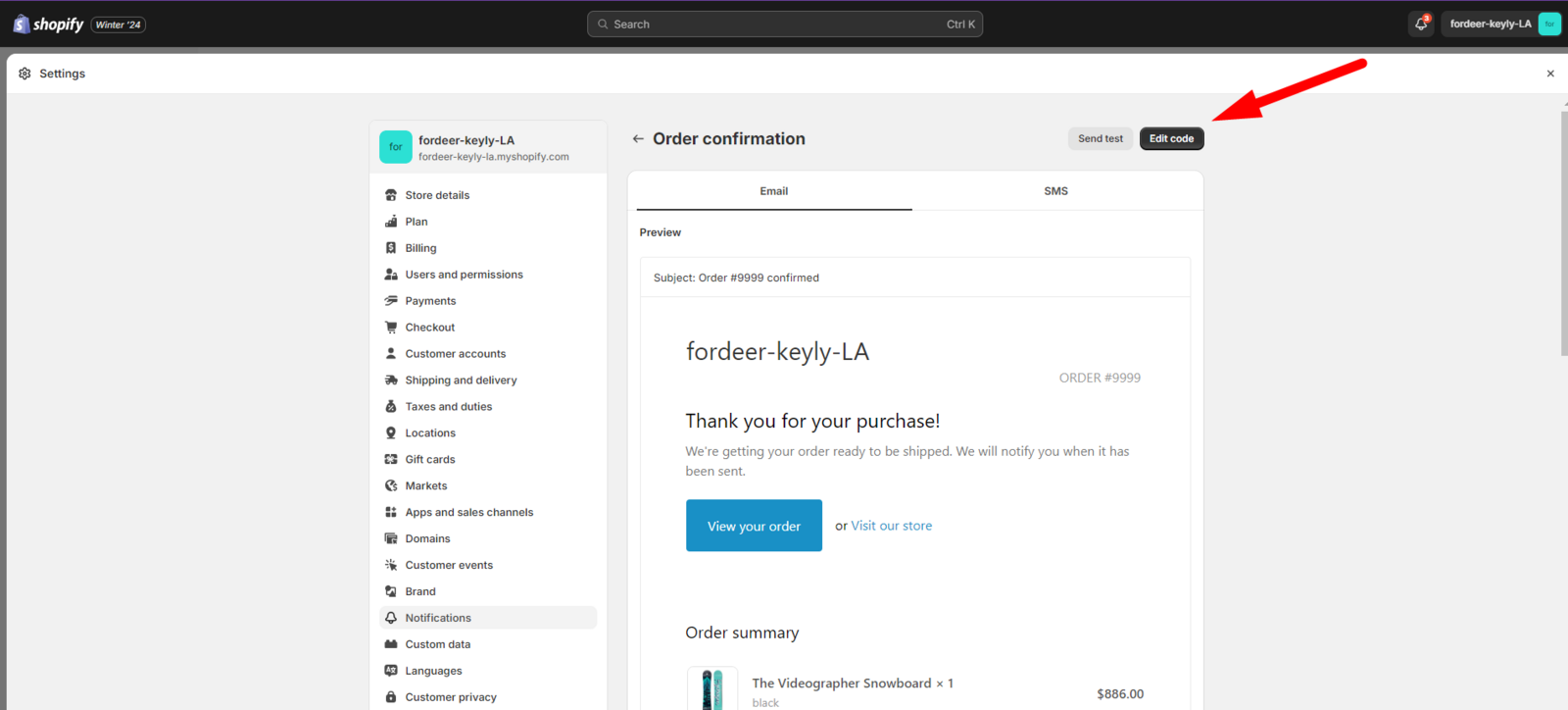
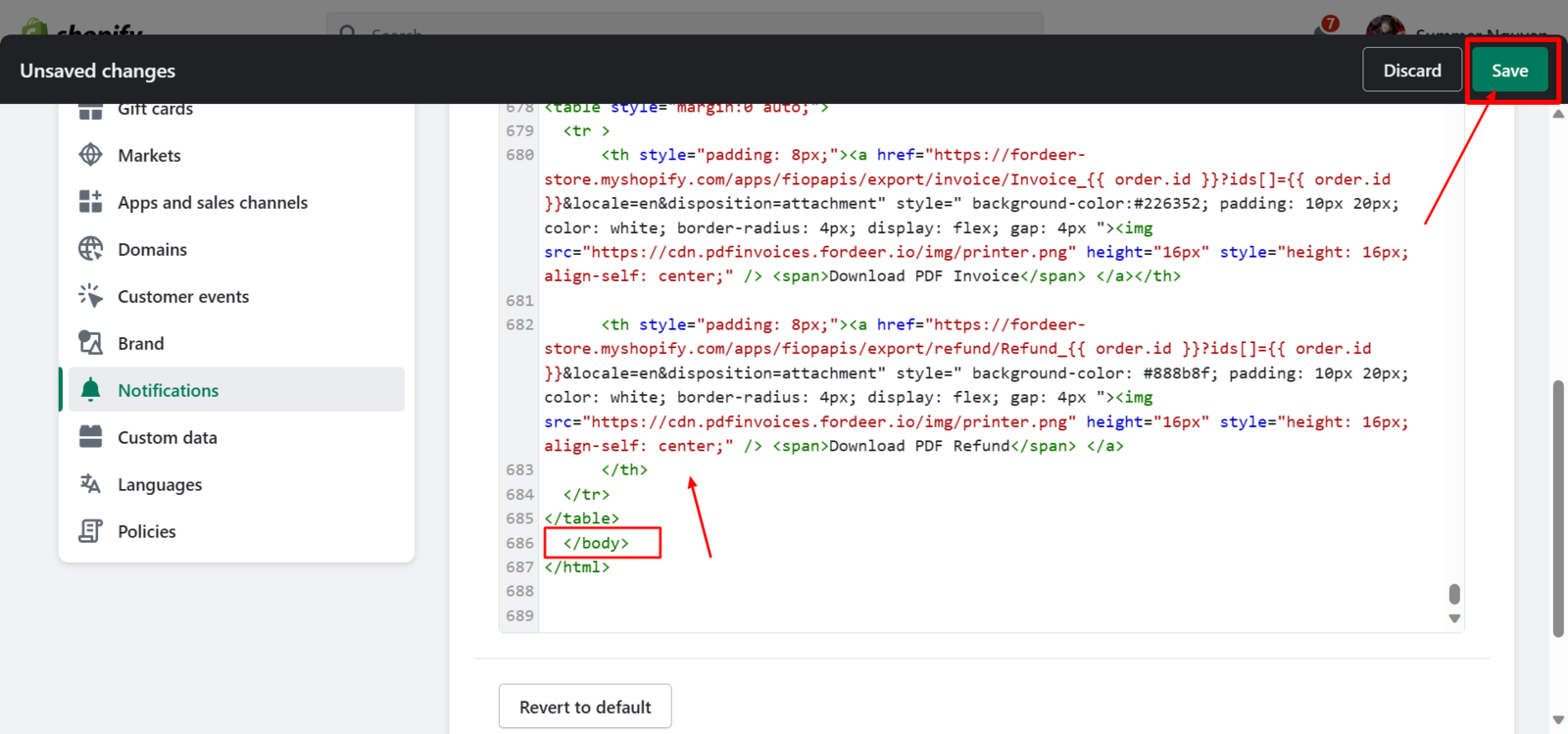
- Next, click Edit code and paste the code from Step 1 onto Email Body (HTML), normally right above **** tag at the bottom. Remember to **Save **all the modifications.
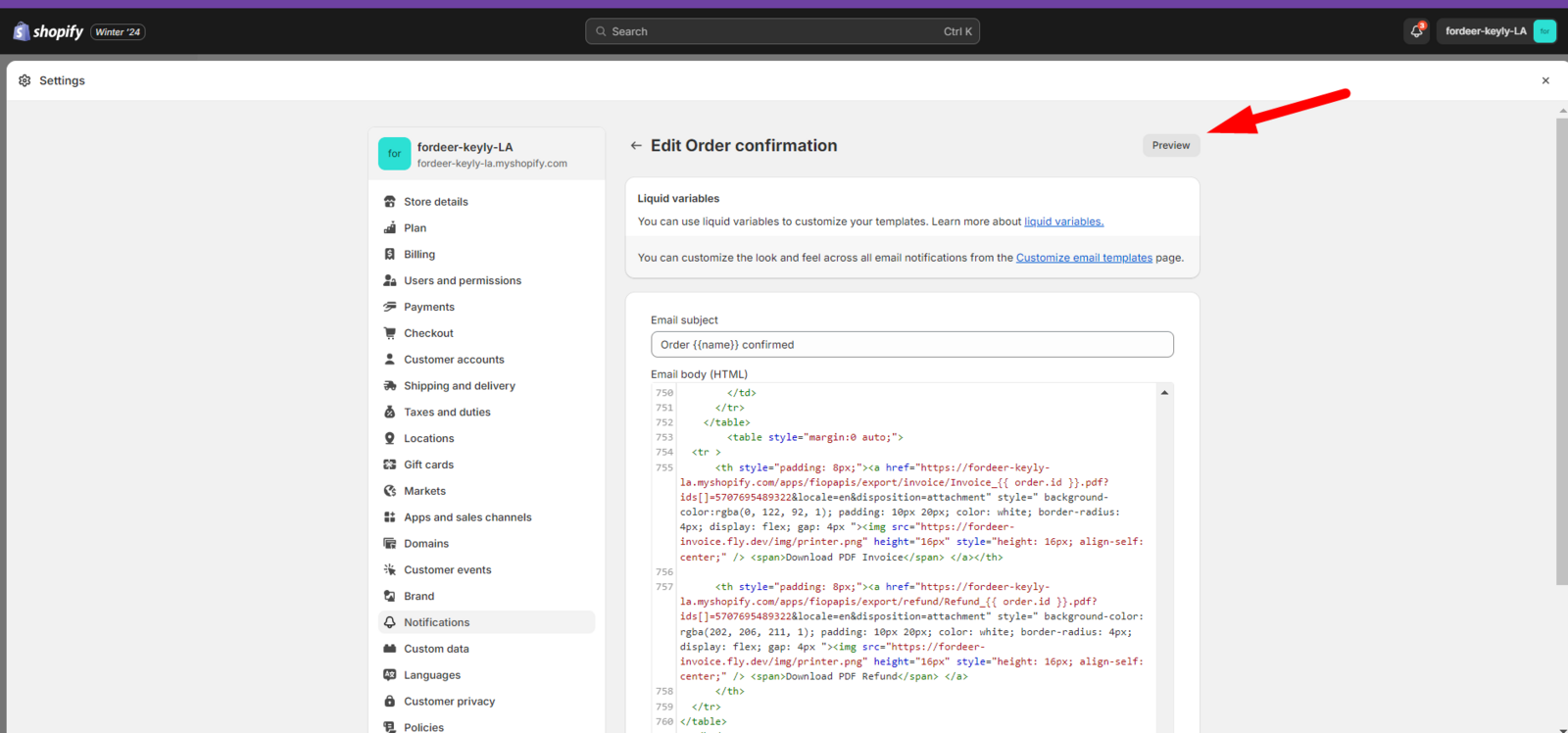
- You can click **Preview **to check the templates.
- This is how the Download invoice button will be displayed after those actions.
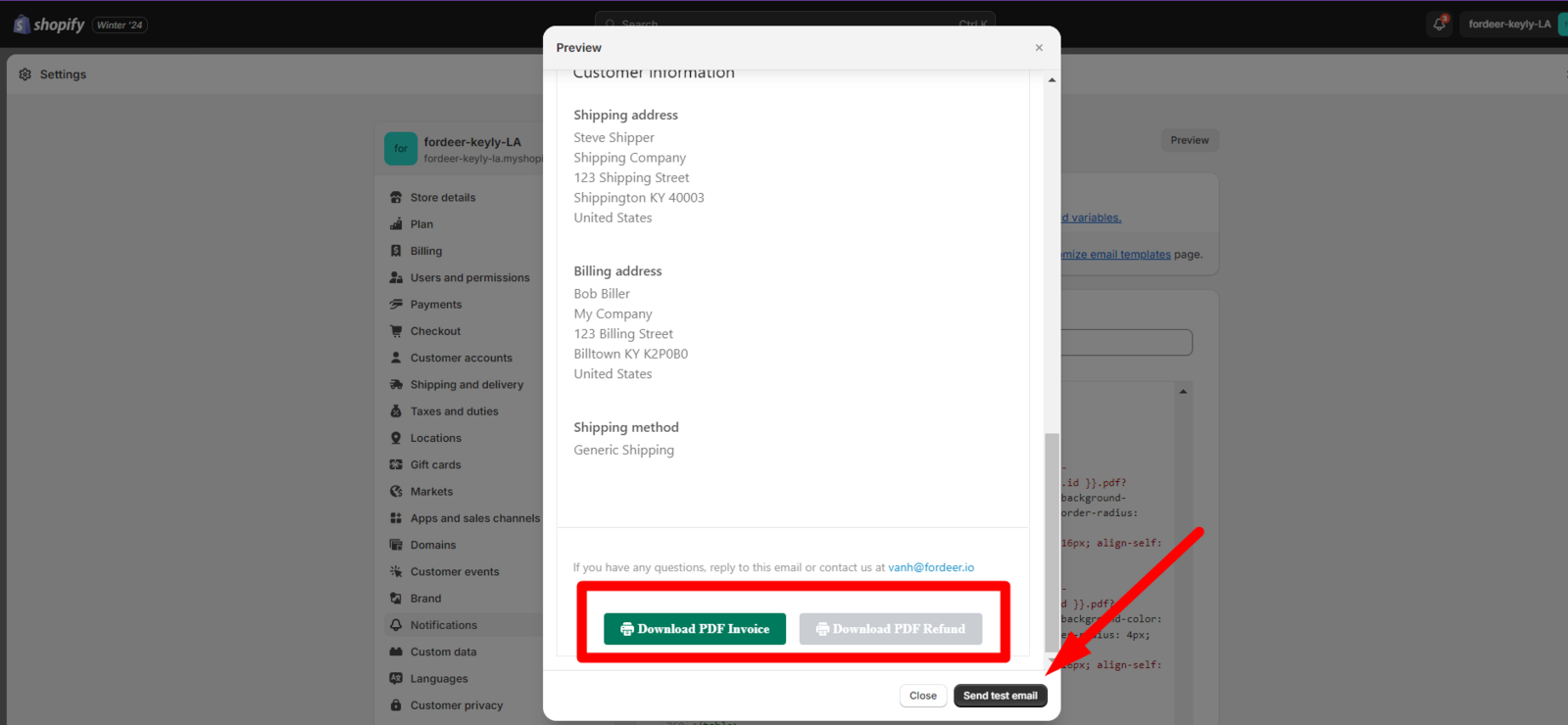
You can send a test email directly to your email address to see what your customers will receive.
Upgrade to the Starter plan to access this feature and provide your customers with seamless invoice downloads
Please give it a try and see how it goes. If you notice any problems with invoice downloading or adding code to your email template, feel free to contact us via email: support@fordeercommerce.io or live chat in-app.
We value your feedback — it helps us continuously improve app and provide you with a better experience.
👉 Chat with us: Share your feedback directly with our team.
👉 Explore more apps: Discover more Fordeer apps. special deals.
🕐 Working hours: 8:30 AM – 5:00 PM (UTC+7), Monday–Friday.
We typically reply to live chats within minutes and emails within a few hours.
Need help? Feel free to reach out anytime via live chat or email!