
Adding multiple VAT IDs for different locations
If your business is VAT-registered in multiple countries, you may need to display the corresponding VAT number for each country in your invoices. Our app allows you to add and manage multiple VAT IDs easily. Here’s how:
-
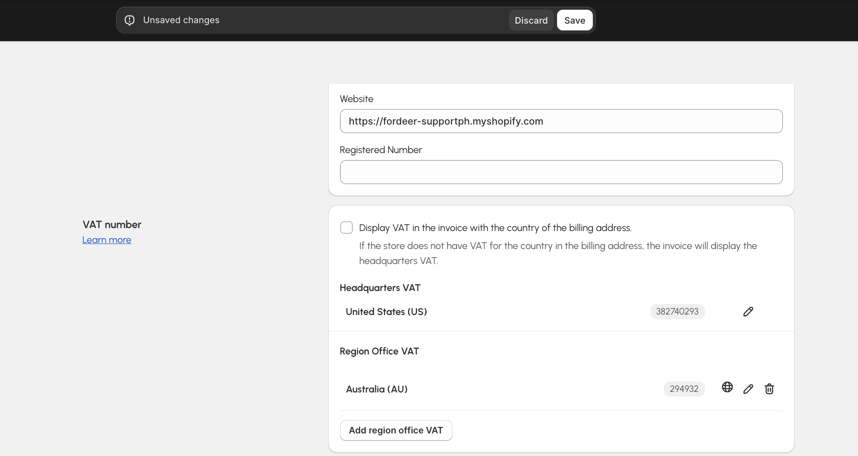
After adding your headquarters VAT number, you can add additional VAT numbers for other locations.
-
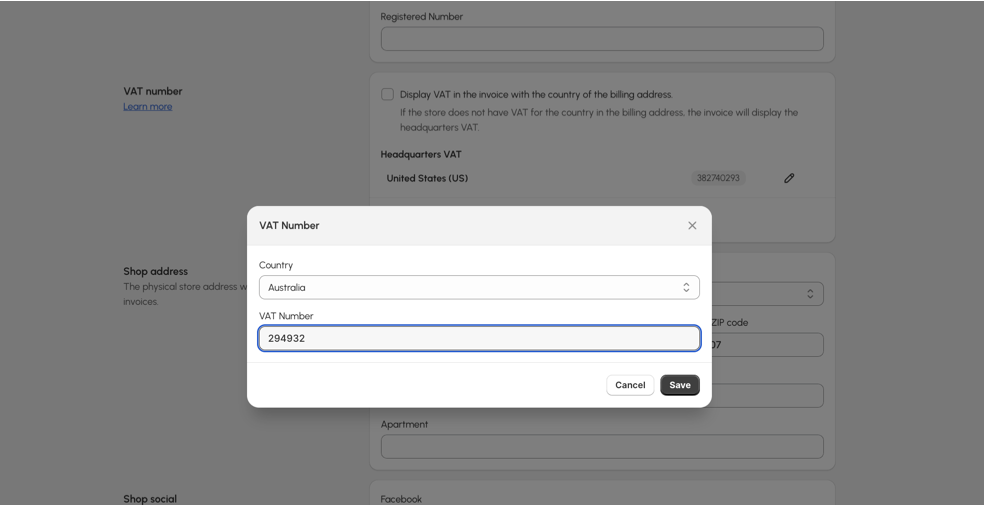
Click Add region office VAT again.
-
A modal will appear. Select another store location and enter the VAT number for that region. You can repeat this process if you have more than two VAT numbers to add.
Displaying VAT based on billing dddress
To ensure the correct VAT number is displayed on invoices according to the billing address, follow these steps:
- Tick the check box of the option Display VAT in the invoice with the country of the billing address
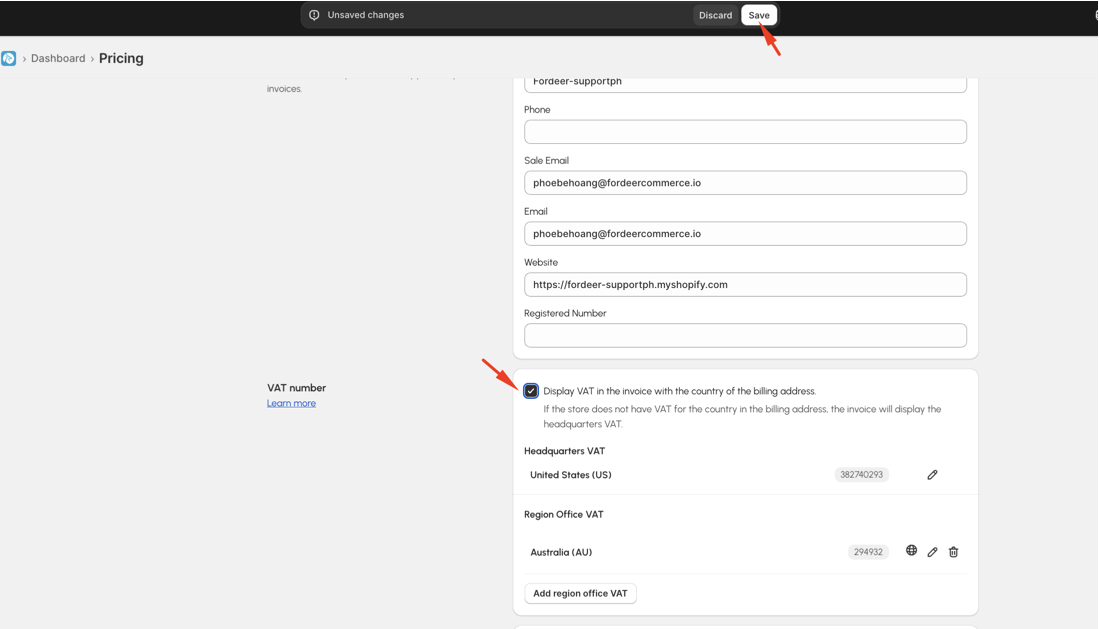
- The system will automatically display the appropriate VAT number based on the country of the billing address.
Examples:
-
For an order from the United states, the invoice will display the US VAT number (e.g., 382740293 ).
-
For an order from Australia, the invoice will display the GST number (e.g., 294932).
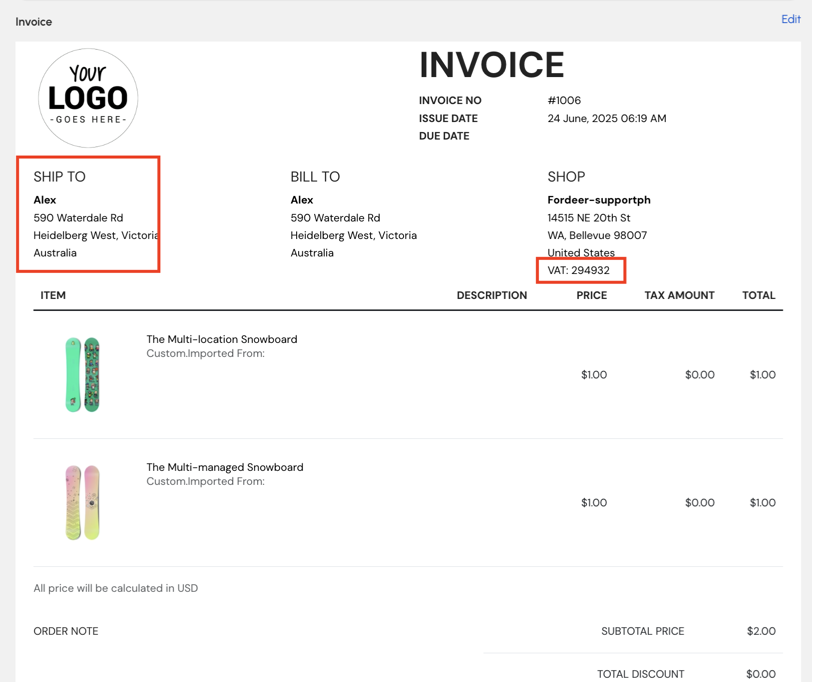
If the order is from a country where your store does not have a VAT registration, the invoice will display your headquarters VAT.
If you have any questions while using our app, please do not hesitate to let us know via our live chat or our support email: hi@fordeercommerce.io
We value your feedback — it helps us continuously improve app and provide you with a better experience.
👉 Chat with us: Share your feedback directly with our team.
👉 Explore more apps: Discover more Fordeer apps. special deals.
🕐 Working hours: 8:30 AM – 5:00 PM (UTC+7), Monday–Friday.
We typically reply to live chats within minutes and emails within a few hours.
Need help? Feel free to reach out anytime via live chat or email!