

Overview
Selling to customers in different countries? With Auto-detect customer language, Fordeer PDF Invoice translates your PDF documents (invoices, packing slips, refunds, quotes) into each customer's language automatically, so you don't have to send one-language invoices to every market.
You choose how the app detects the language:
-
Auto – uses the customer language detected by Shopify
-
Based on billing address – uses the language of the billing address country
-
Based on shipping address – uses the language of the shipping address country
When the feature is off, all PDF templates use your Default Language.
How to set up Auto-detect customer language
Step 1: Open the Languages settings
From your Shopify admin, go to Apps > Fordeer PDF Invoice > Settings, then select the Languages tab.
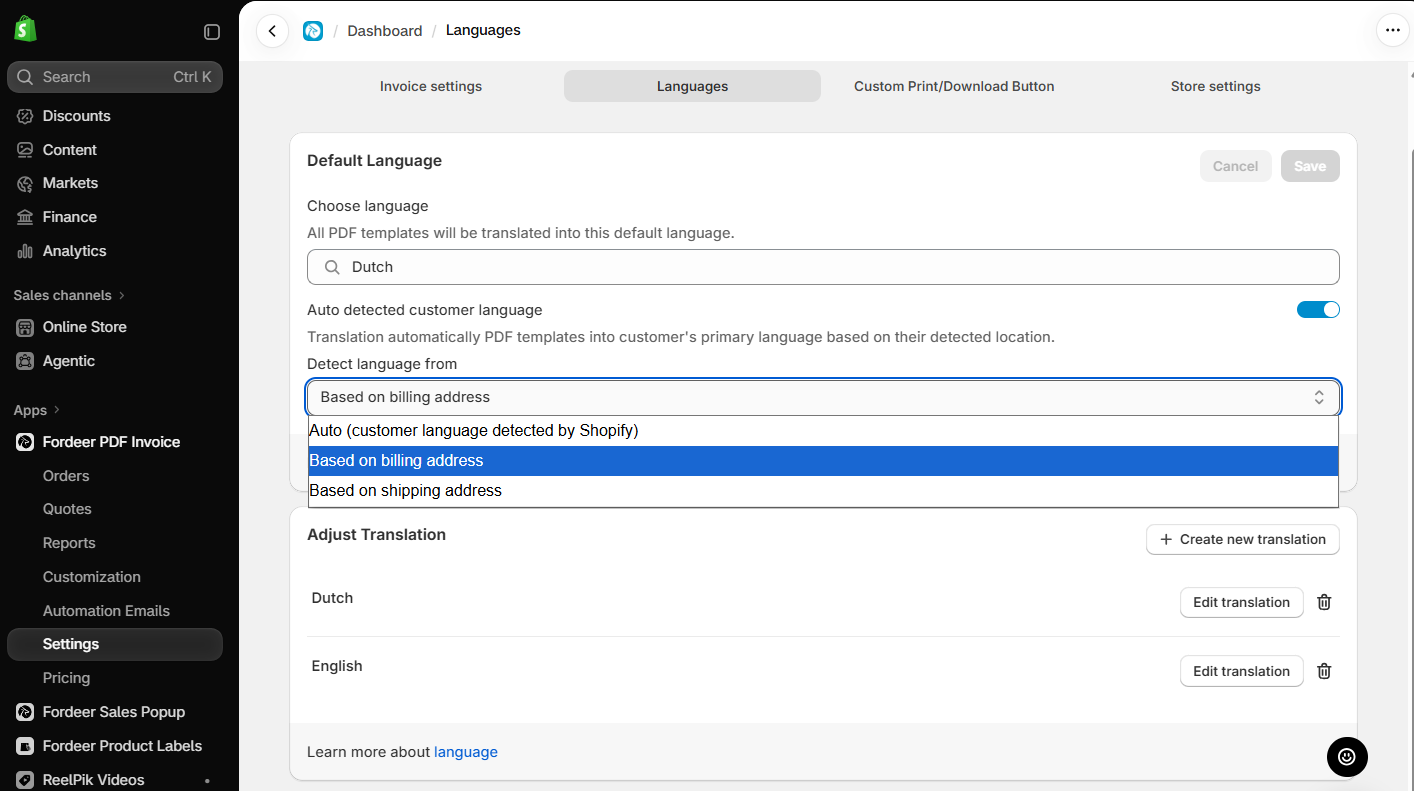
Step 2: Turn on Auto detected customer language
Switch on the Auto detected customer language toggle. The app will now translate PDF templates into the customer's primary language based on their detected location.
Step 3: Choose where to detect the language from
In the Detect language from dropdown, select one option:
| Option | How the language is detected | Best for |
|---|---|---|
| Auto (customer language detected by Shopify) | The language the customer used when browsing and checking out on your store | Stores using Shopify Markets or a translation app with multiple storefront languages |
| Based on billing address | The main language of the country in the customer's billing address | B2B stores, where invoices go to the paying company or accounting team |
| Based on shipping address | The main language of the country in the customer's shipping address | Packing slips and documents read by the person receiving the order |
Click Save to apply your changes.
Step 4 (Optional): Adjust the translation wording
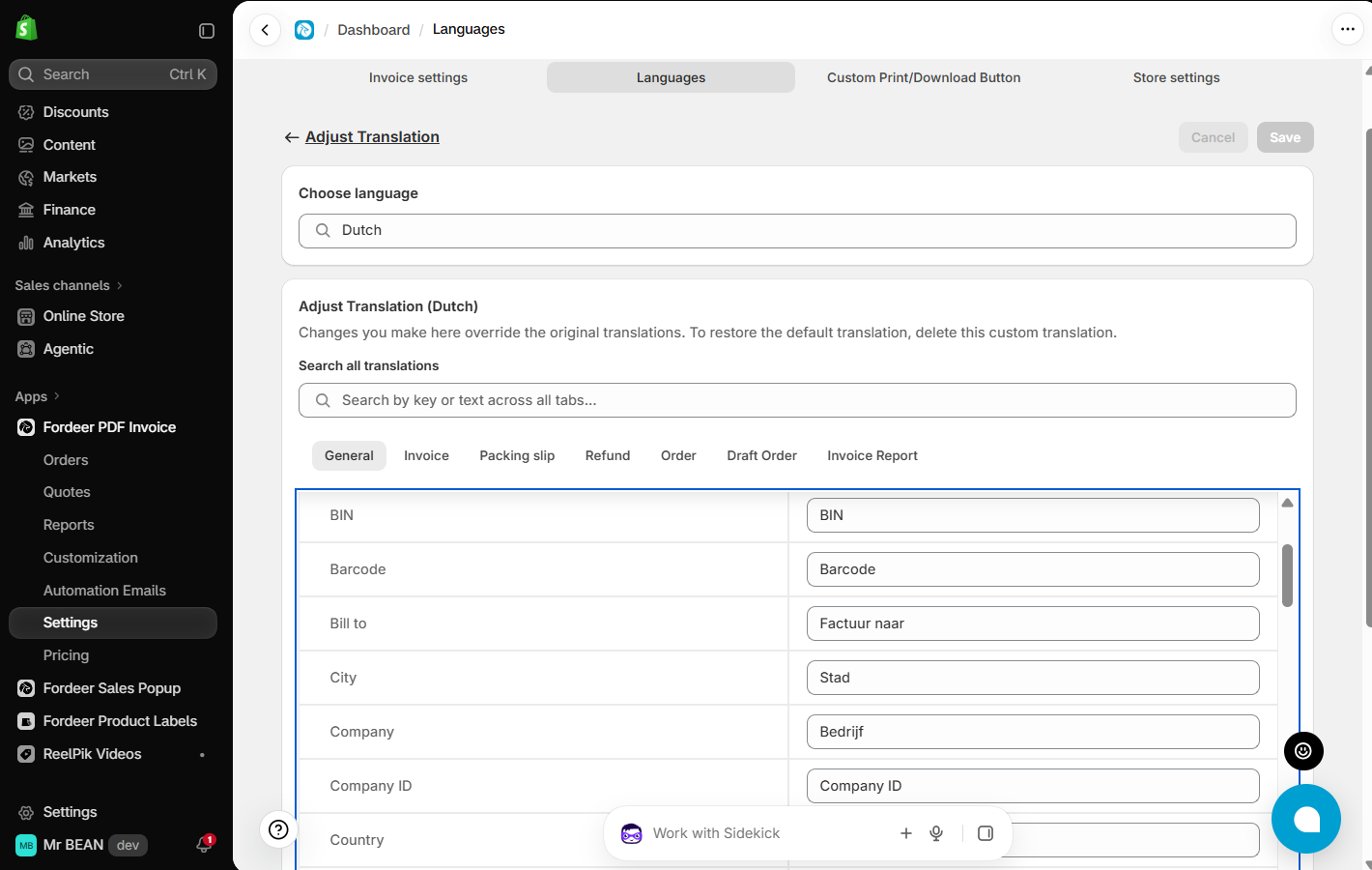
If you want to change how a label is worded in a specific language, go to the Adjust Translation section and click Edit translation next to that language. For example, you can change Invoice to Tax Invoice, or adjust the wording of Subtotal or Billing address.
To customize a language that isn't listed yet, click Create new translation, select the language, then edit the labels you want to change.
Tips
-
Download a test invoice from Orders for an order with a foreign address to check the result.
-
Product titles and variant names come from your Shopify product data. Translate them in Shopify (Settings > Languages) or your translation app so they also appear in the customer's language.
We value your feedback — it helps us continuously improve app and provide you with a better experience.
👉 Chat with us: Share your feedback directly with our team.
👉 Explore more apps: Discover more Fordeer apps. special deals.
🕐 Working hours: 8:30 AM – 5:00 PM (UTC+7), Monday–Friday.
We typically reply to live chats within minutes and emails within a few hours.
Need help? Feel free to reach out anytime via live chat or email!