
Fordeer hello to you,
Shopify metafields are the custom fields that empower you to store extra information for your products, customers, orders and the other that the normal Shopify settings don't support.
You can keep these additional pieces of information to yourself for tracking or display them to your customers in different ways on your web store.
You can refer to this article from Shopify for more information about the metafields .
In this guide, I will walk you through all steps to create a metafield with Shopify. Let’s go!
Typically, you’ll need to go through two main steps to add Shopify metafield– creating metafield definitions, and adding values to your metafields.
Create a Shopify metafield definition
- From Shopify Admin, go to Settings > Custom data
Herein, you will see a list of Shopify metafield types– from products, variants, customers, blogs, etc.
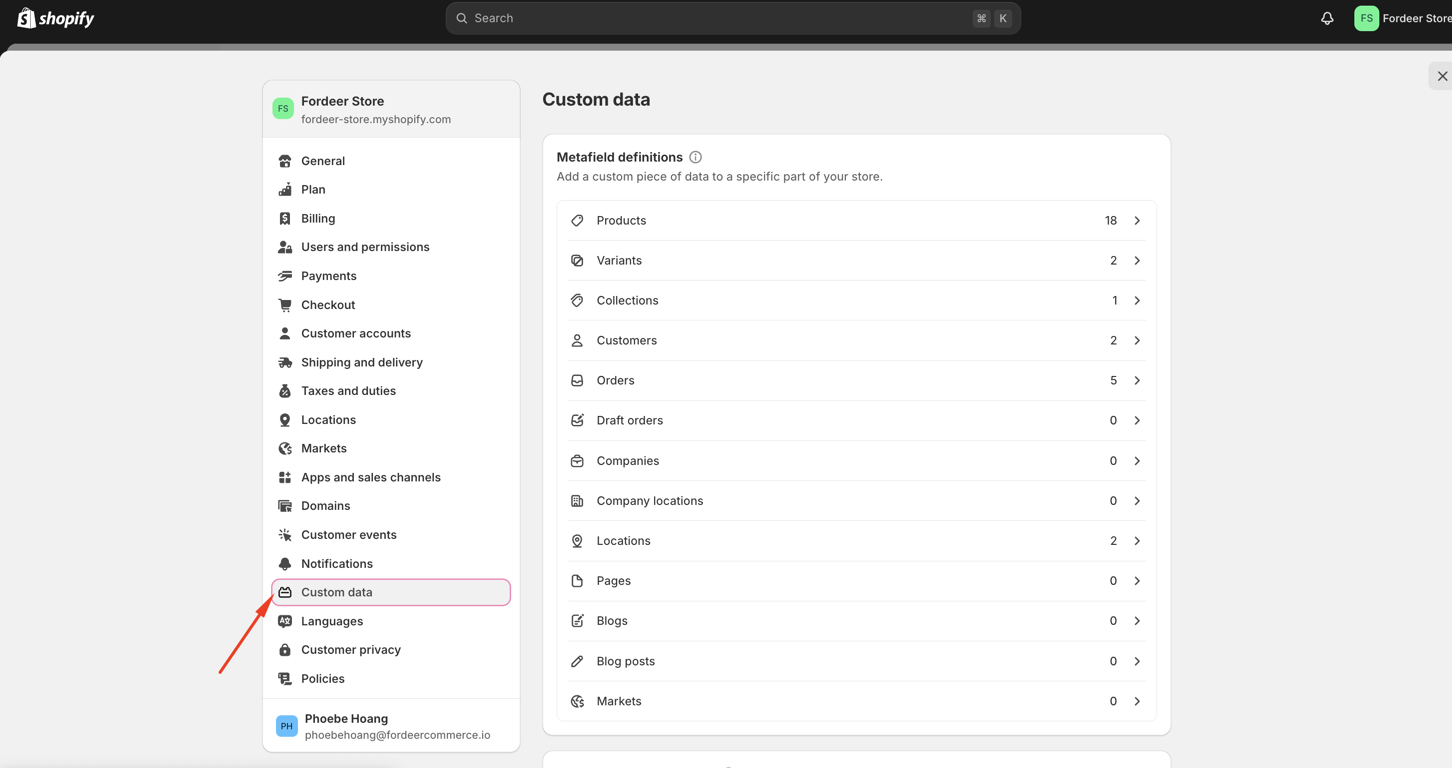
- Select the metafield type you want.
In this example, we will use Products, the most popular place to use Shopify metafields.
- Click Products > Hit the Add definition button to get started.
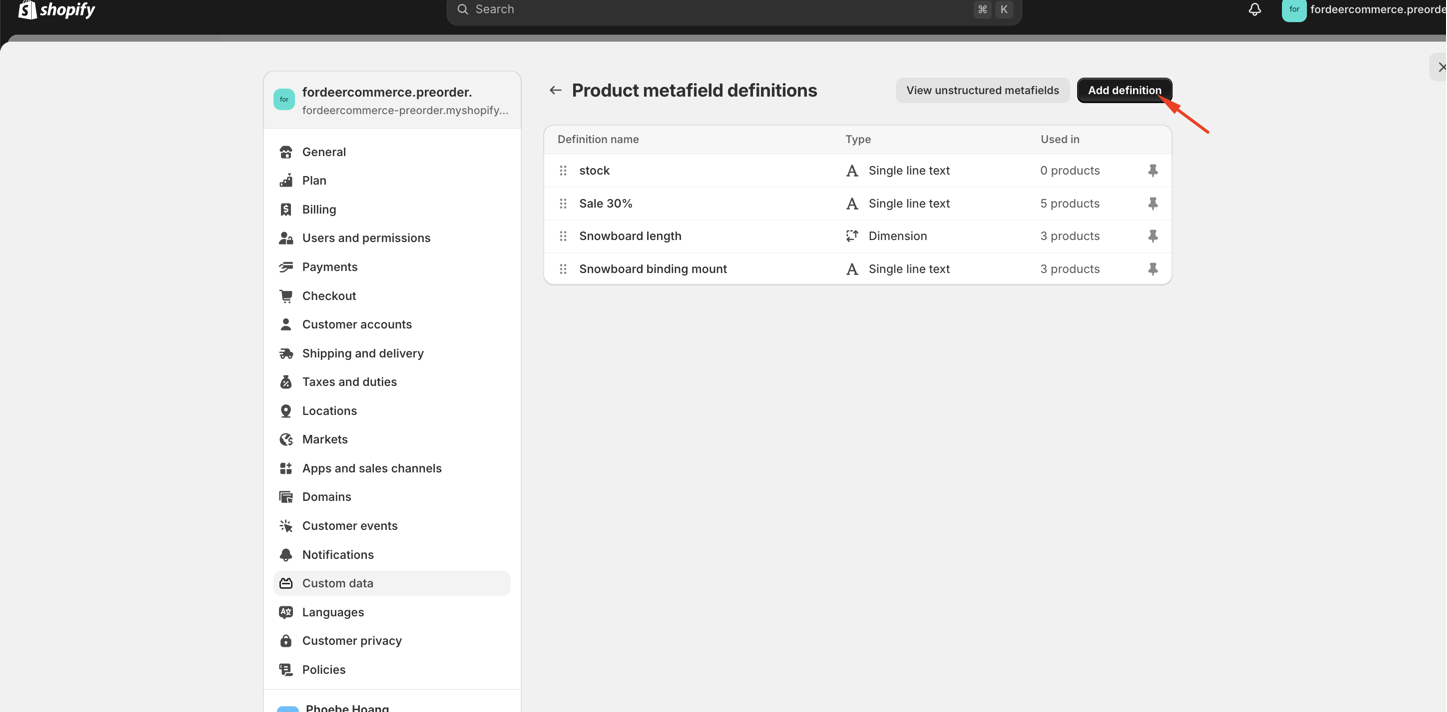
- Click Add definition and fill in the fields including: Name, Namespace and key (optional), Description (optional).
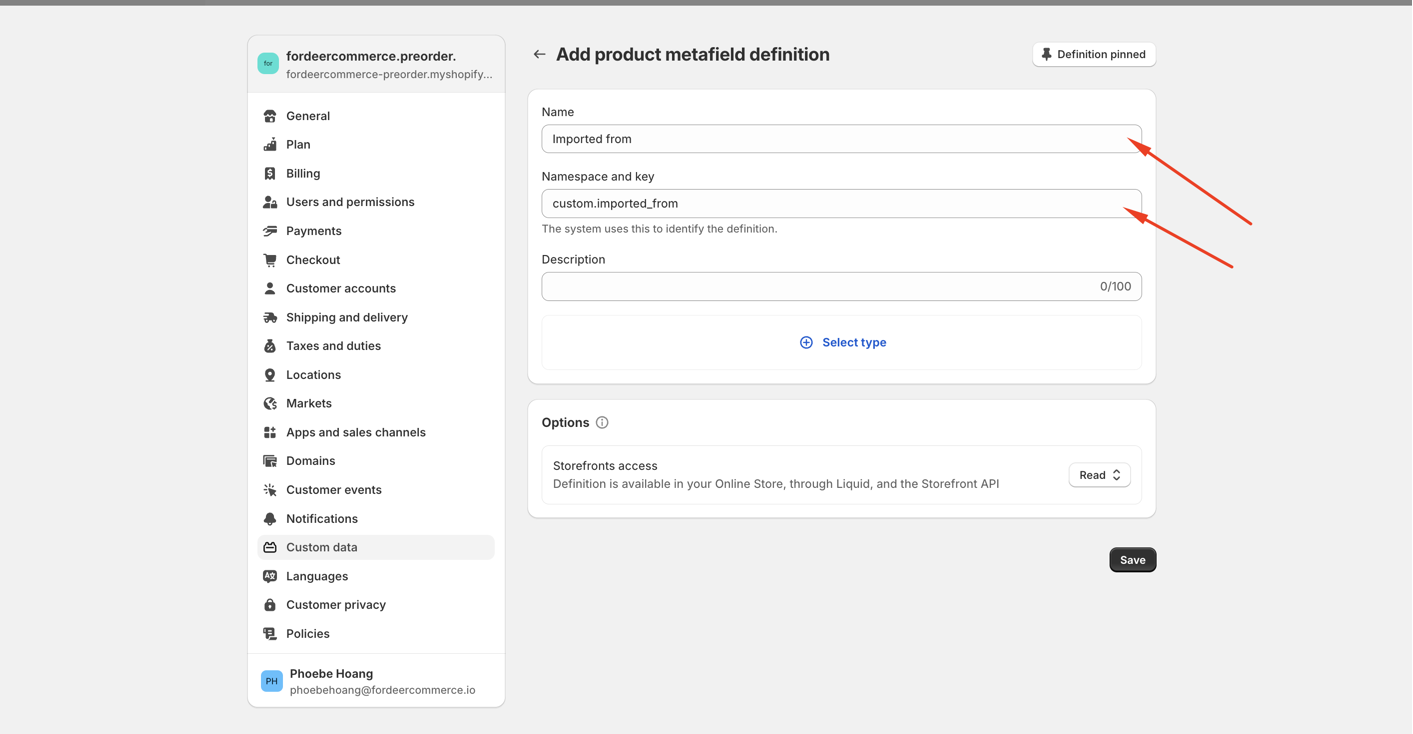
- Click Select type > Select the content type that best matches your metafield from the list > Set validation rules and additional configuration.
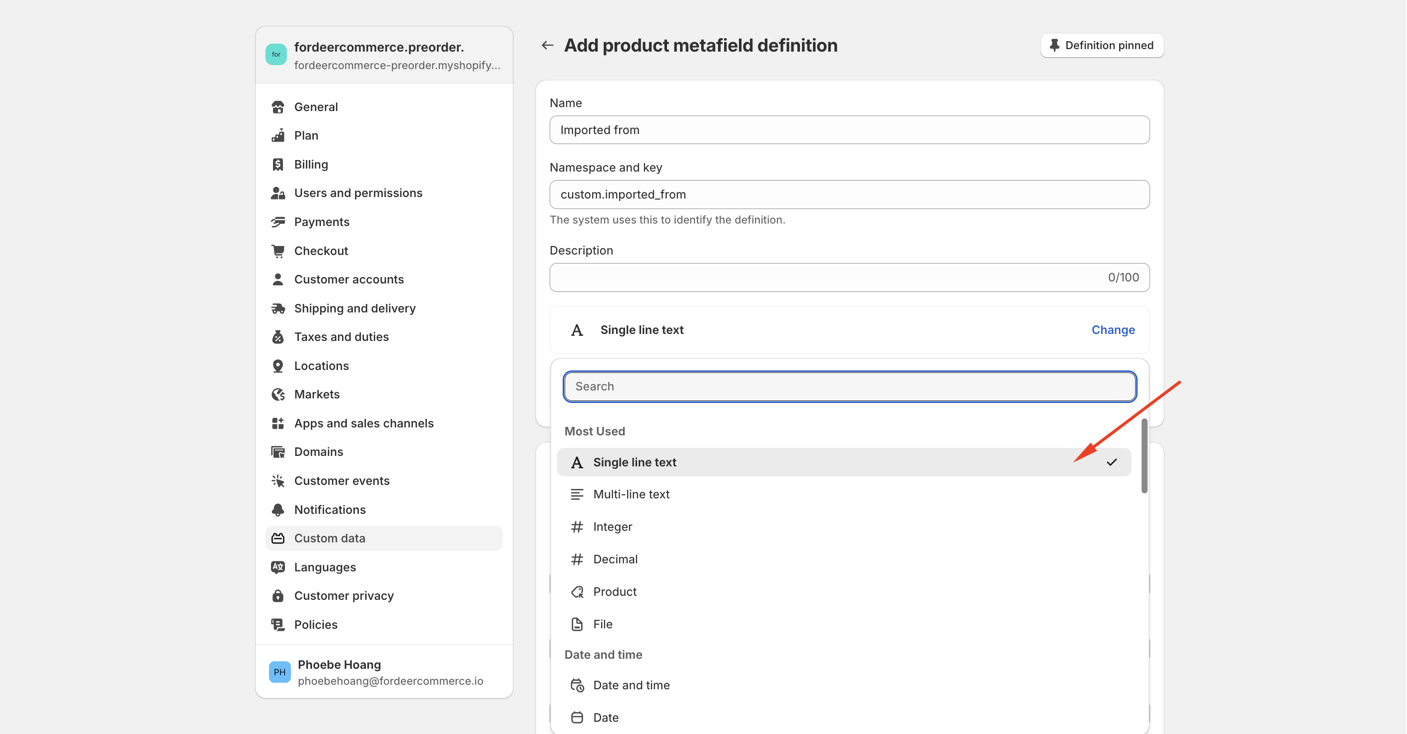
There are two types of metafield values: One value and list of values.
-
One value: is just one piece of data, like a string of text, a number, or a date.
-
List of values: is a collection of single values. This could be a list of colors, for example.
- Click Save
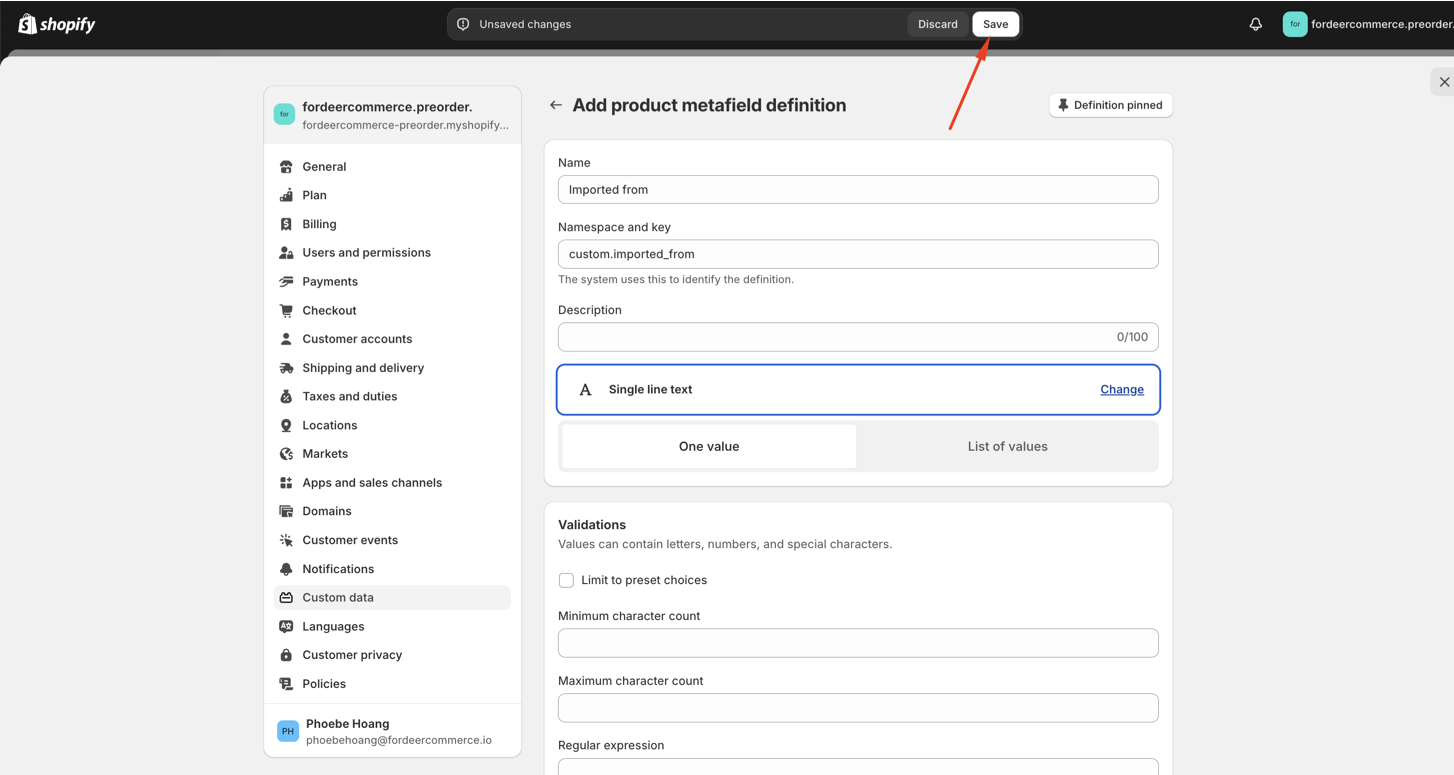
Add values to metafields
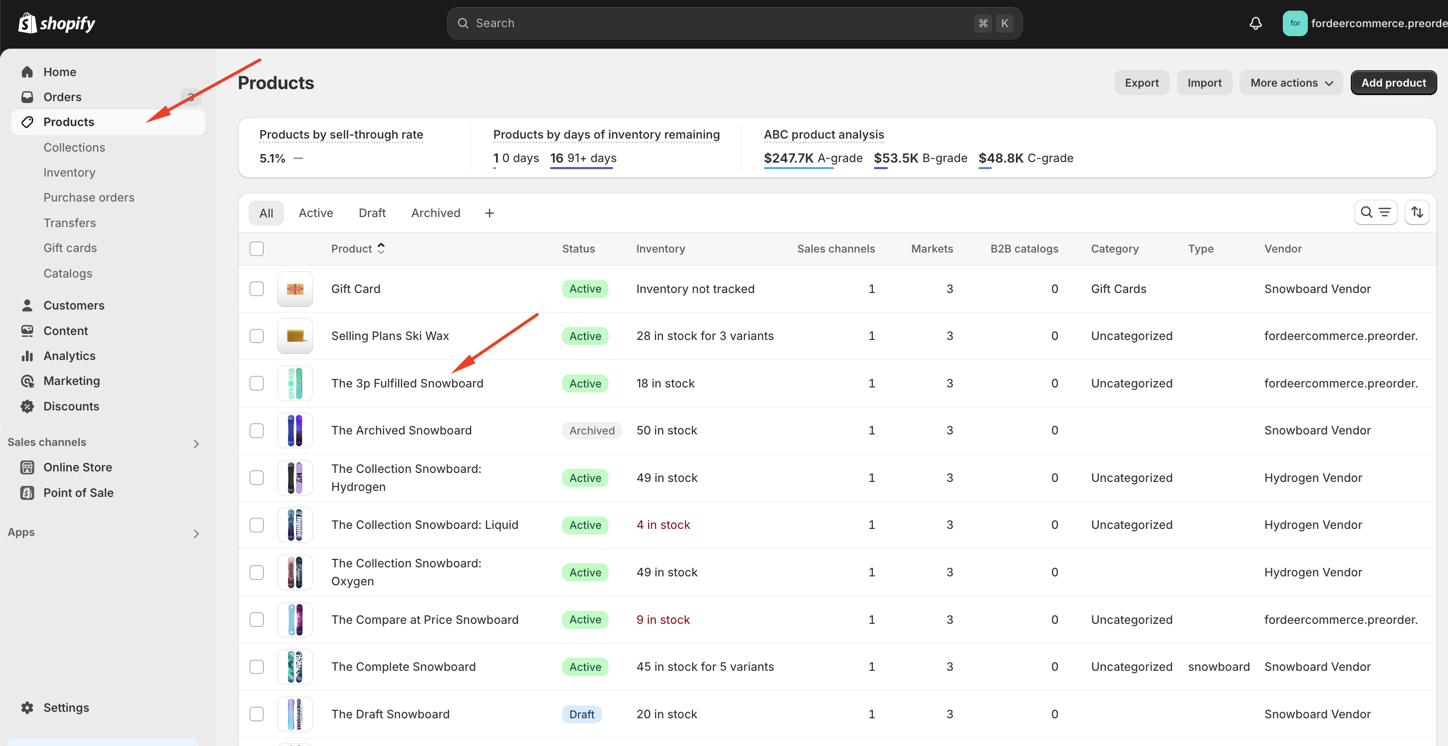
- From Shopify Admin, go to Products > Click a Product you want to add more content.
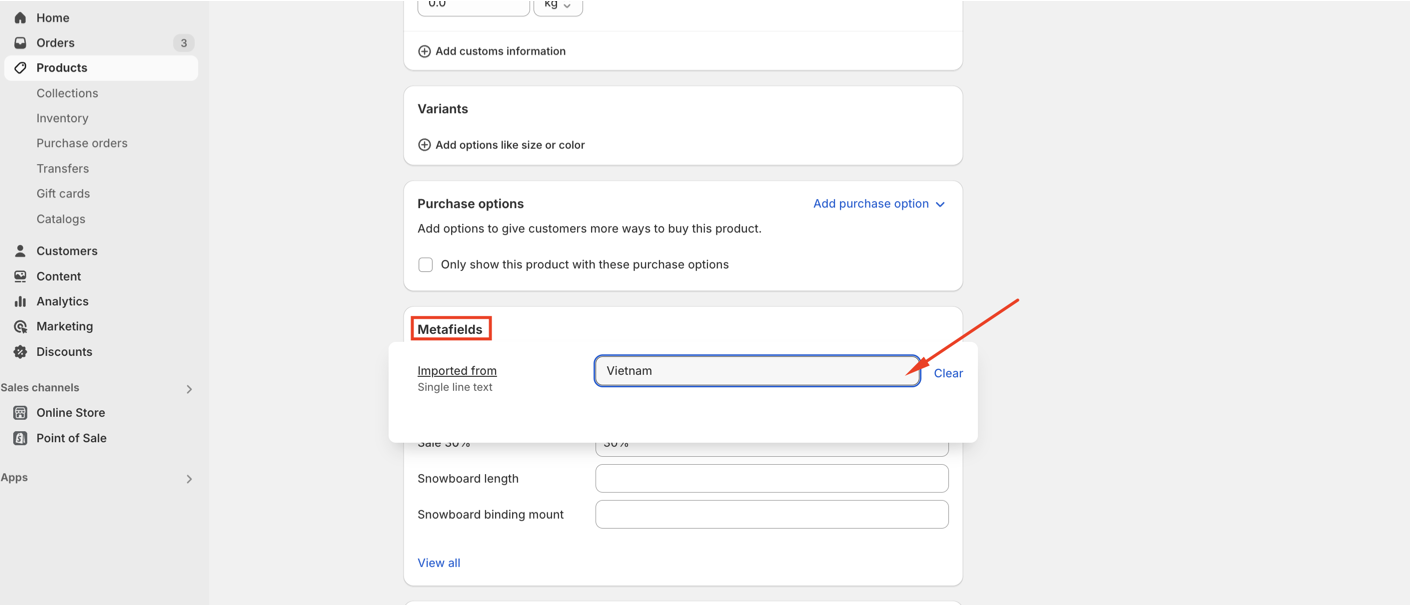
- In Metafields, add the content you want to display following the content types.
- Click Save
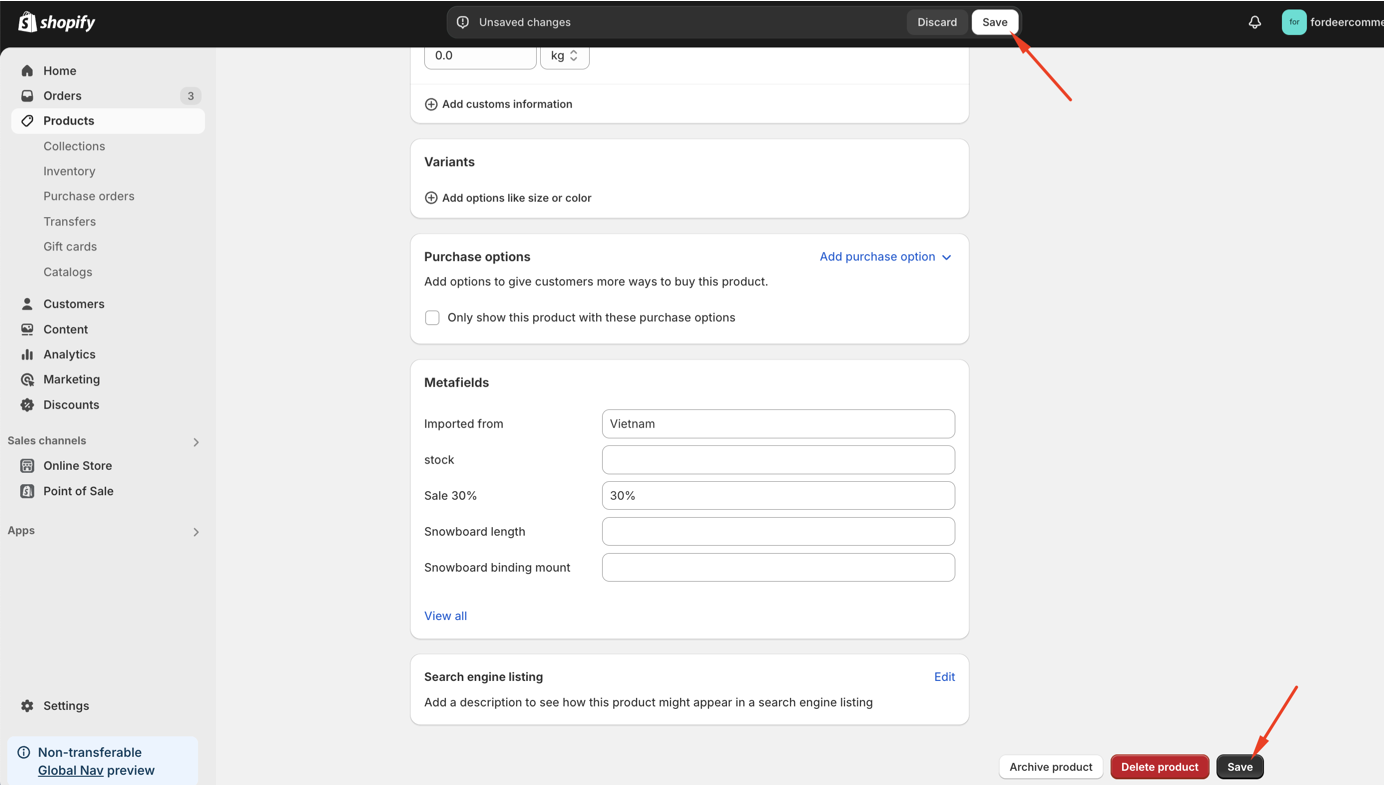
And that's it! You’ve successfully created and added Shopify Metafields to your store.
With Fordeer PDF Invoices, you can display order, customer, product, and variant metafields directly on your invoices, check out this helpdesk article for more.
Additionally, product metafields can be shown labels/badges on your store using the Product Labels app, check it out now 👉 How to add product metafields to label content?
Please give it a try and do not hesitate to contact us if the metafields does not display on your invoices, we will be more than happy to assist you.
We value your feedback — it helps us continuously improve app and provide you with a better experience.
👉 Chat with us: Share your feedback directly with our team.
👉 Explore more apps: Discover more Fordeer apps. special deals.
🕐 Working hours: 8:30 AM – 5:00 PM (UTC+7), Monday–Friday.
We typically reply to live chats within minutes and emails within a few hours.
Need help? Feel free to reach out anytime via live chat or email!