
Welcome to Fordeer's guide on adding payment to your Fordeer invoices. Follow these steps to ensure your invoices display payment terms clearly.
How to set up the payment terms Shopify Orders?
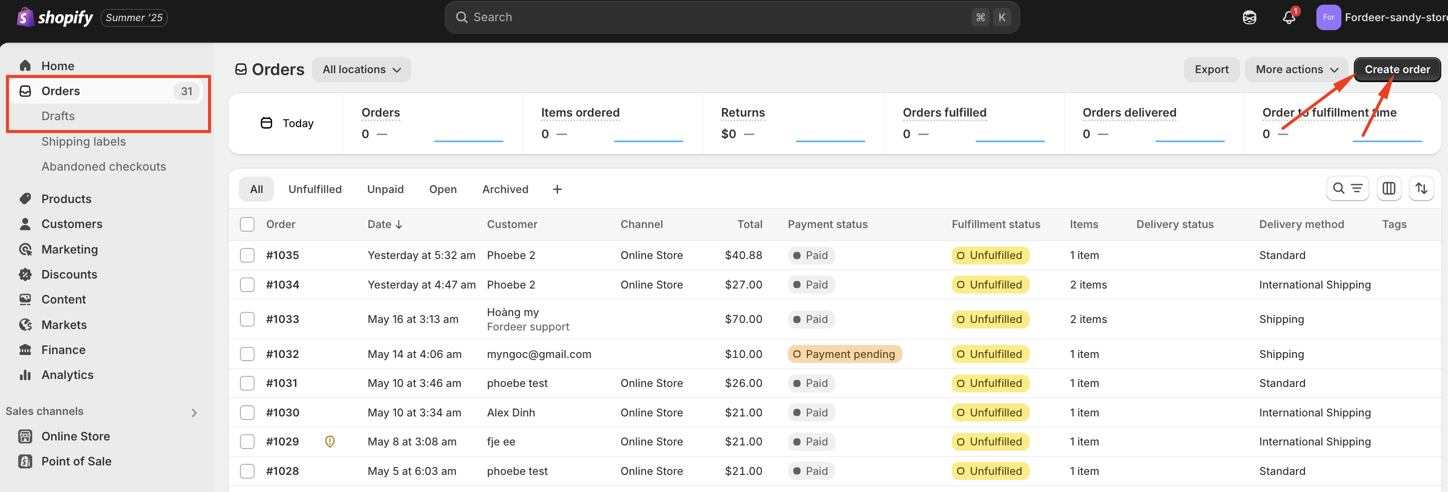
- Navigate to the Orders section and click Create order.
-
Fill in the required order details.
-
Check the Payment due later checkbox.
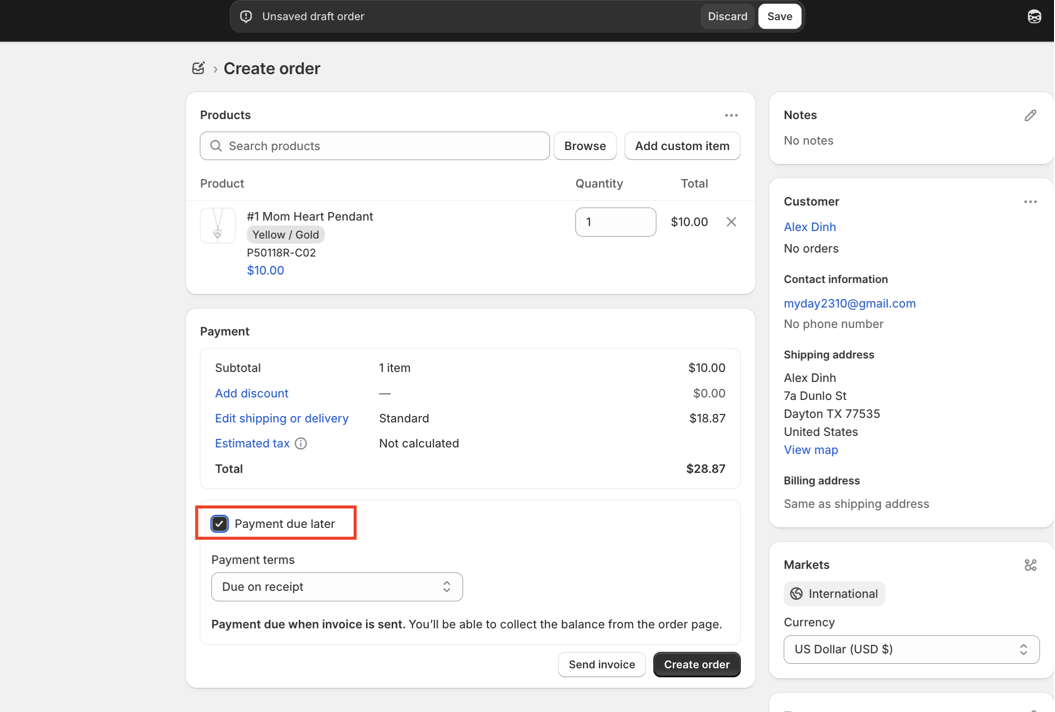
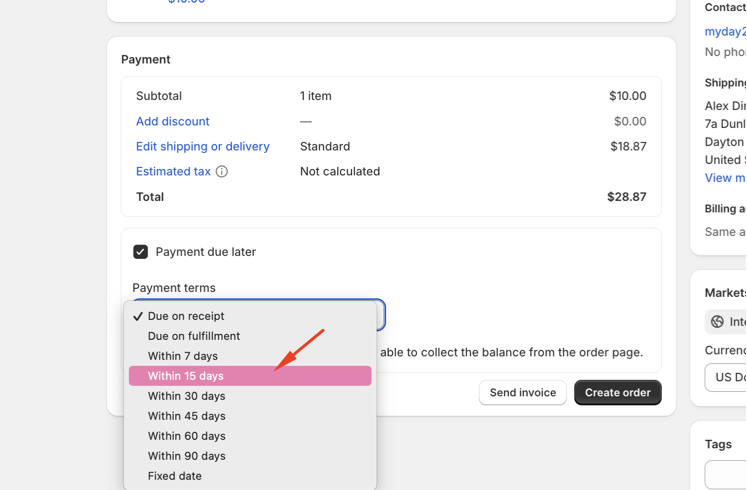
- Select a Payment terms option and choose the issue date.
- Click Create order to finalize.
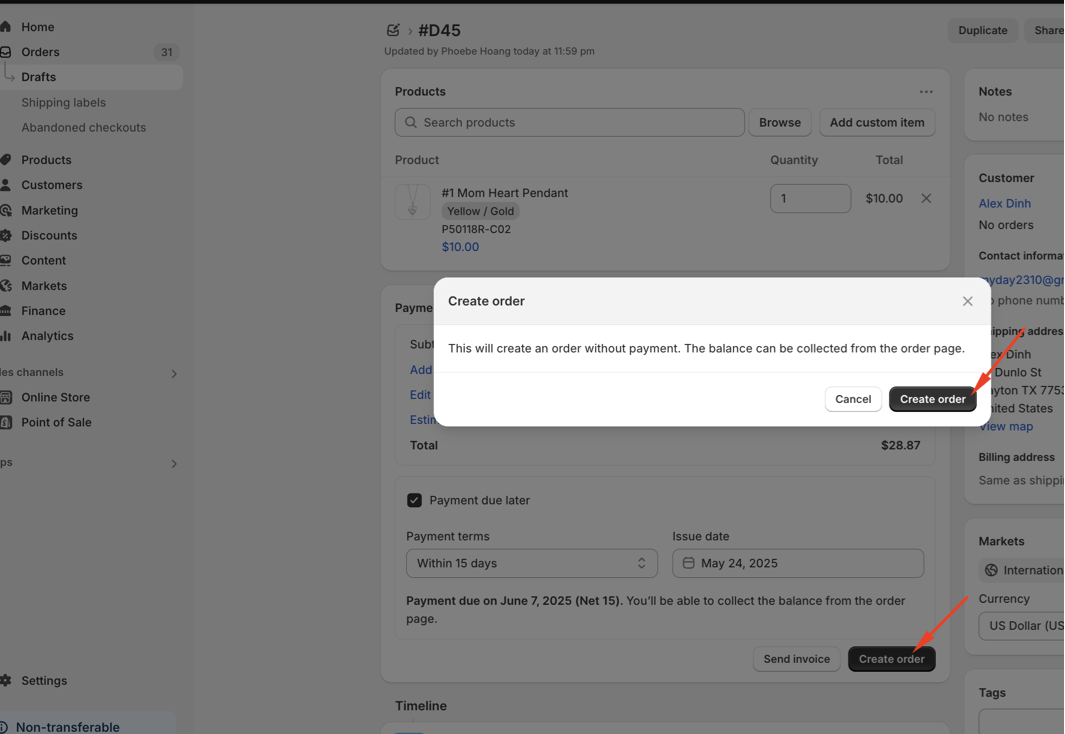
Here you can see the payment terms is Net15
How to display payment terms on invoices?
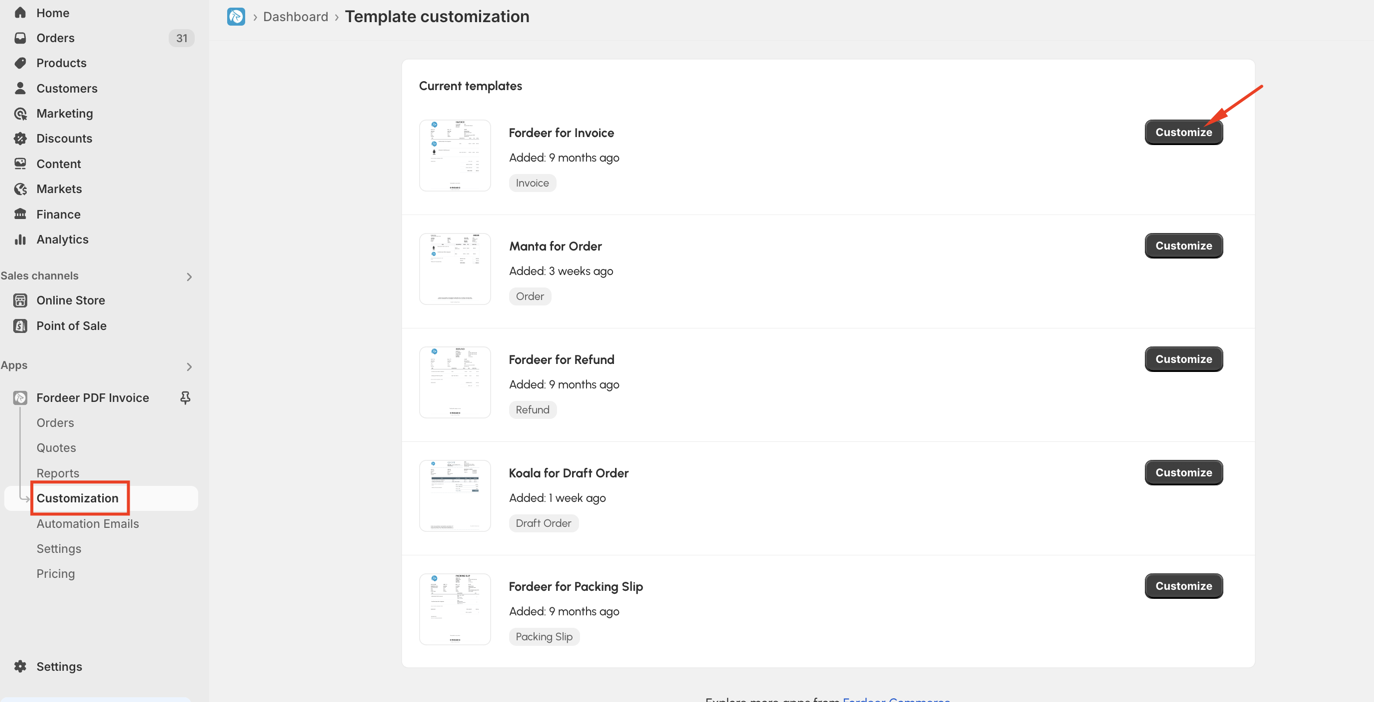
- Go to Customization page > Customize button on the template you want to set up
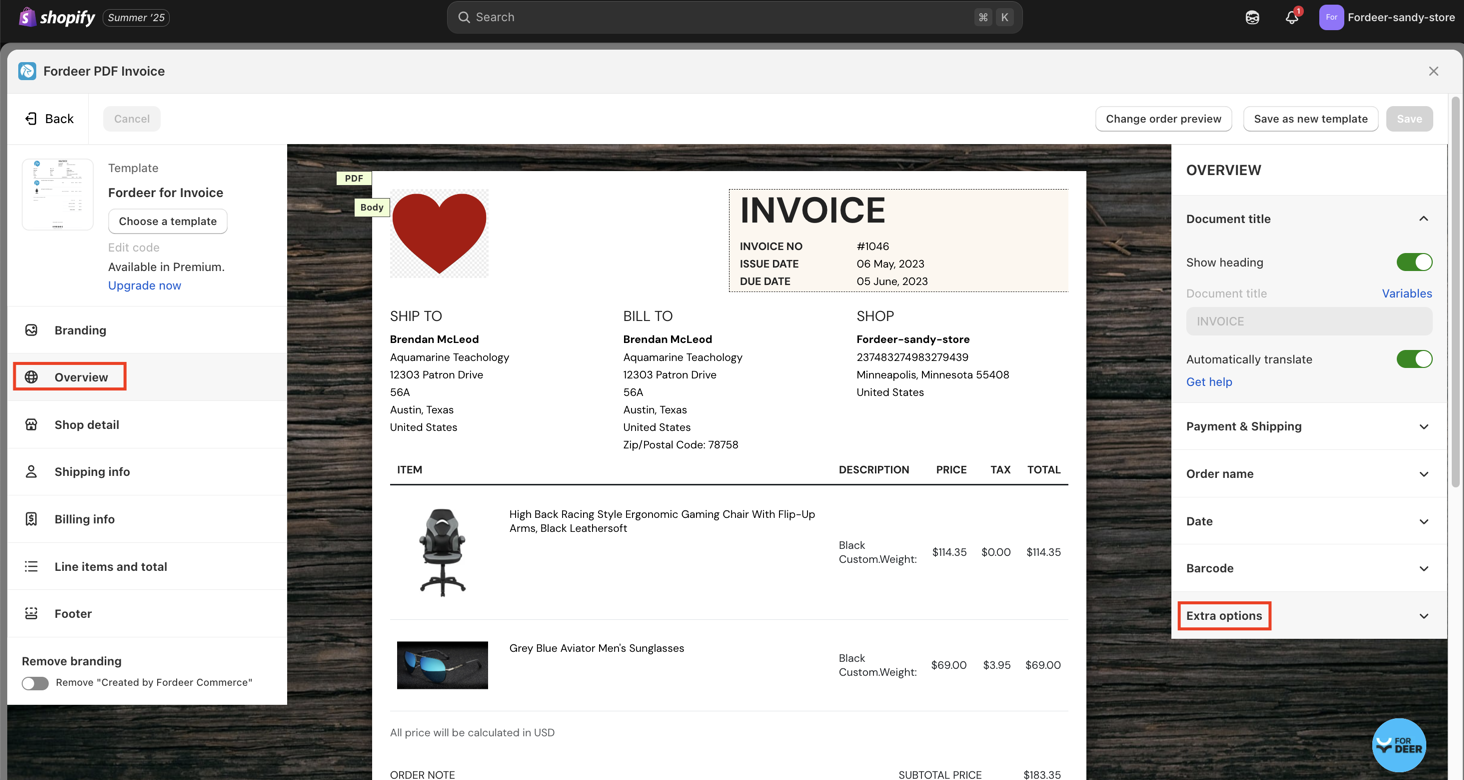
- Go to Overview section > Extra options
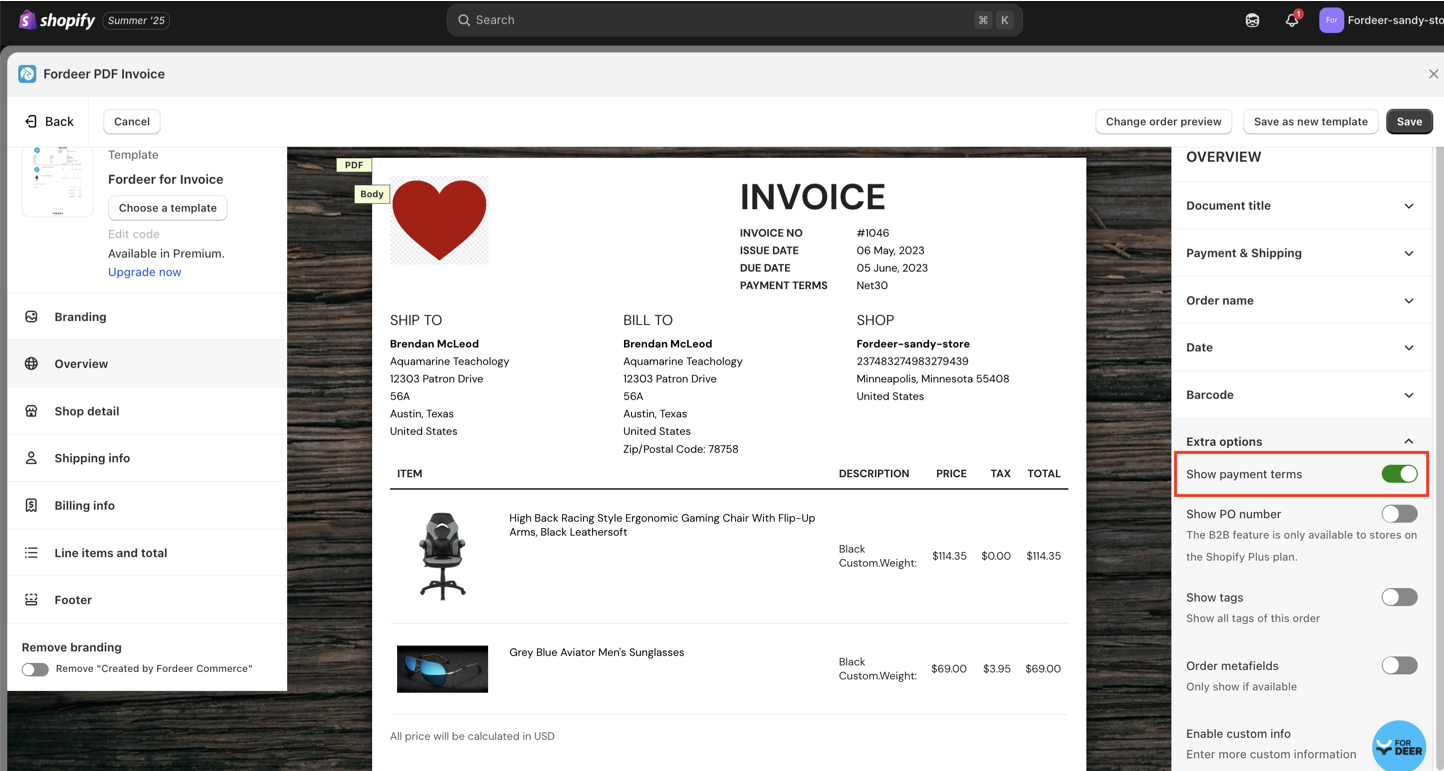
- Enable the *Show payment terms options.
-
Hit Save button at the end to save all the changes.
-
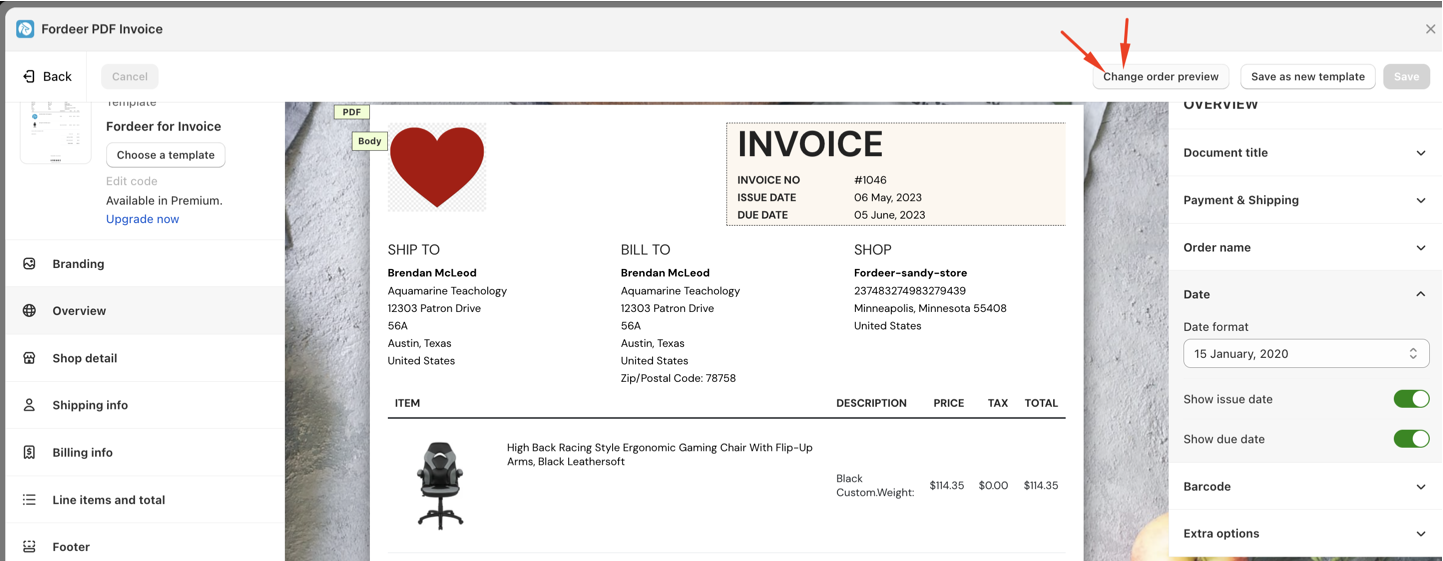
Preview the lastest order to check out the issue date & due date display on the invoices
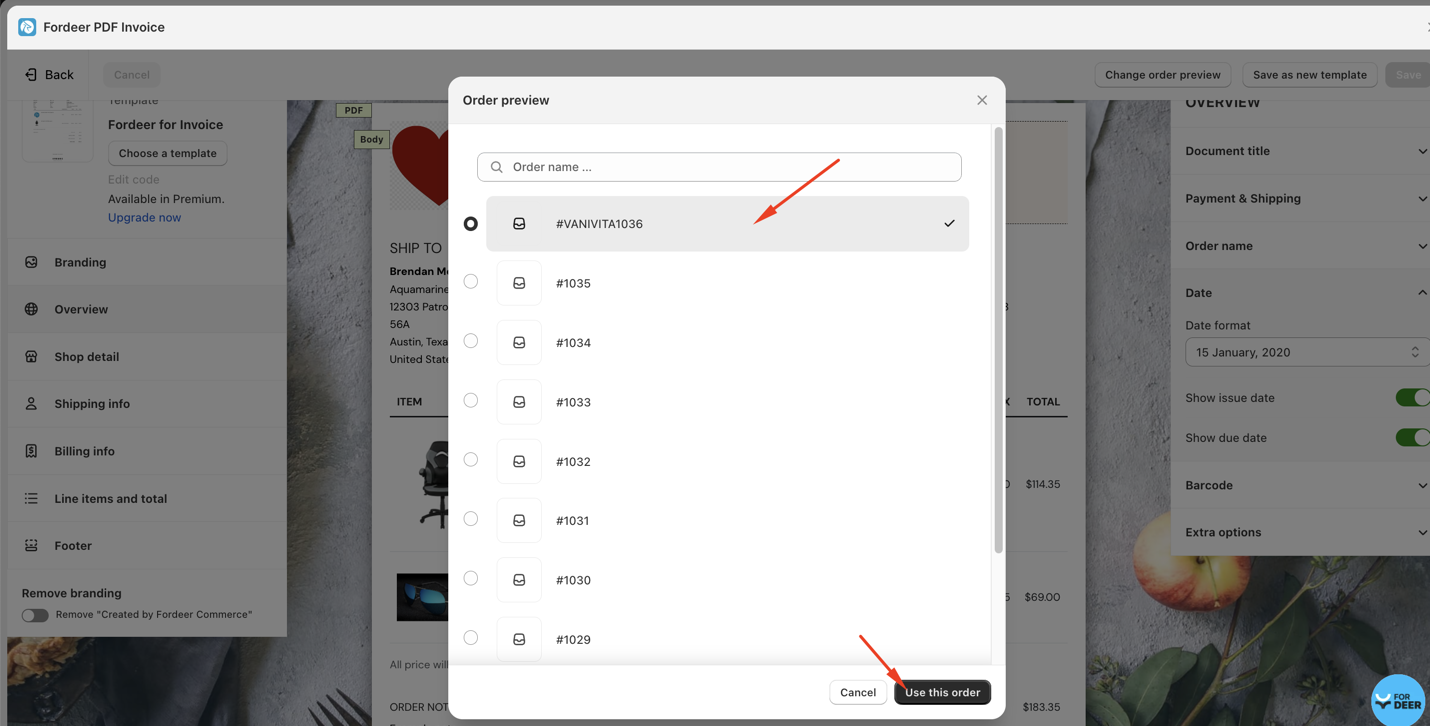
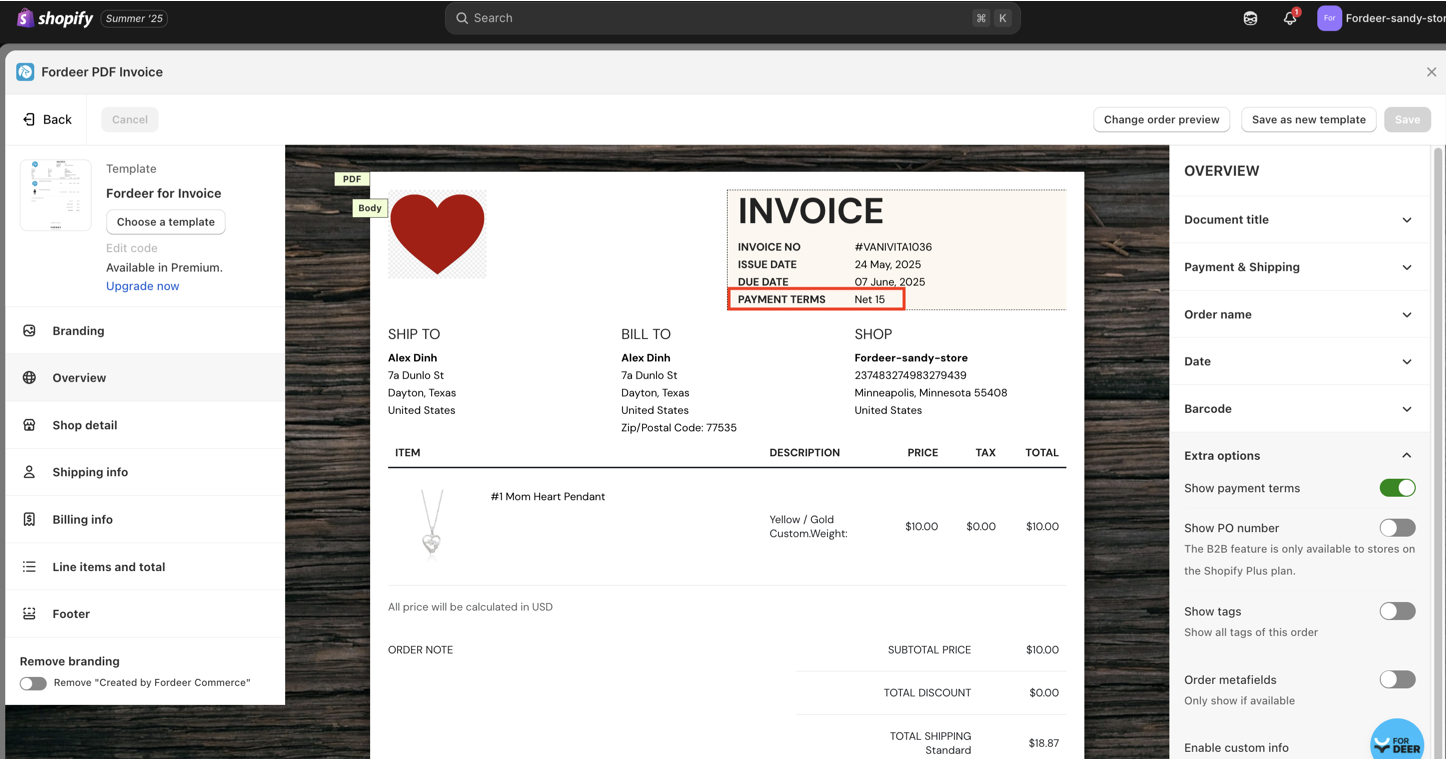
Even after the draft is converted to an order, the ‘Payment terms’ can be edited later in the order detail. You can find simple steps below:
- First, click on the order you wish to edit, and click on the three dots near the payment pending section
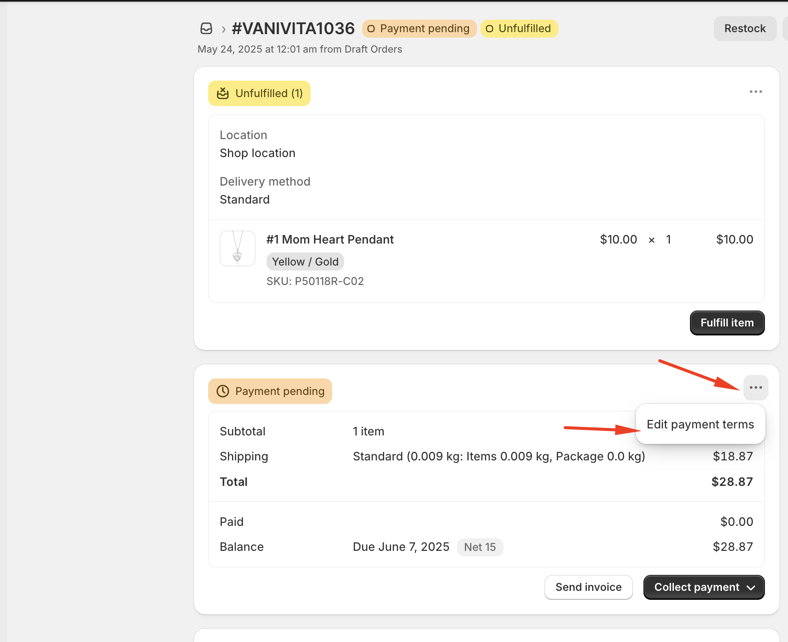
You can now change or remove the ‘Payment Terms’ from the Edit payment terms window. After making the necessary changes, click the “Save” button.
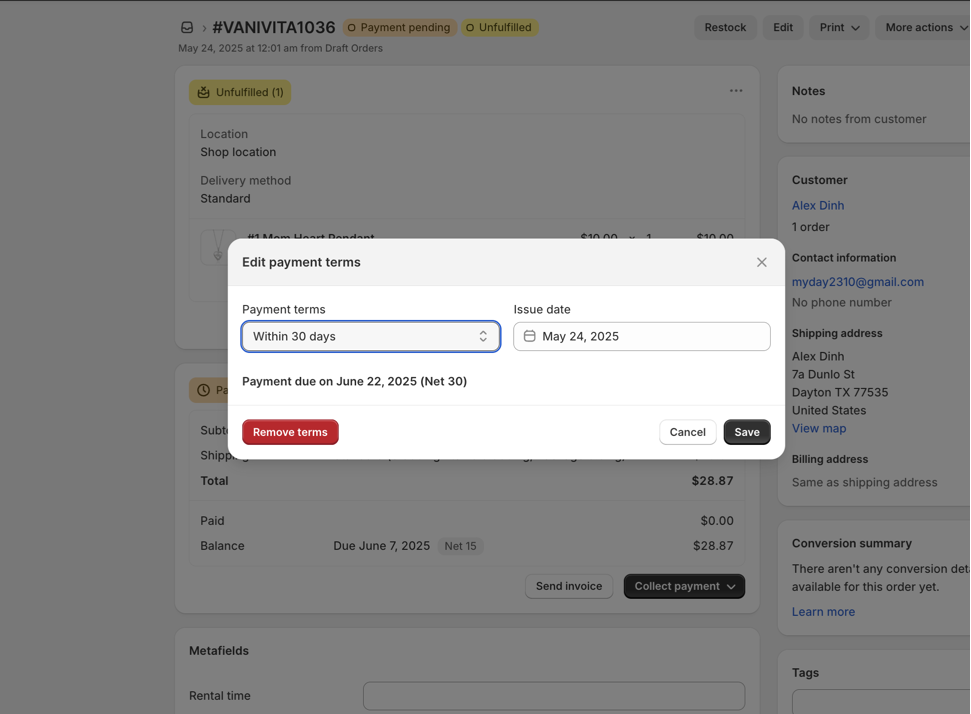
Our app will update automatically the changes from your orders.
Besides, you can show the due date & issue date on the invoices. If you notice any problems or have any questions while setting it up, feel free to reach out to us via live chat in-app or email: hi@fordeercommerce.io
We value your feedback as it helps us to improve and support your experience.
We value your feedback — it helps us continuously improve app and provide you with a better experience.
👉 Chat with us: Share your feedback directly with our team.
👉 Explore more apps: Discover more Fordeer apps. special deals.
🕐 Working hours: 8:30 AM – 5:00 PM (UTC+7), Monday–Friday.
We typically reply to live chats within minutes and emails within a few hours.
Need help? Feel free to reach out anytime via live chat or email!