
Hello from Fordeer Commerce!
We’re here to make managing customer quotations as seamless as possible for your Shopify store. This guide walks you through how to enable customers to request a quote, create and manage quotes manually, and convert them into orders. Follow the steps below to unlock the full potential of Fordeer’s powerful quoting features.
Allow Customers to Request a Quote from the Cart Page
Do you want customers to conveniently request a quote directly from their shopping cart? With Fordeer, it’s easy to set this up. Here’s how:
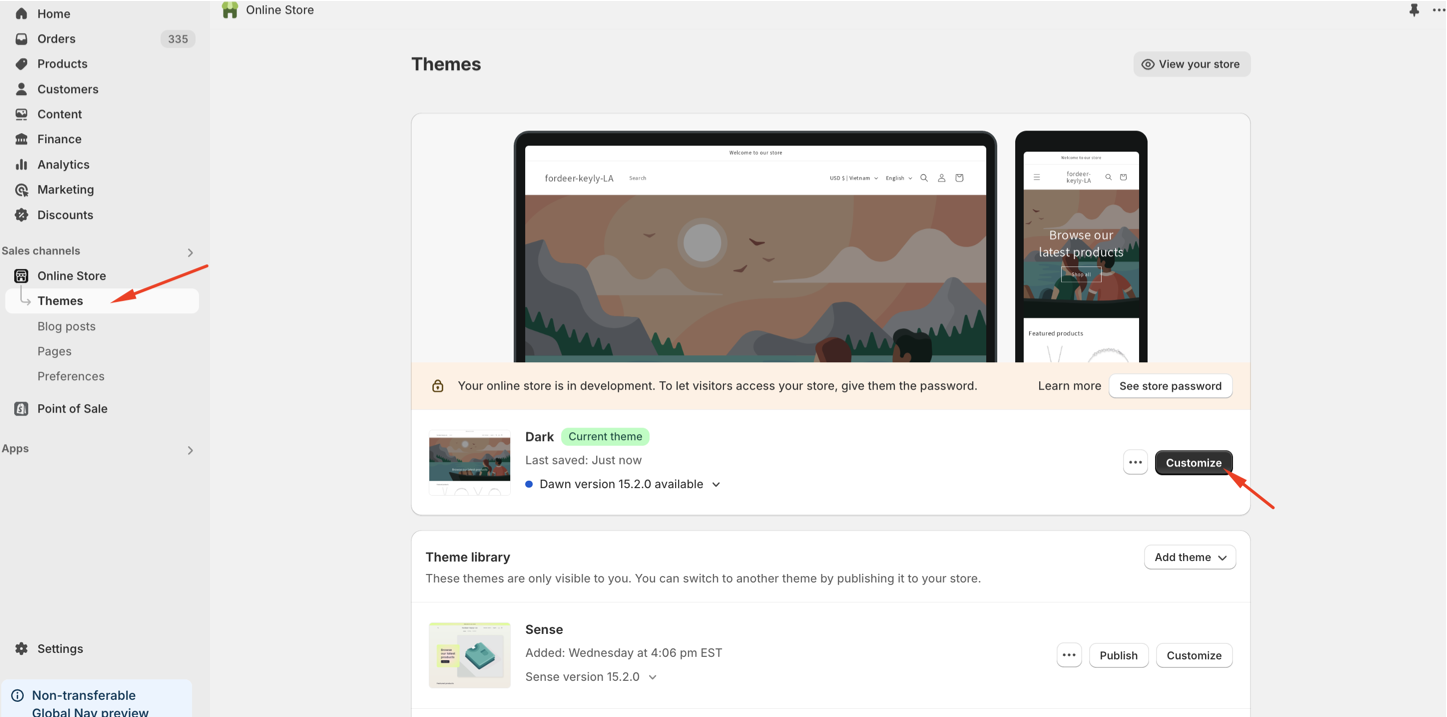
- Go to your Shopify admin panel and navigate to: Online Store > Themes > Customize (live theme).
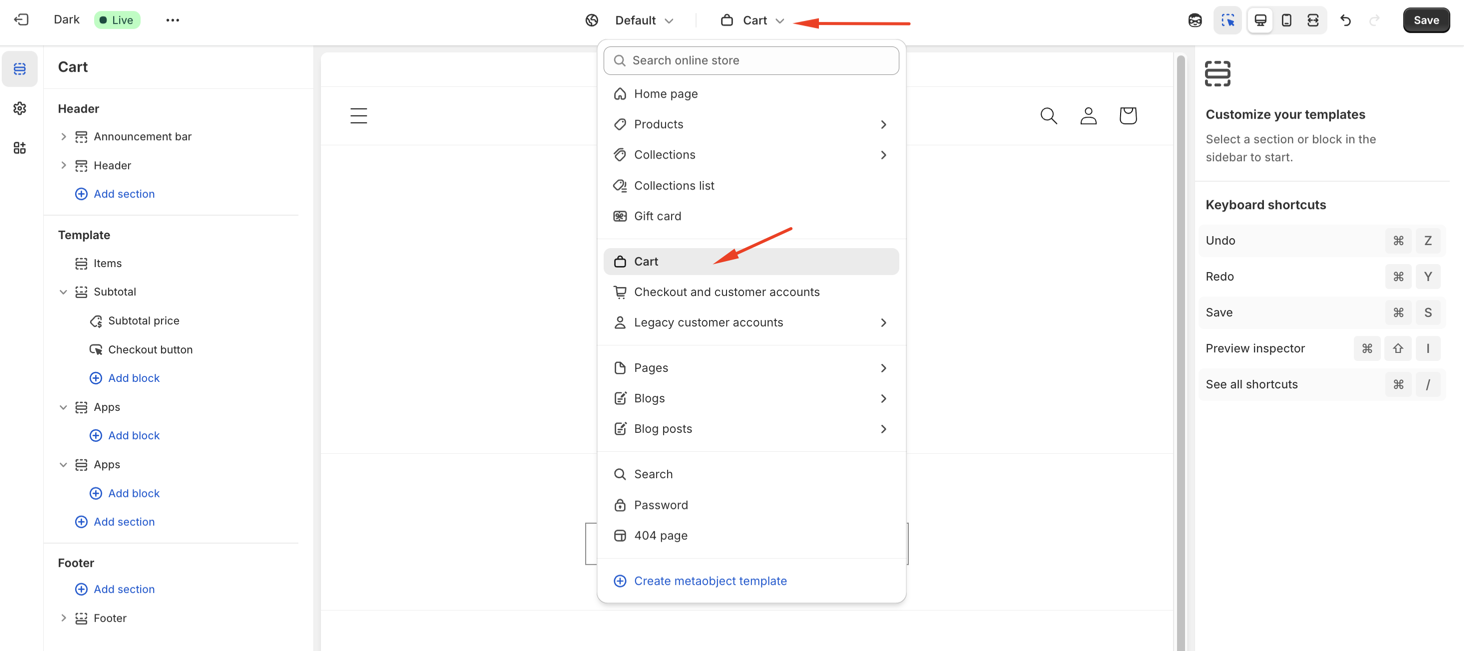
- Select the Cart Page where you’d like the request button to appear.
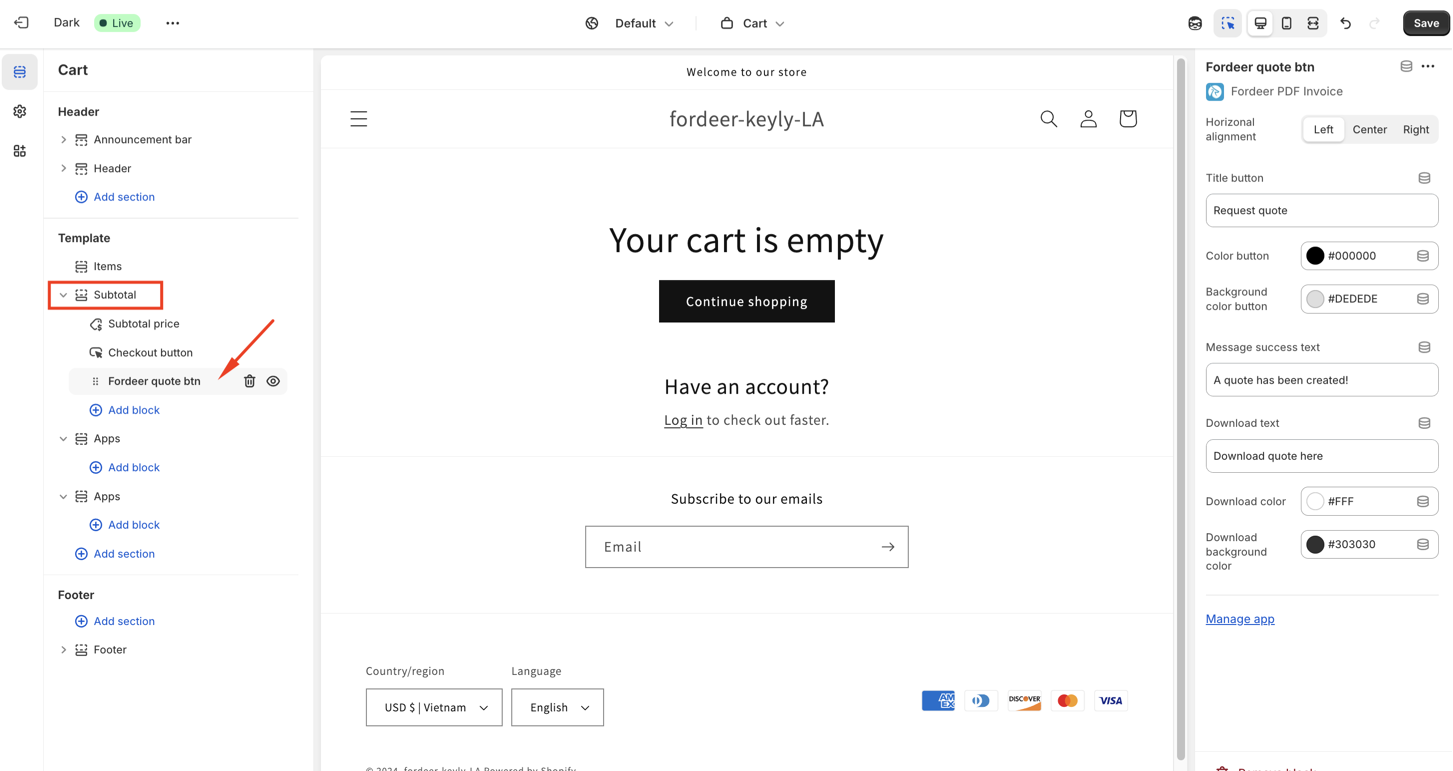
- In the Sections panel, look for the Fordeer quote btn block and add it to the Subtotal Template.
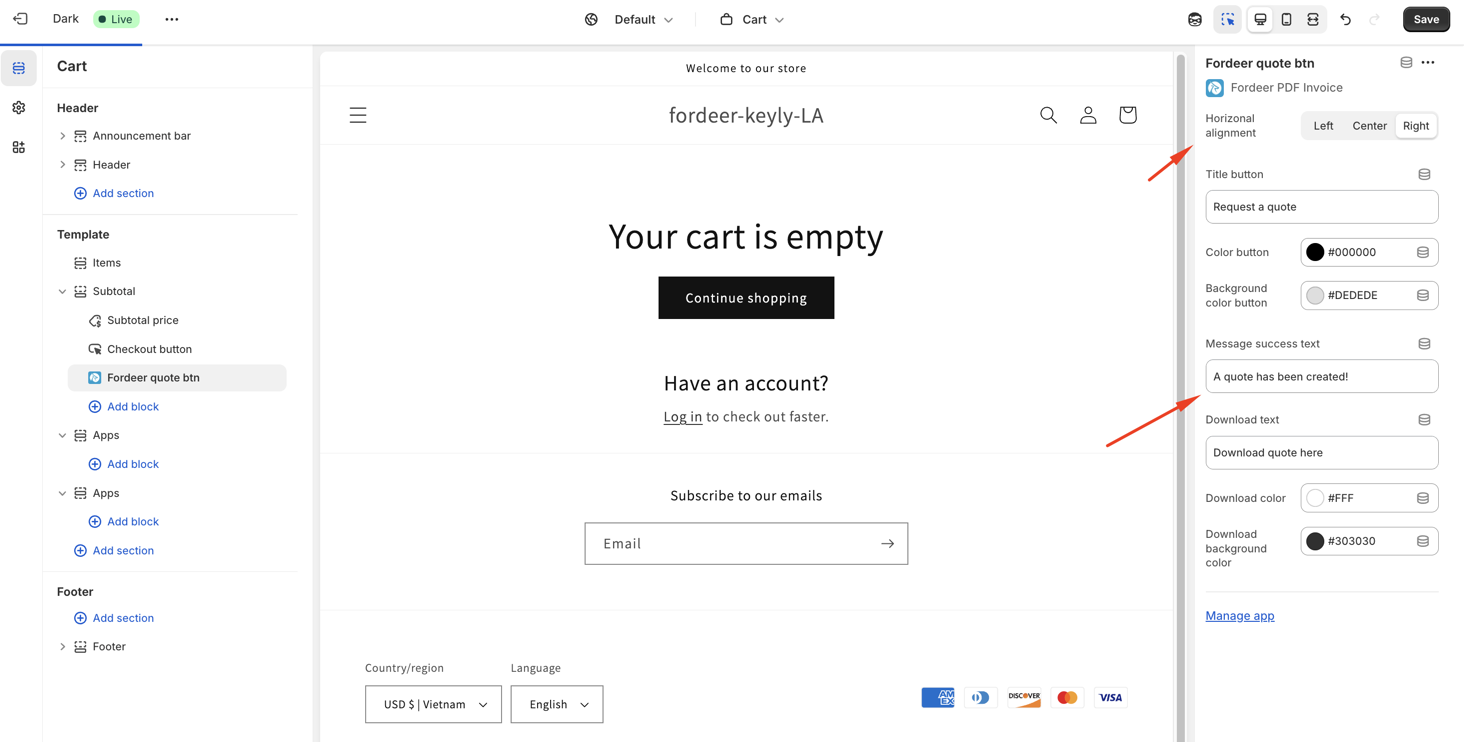
- Customize the button text to match your store’s branding and communication style.
- Go to App embeds section and activate the Fordeer Invoice
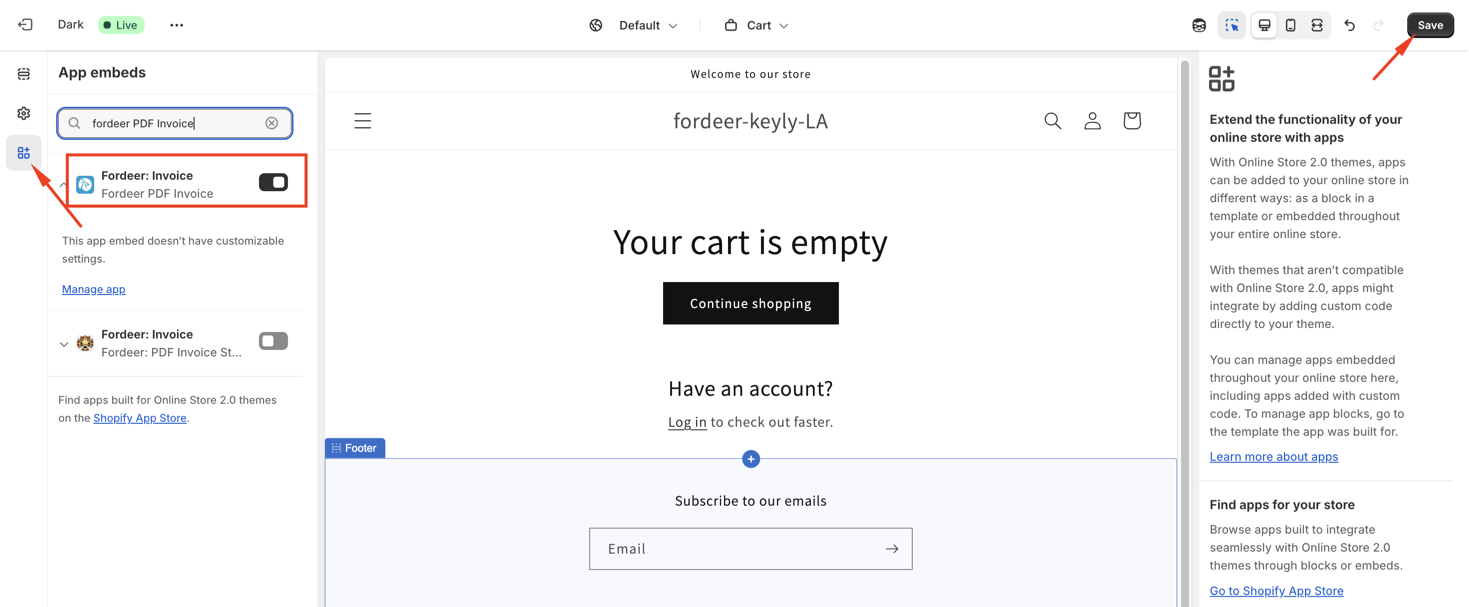
- Click Save button at the end
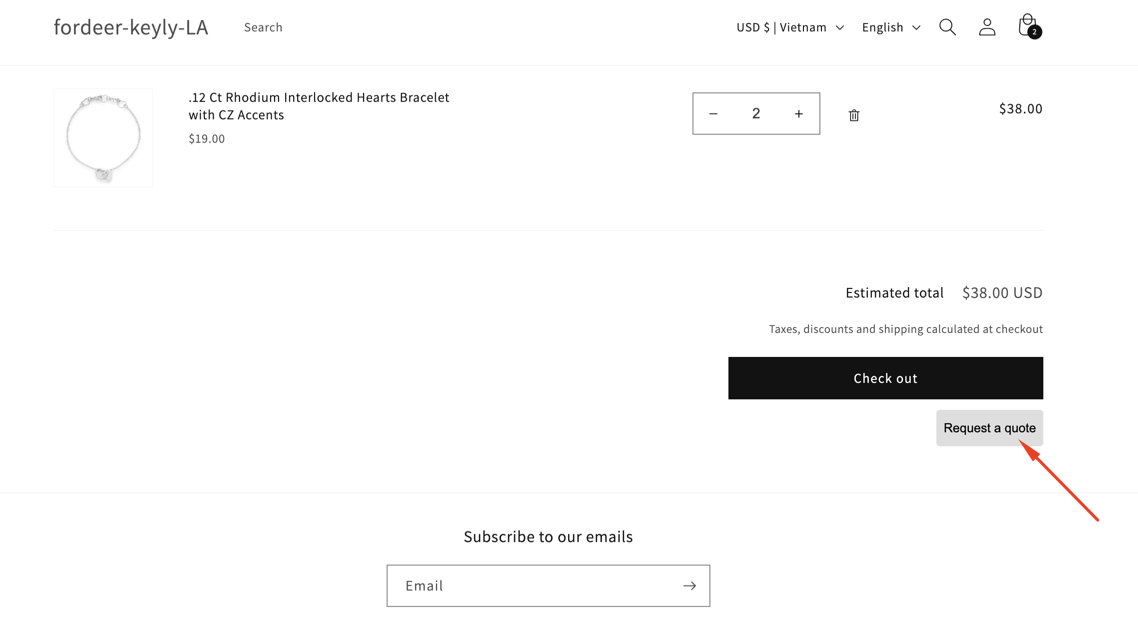
Your customers can now request quotes directly from their cart with a single click. Here is an example after adding a RAQ button to the cart page:
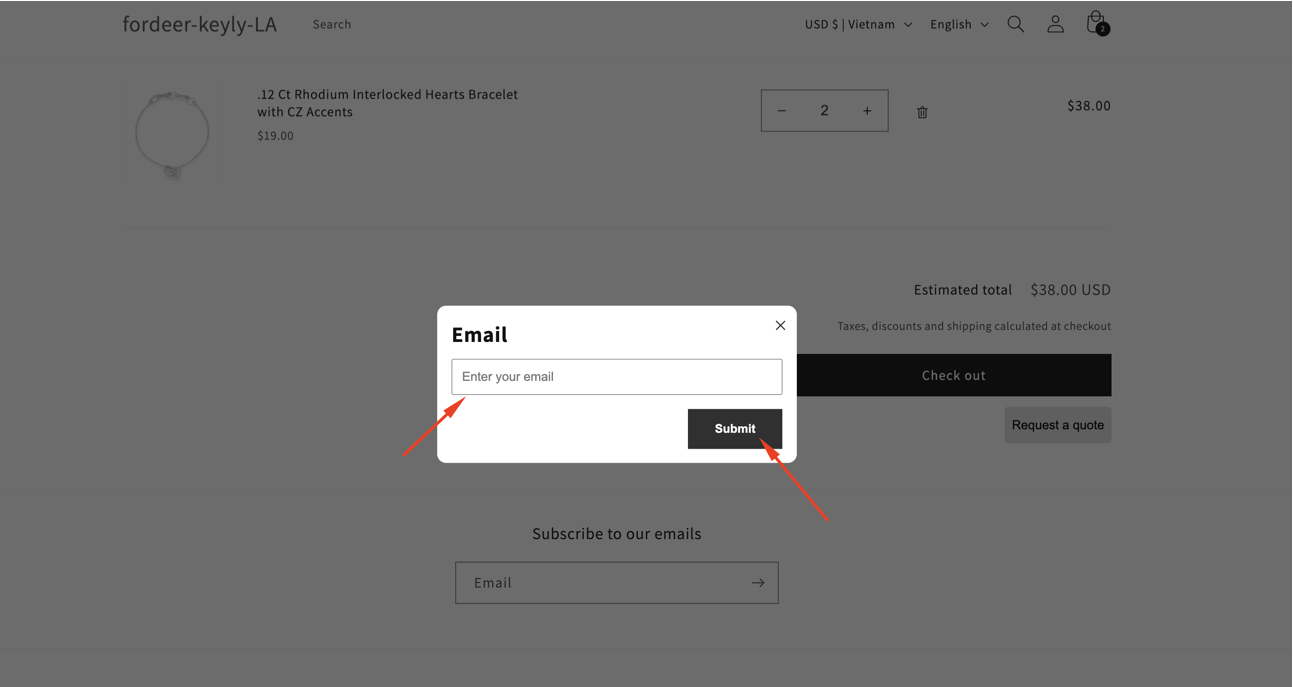
After a customer submits a quote request, they will need to enter their email address in the designated field.
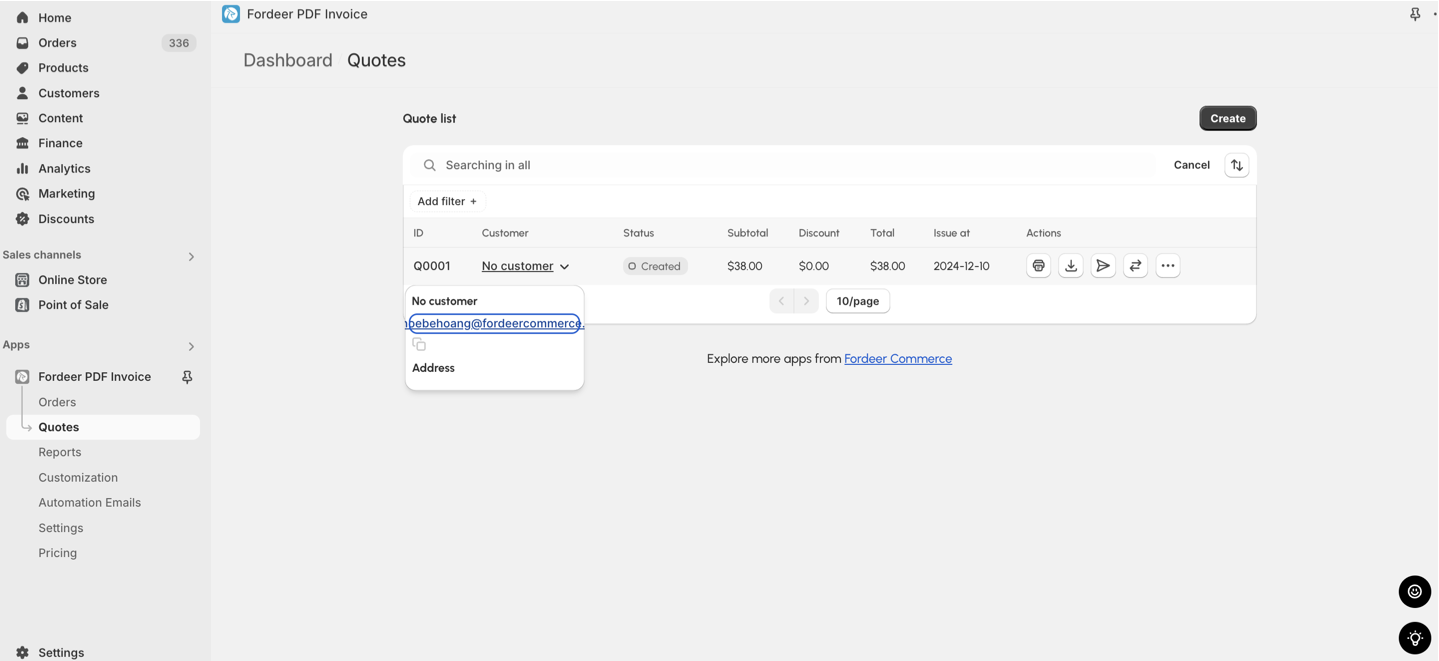
Once submitted, the quotation will appear on your app's Dashboard and you can send quotation email to customers easily on our app.
2. Create Quotes Manually as a Merchant
You don’t need to wait for customers to request quotes through the cart page. If a customer reaches out to you directly, you can create a quotation manually through the Fordeer app. This allows you to tailor the quote to their exact needs.
- Open the Quotes section from the sidebar menu and click Create button
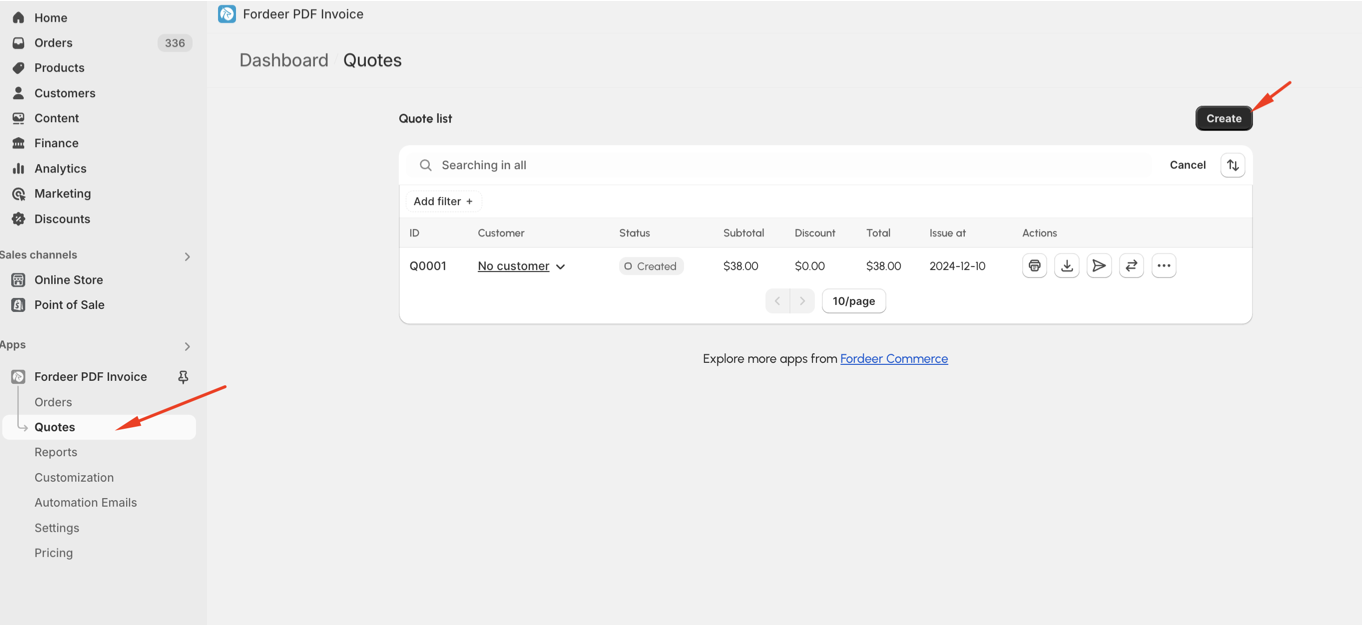
- You’ll be redirected to an intuitive, POS-style interface where you can begin creating a customized quote.
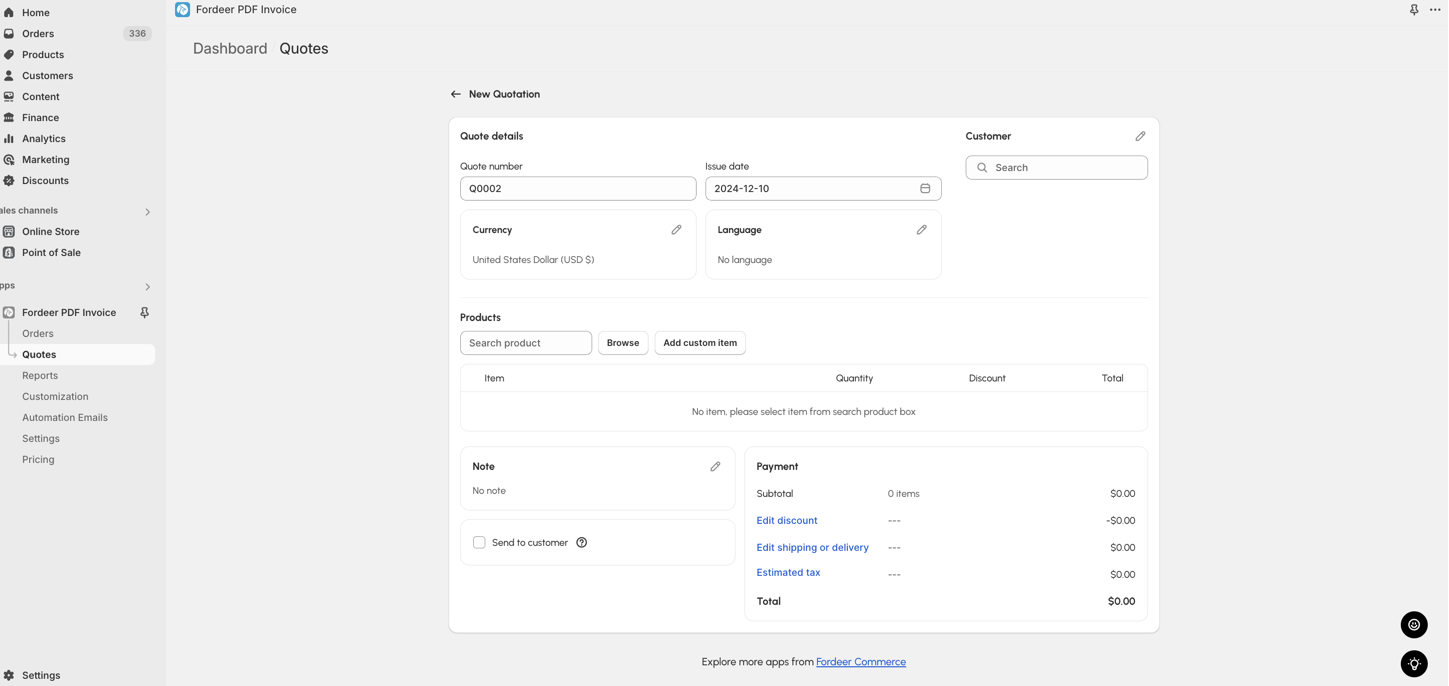
What You Can Add to the Quotation:
-
Quote Number: Enter your preferred reference number for easy tracking.
-
Issue Date: Specify the date when the quote is issued.
-
Customer: Select an existing customer from your database or create a new one.
-
Currency: Choose the currency in which the quote will be presented.
-
Language: Pick from 10 supported languages. Don’t see your preferred language? Check out our translation guide for help.
-
Products:
-
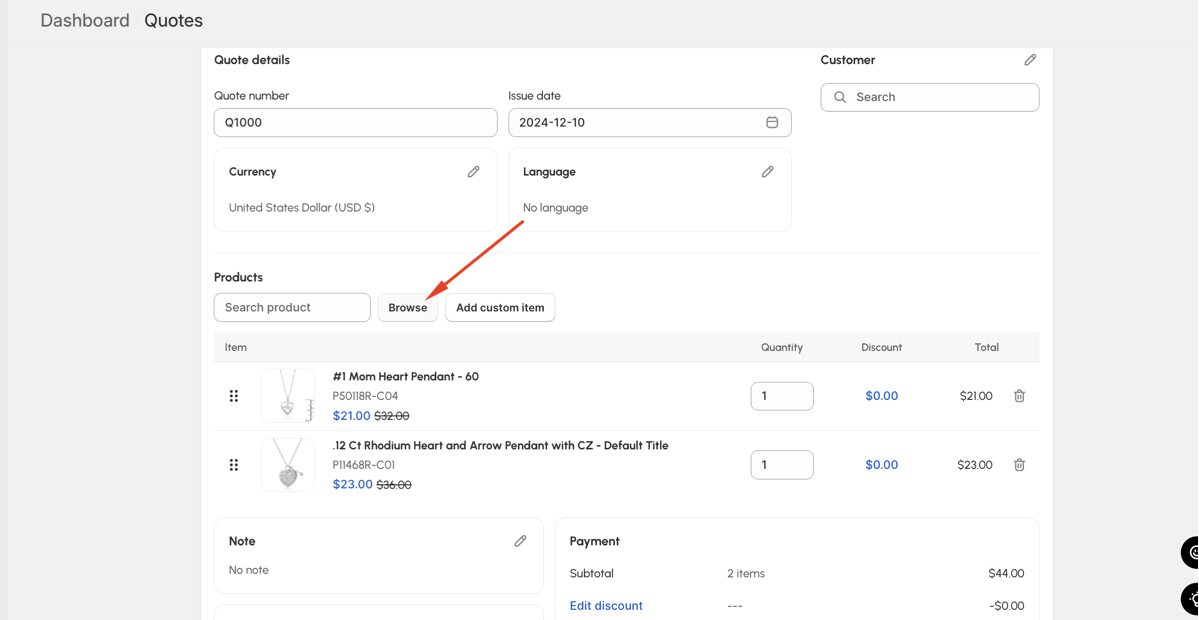
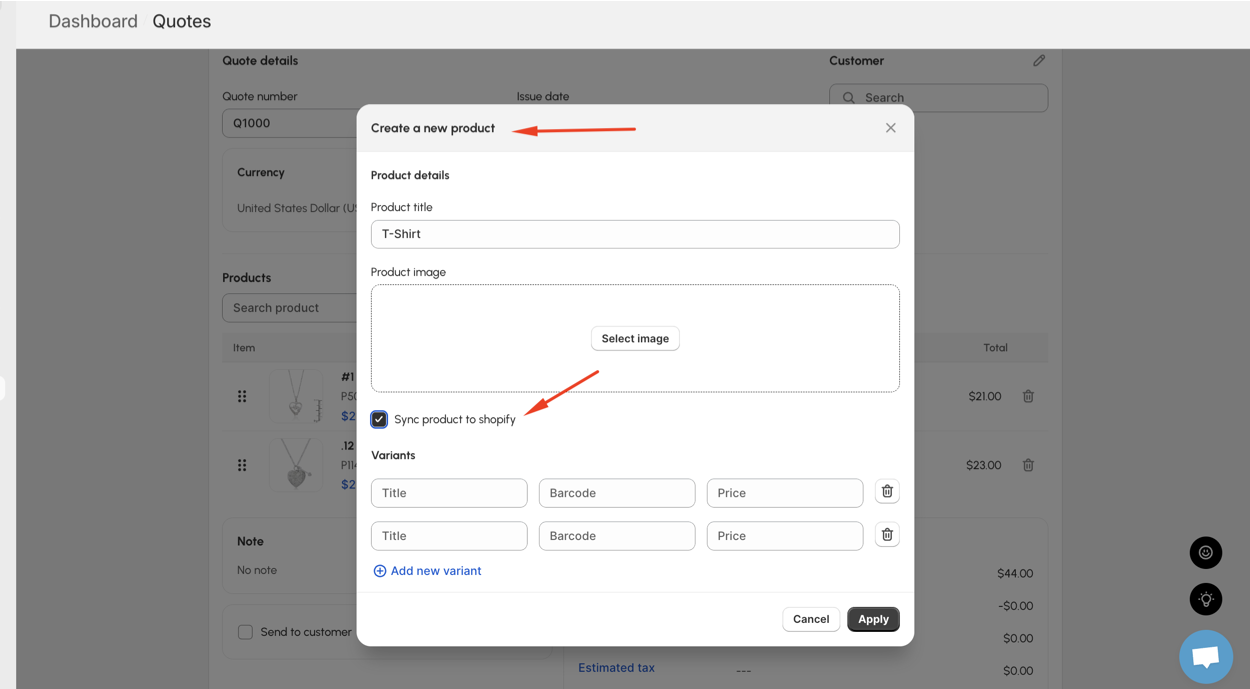
Choose existing products from your Shopify store or create custom items directly within the app.
- Push custom items to your Shopify product catalog with a single click.
After selecting products:
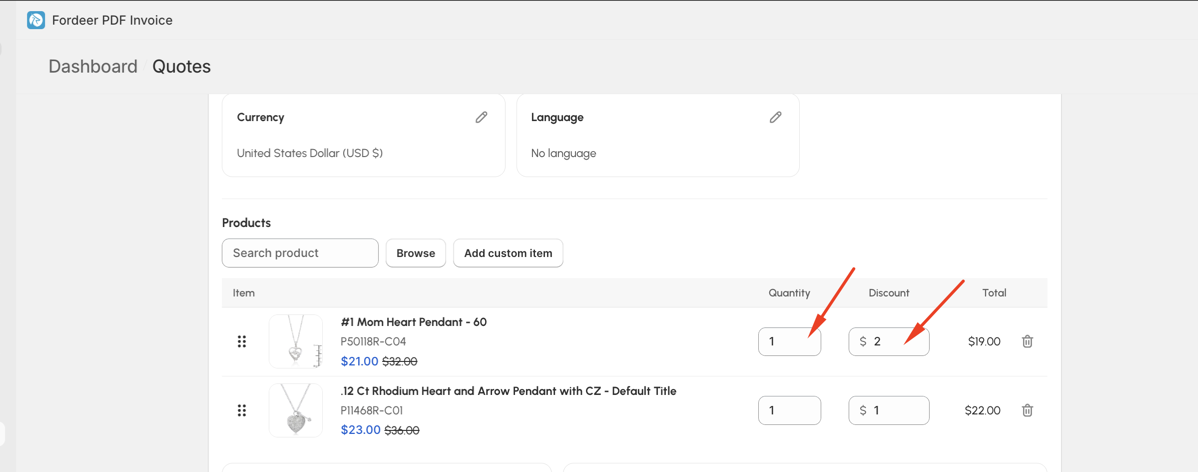
- Adjust prices, quantities, and discounts.
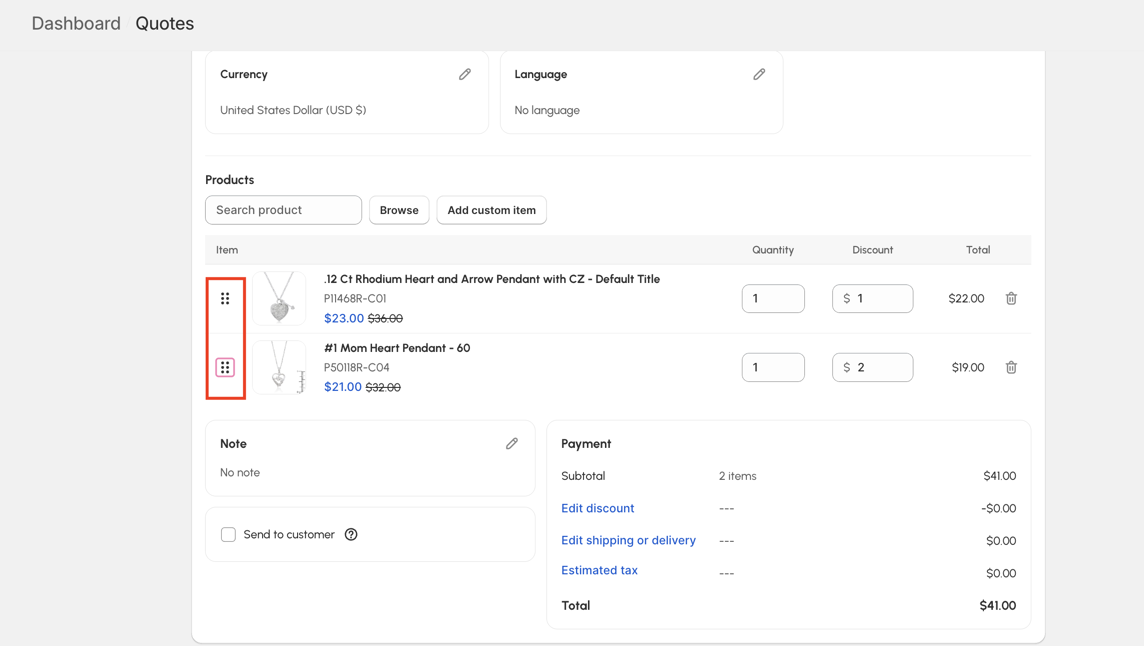
- Reorder items easily using drag & drop
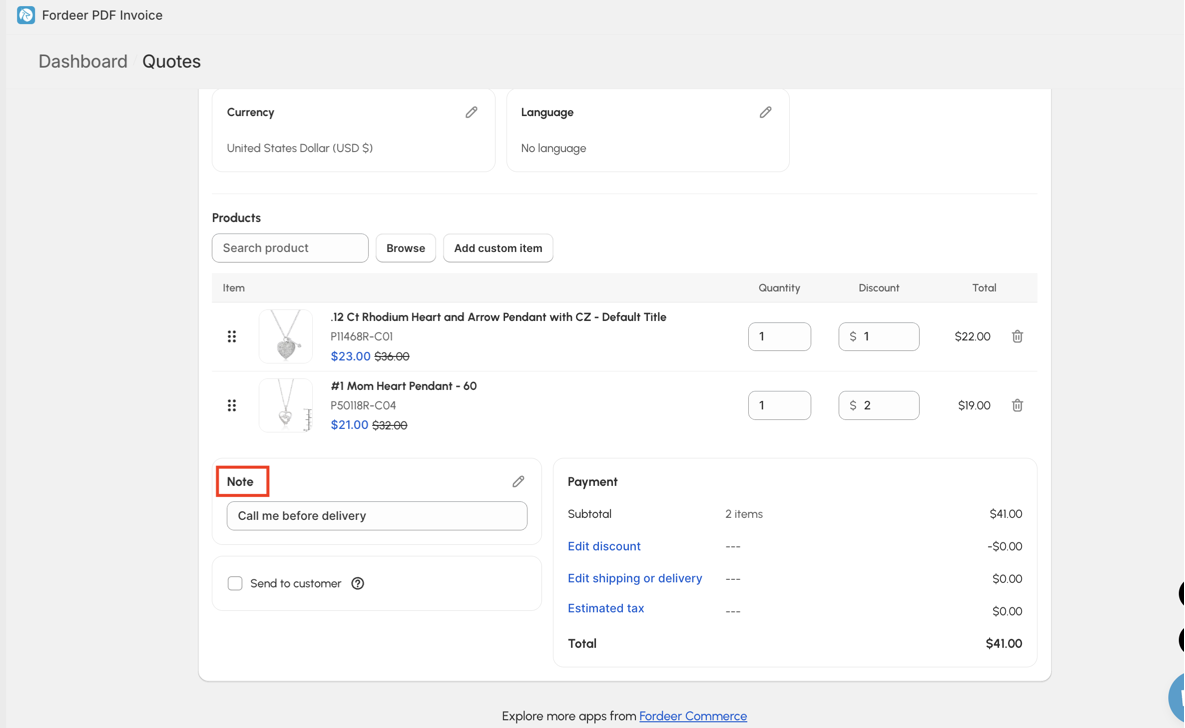
- Notes: Use this field to include specific details or comments for the customer, such as terms or additional information.
-
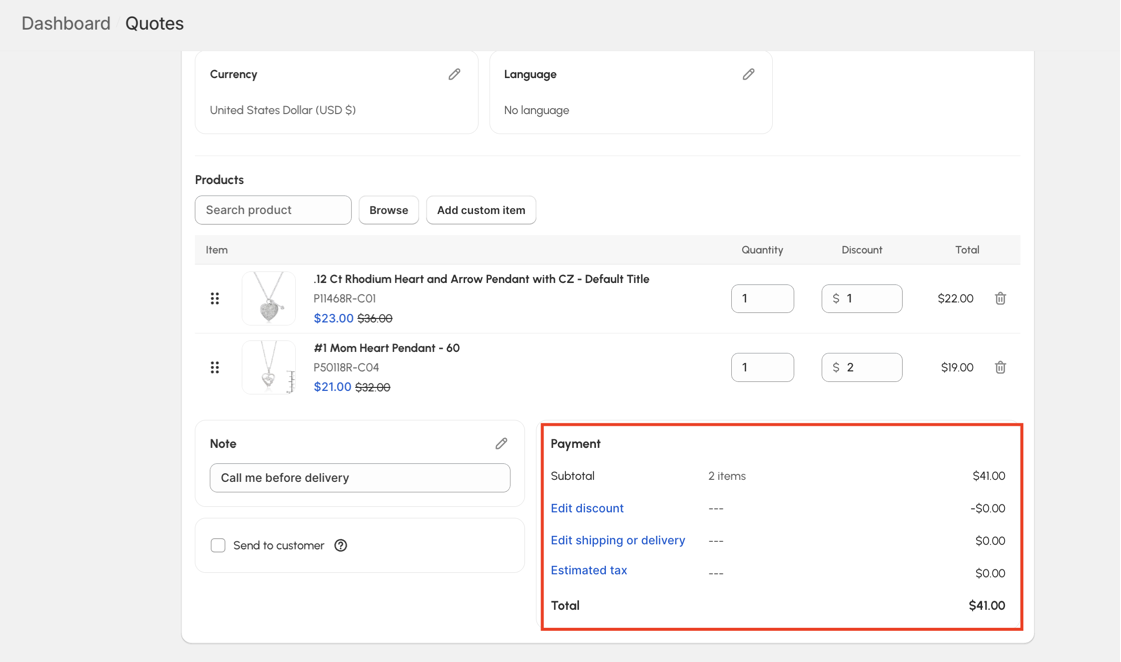
Payment
-
Apply order-wide discounts.
-
Include shipping or delivery costs.
-
Add tax names and specify tax amounts
- Send to customer: tick the Send to customer option to ensure the quote is sent to their email immediately after saving.
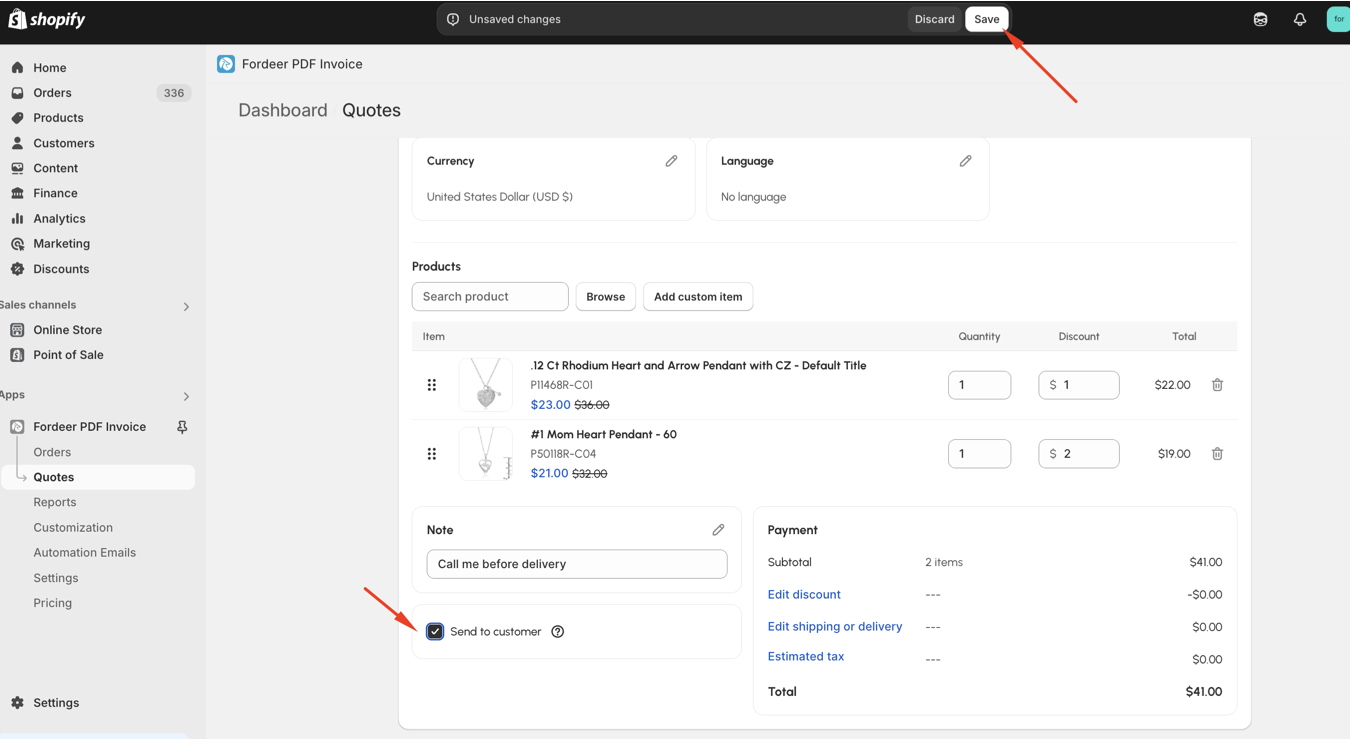
=> Once all details are entered, click Save to finalize and send the quote.
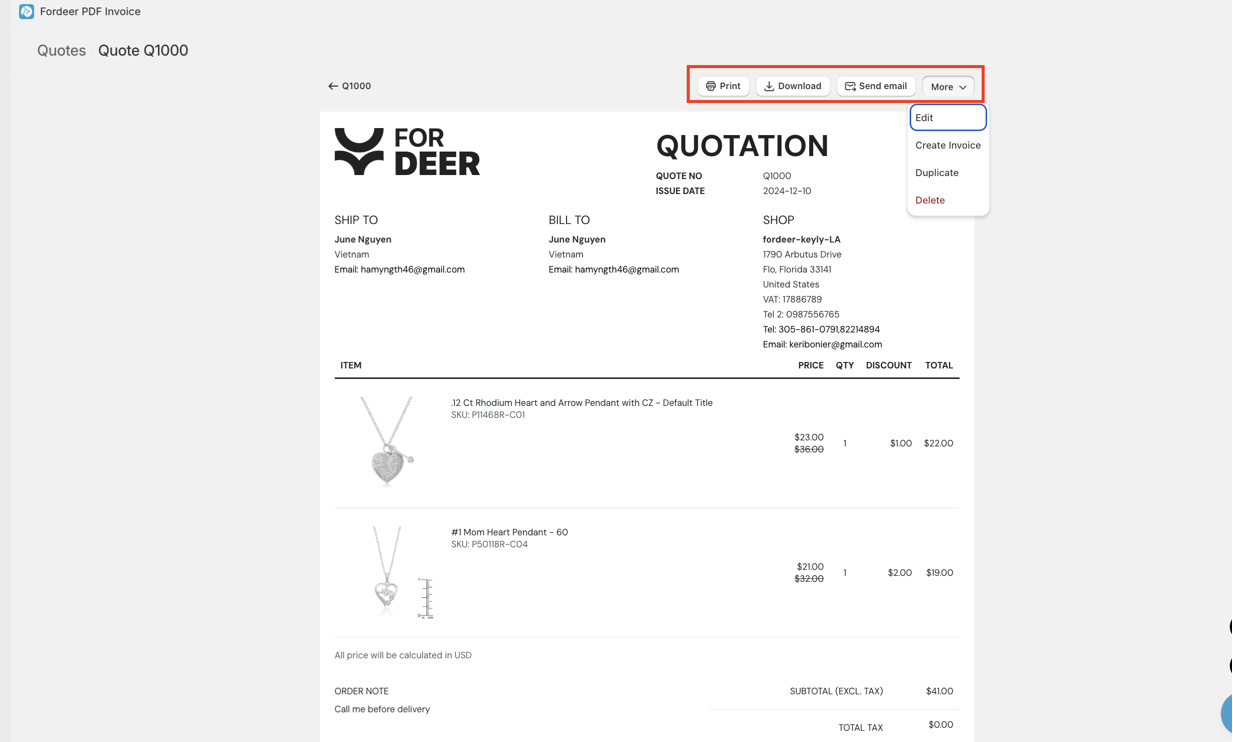
A quotation will be created and you can do action like printing, downloading or sending email to customers,.. by using our app menu bar
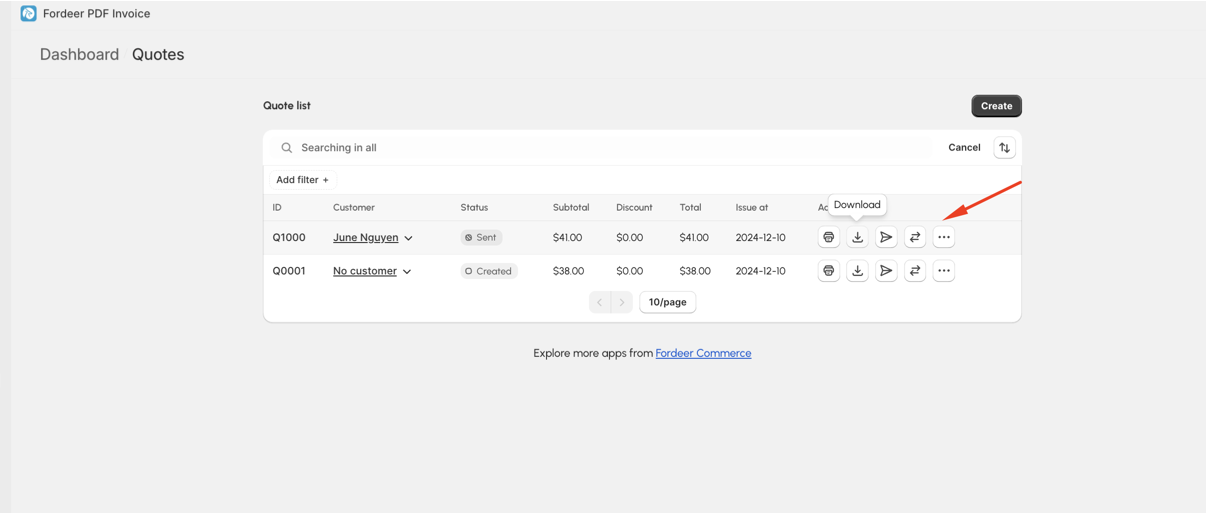
Or you can go back to quote list dashboard and take any actions if you want
3. Convert Quotes to Orders
When a customer agrees to a quote, you can quickly convert it into an order for streamlined tracking and follow-up. This ensures a smooth transition from quotation to purchase.
Step 1: Open the Quotation list
Step 2: Hover over the quote you wish to convert and click the Convert quotation to order icon.
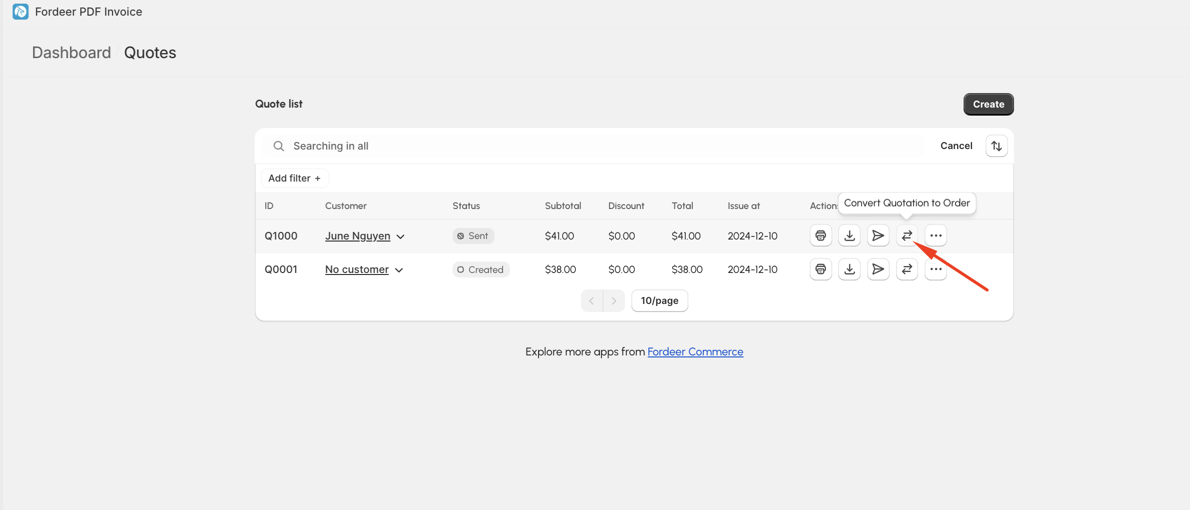
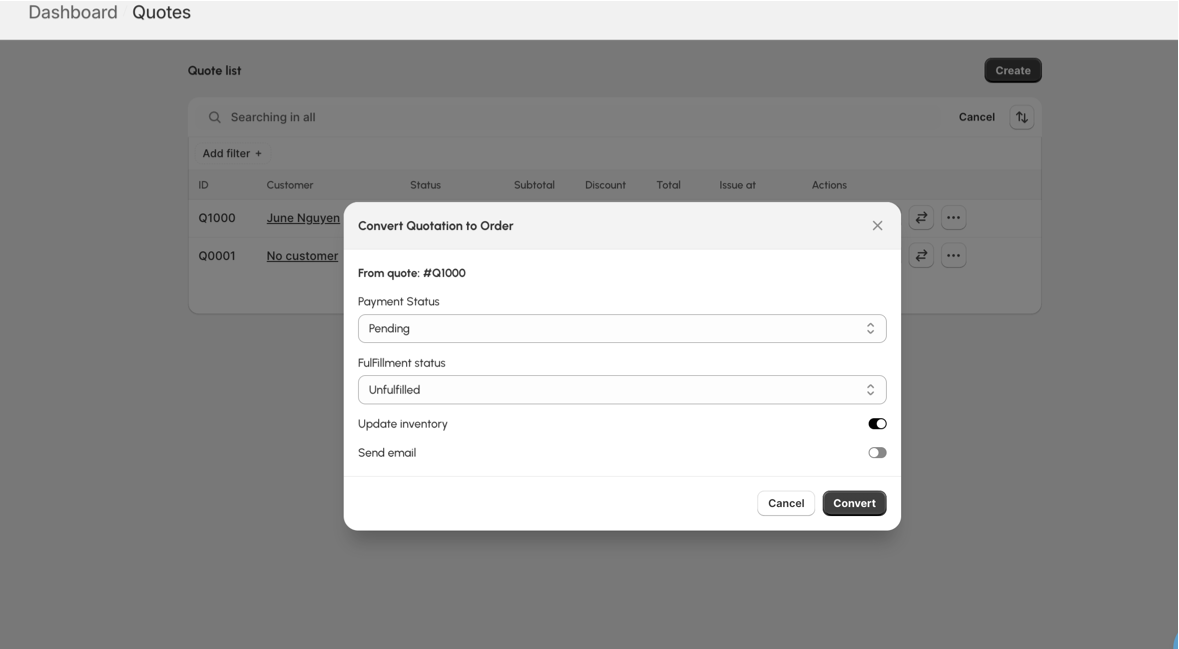
Step 3: In the popup that appears, fill out the following details:
-
Payment Status: Mark the payment as paid, pending, or partially paid.
-
Fulfillment Status: Indicate whether the order has been fulfilled.
-
Optional: Update product inventory in Shopify.
-
Optional: Notify the customer via email that their quote has been converted to an order.
Step 4: Click the Convert button to complete the process.
Noted
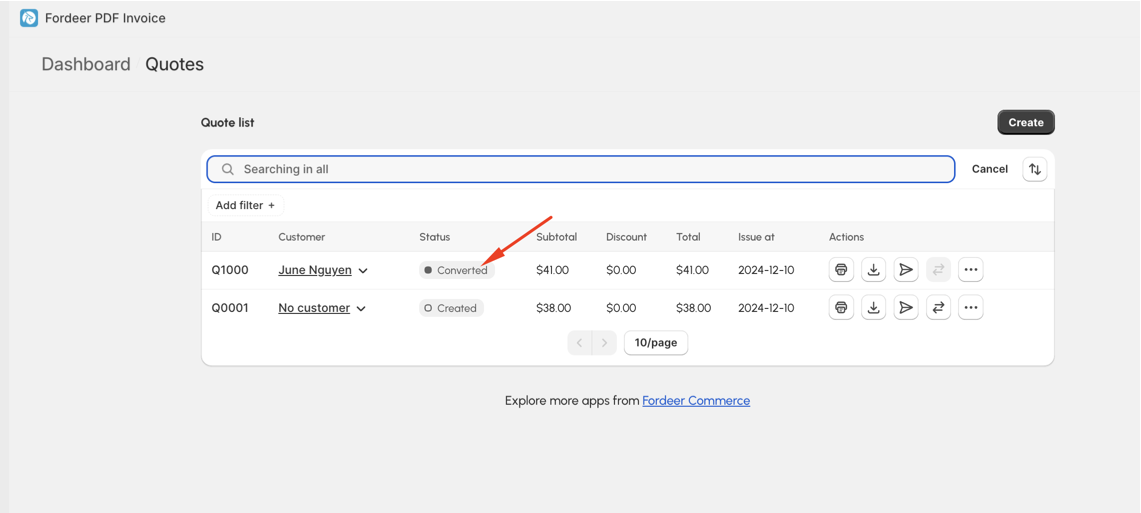
- Once converted, the quote’s status will update to Converted.
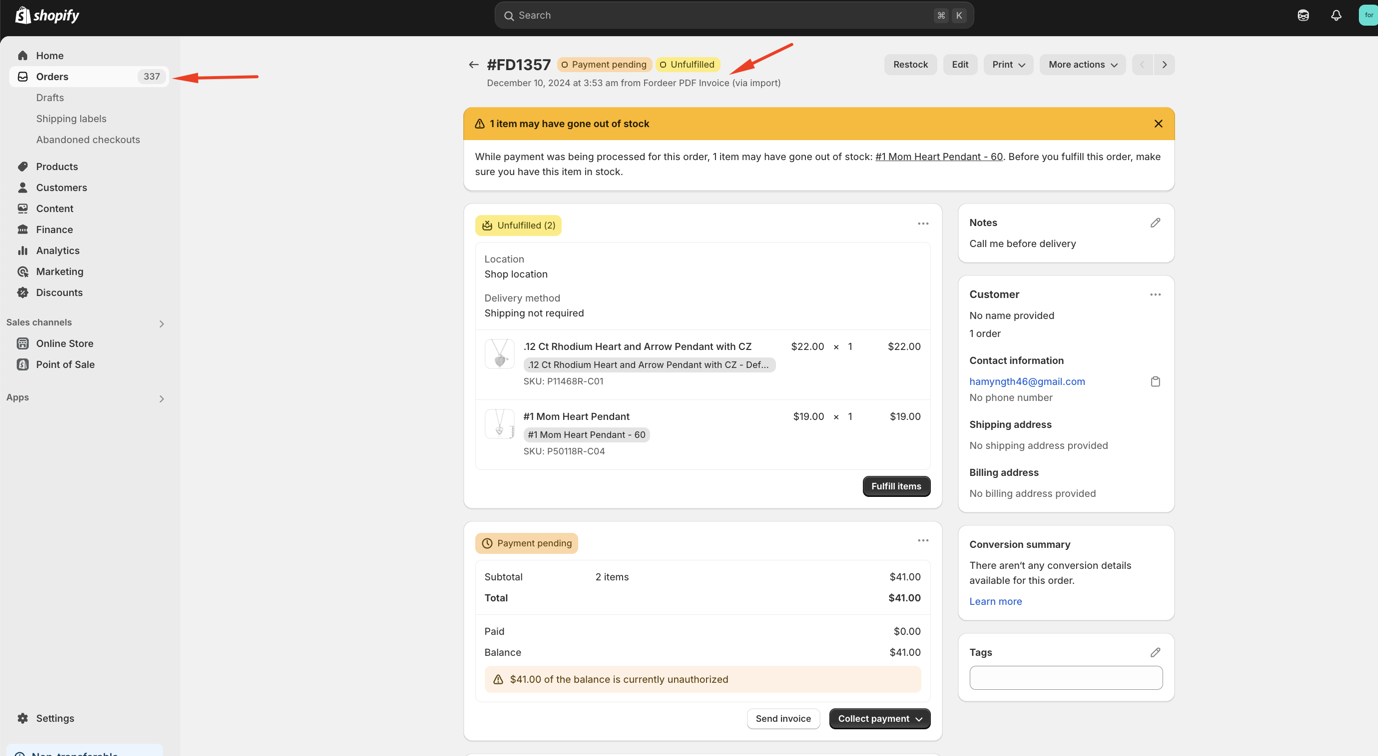
- View all converted orders in the Orders section of your Shopify admin.
-
You can not edit the orders which are created/imported from our app
-
Quotes can only be converted once, so ensure all details are correct before completing the conversion.
4. Sending Emails to Customers
Communication is key to maintaining a professional relationship with your customers. Fordeer makes it easy to send updates via email at various stages of the quoting process.
You can send an email to the customer when:
- A new quote is created.
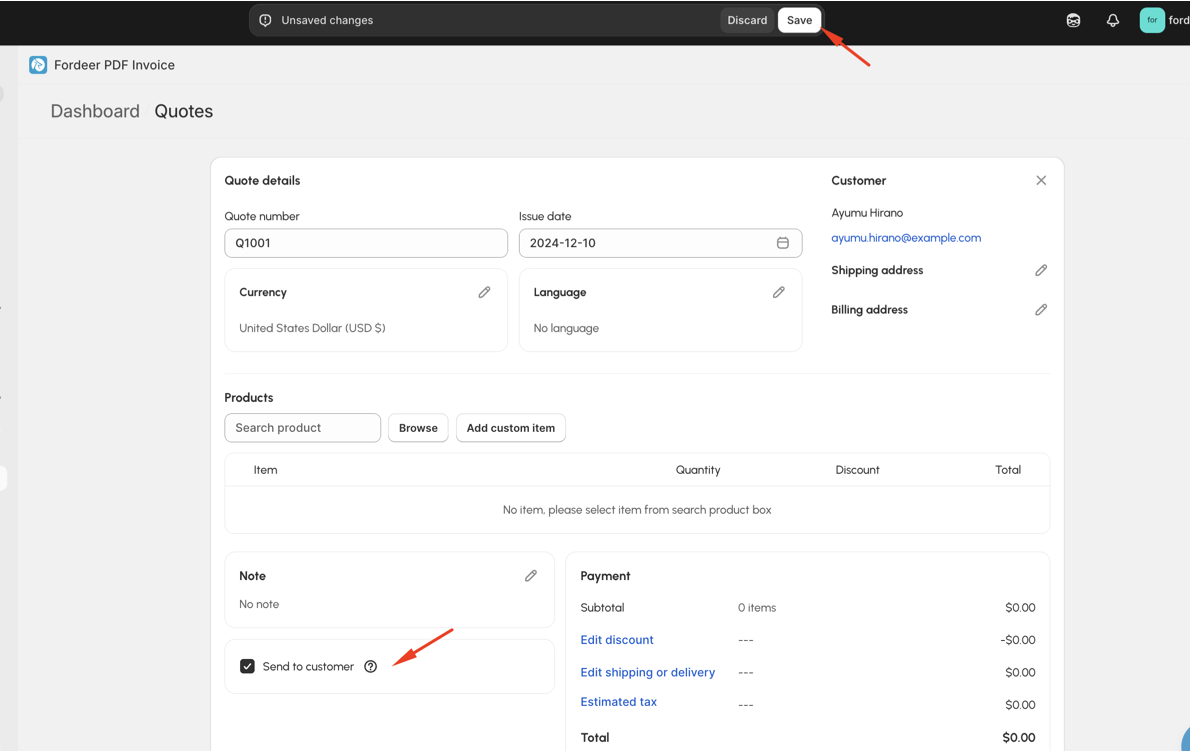
- An existing quote is edited or updated.
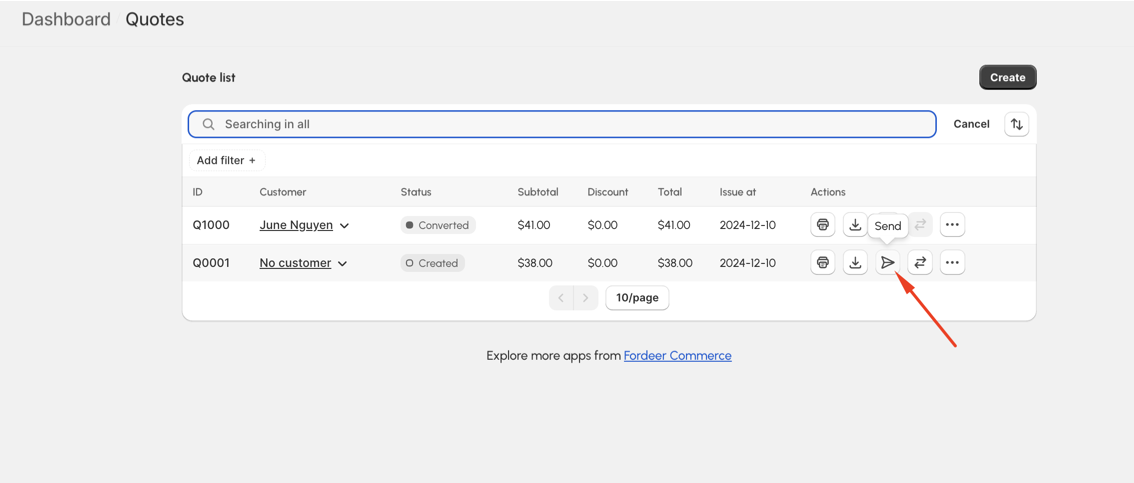
At this time, the email template for quotations is based on the Fordeer Invoice design. Customization of the email template is not yet available, but our team is actively working to bring this feature to you soon.
With Fordeer, managing quotes has never been easier! From enabling customers to request quotes to converting them into orders, our tools are designed to simplify your workflow and provide a seamless experience for your customers.
If you have any questions or need assistance, feel free to reach out to our support team via live chat support or email: support@fordeercommerce.io
Thank you for choosing Fordeer Commerce! Together, let’s build success. 😊
Currently, this feature is available on the Professional Plan or higher. To access it, please upgrade your plan and enjoy the benefits
Please give them a try and do not hesitate to contact us if you have any questions along the way.
We value your feedback — it helps us continuously improve app and provide you with a better experience.
👉 Chat with us: Share your feedback directly with our team.
👉 Explore more apps: Discover more Fordeer apps. special deals.
🕐 Working hours: 8:30 AM – 5:00 PM (UTC+7), Monday–Friday.
We typically reply to live chats within minutes and emails within a few hours.
Need help? Feel free to reach out anytime via live chat or email!