
Fordeer hello to you
The guideline below will give you a detailed description of how you can manually translate information into the selected language.
- To access the translation setup, click Settings on the sidebar menu, then go to Languages page
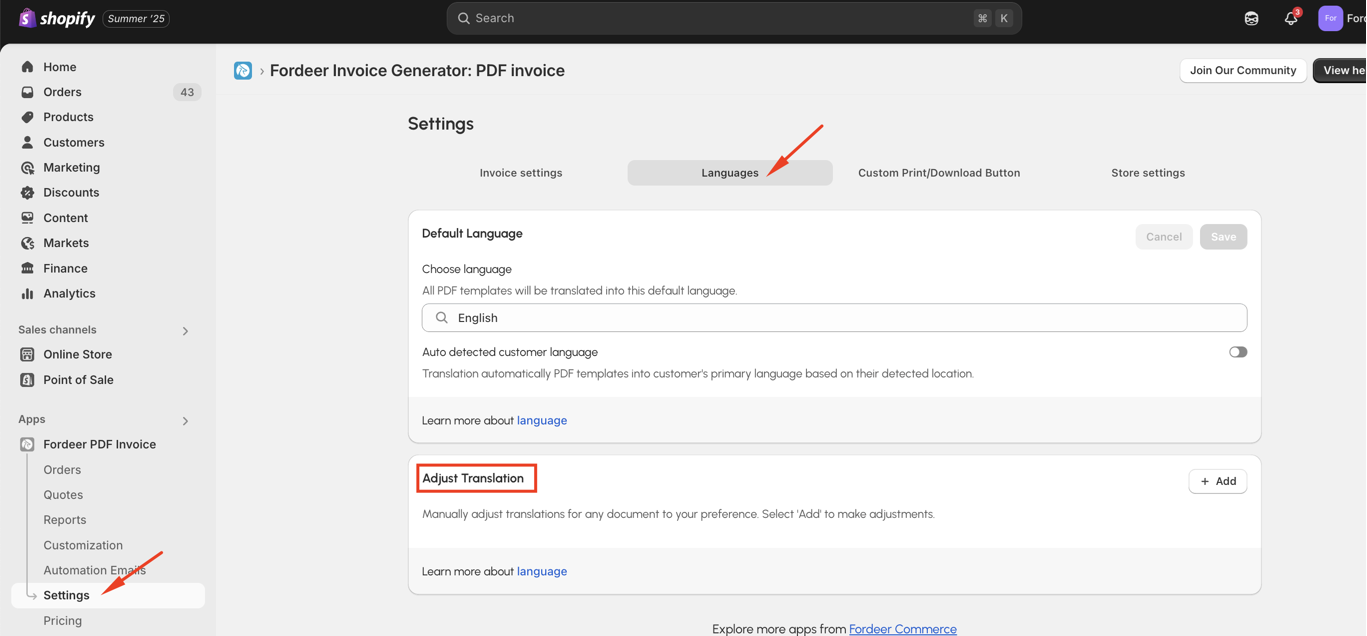
- Then, you can see the Adjust Translation section, click Add button to start editting
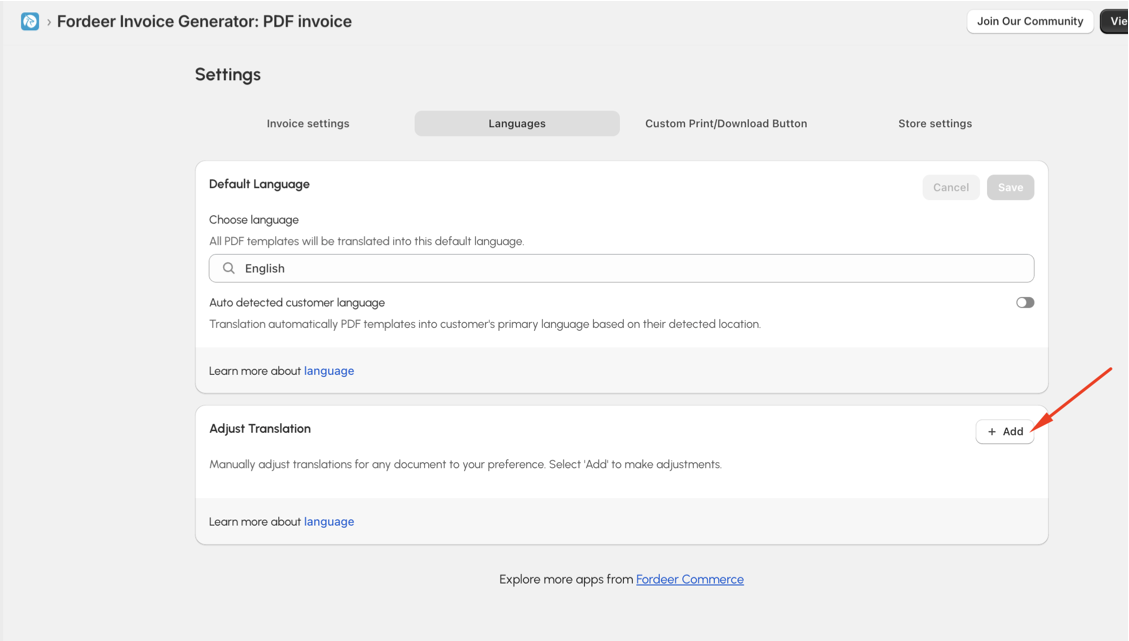
-
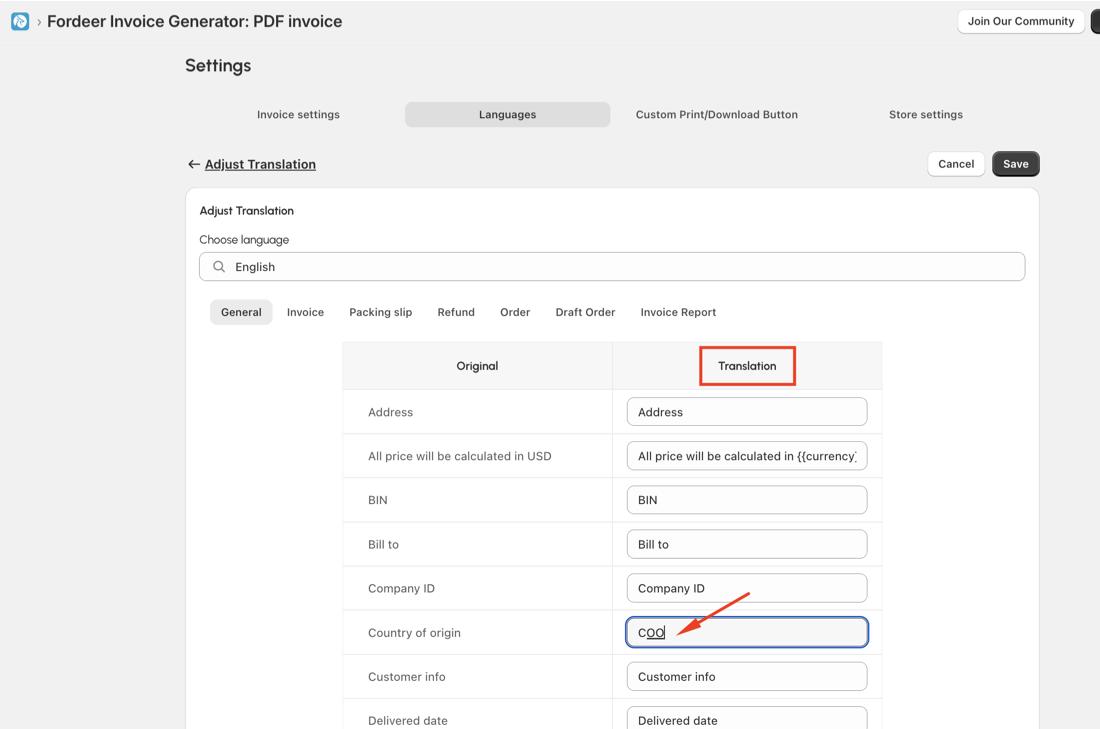
Select language you want to translate to
-
Edit the content as you want on the Translation column.
- Always click Save at the end to save all the changes
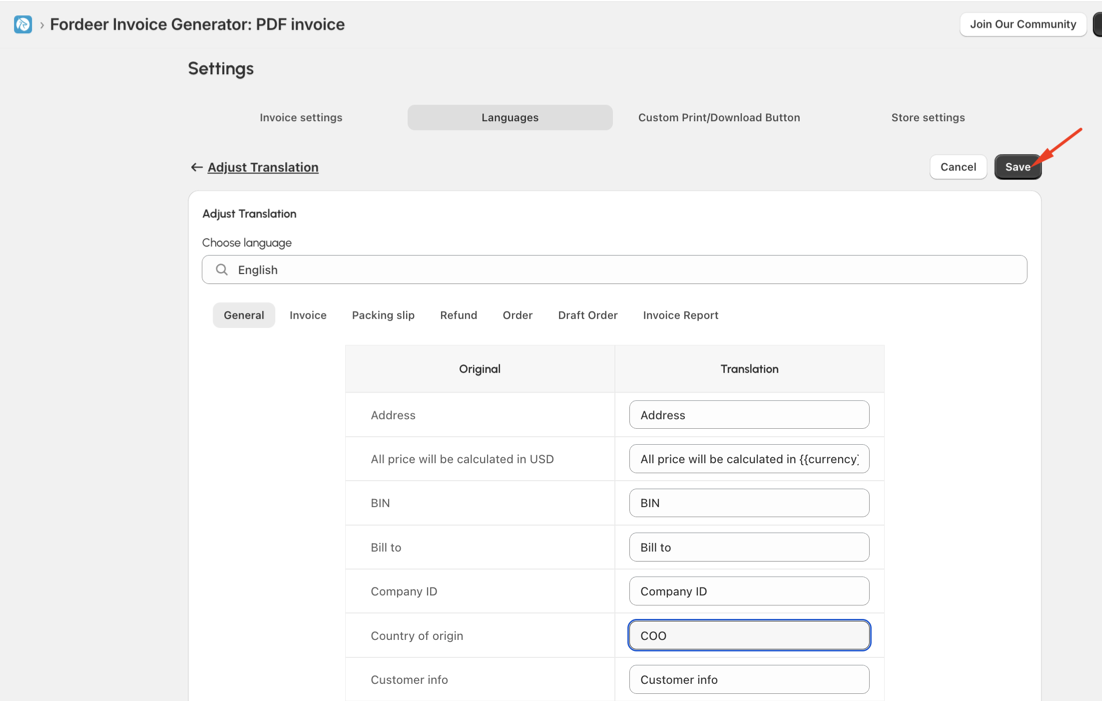
Here is an example for you to understand more.
-
If your online store sells to business customers in Australia, it is essential that you include the ABN (Australian Business Number) of your store on the invoices.
-
With our app, you can add the VAT ID to the invoices , not ABN. But you can add ABN to the invoices by changing VAT text to ABN text using Adjust translation feature. Here is how to do it:
-
Select English as a language you want to translate
-
Scroll down to find the text VAT
-
Remove the default text VAT and enter ABN to the Translation column
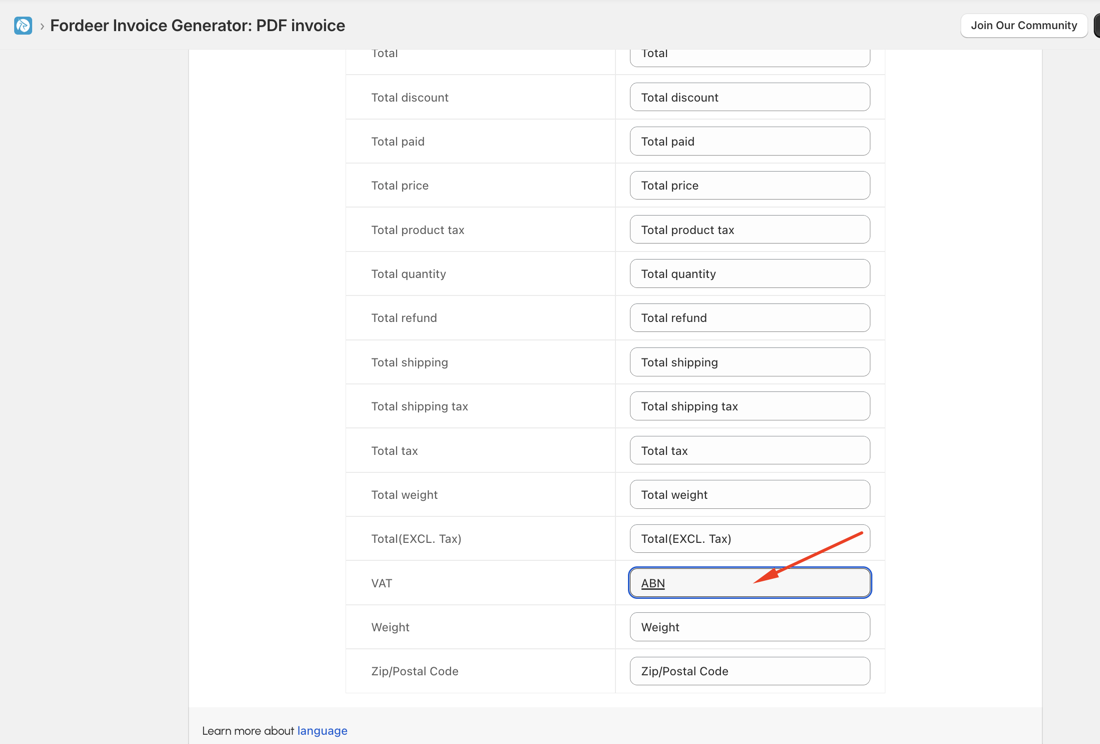
-
Click Save at the end
-
Print/download the invoices to check out the translation
Now the VAT ID will change to ABN successfully.
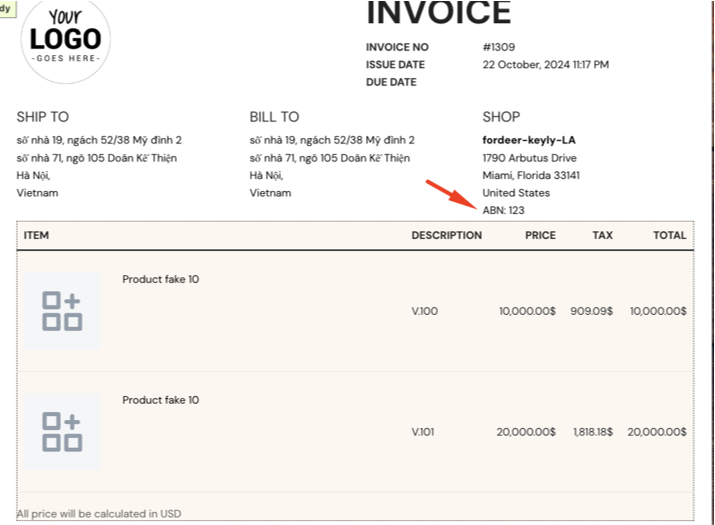
And that's it! Please check it out and see how it goes.
If you have any questions while using our app, please do not hesitate to let us know via our live chat or our support email: hi@fordeercommerce.io
We value your feedback — it helps us continuously improve app and provide you with a better experience.
👉 Chat with us: Share your feedback directly with our team.
👉 Explore more apps: Discover more Fordeer apps. special deals.
🕐 Working hours: 8:30 AM – 5:00 PM (UTC+7), Monday–Friday.
We typically reply to live chats within minutes and emails within a few hours.
Need help? Feel free to reach out anytime via live chat or email!