
Welcome to Fordeer!
If you're using a product options app, you can easily display product option attributes on your invoices. Follow this step-by-step guide to set it up.
Before we get started, please ensure:
-
You have a product options app installed.
-
Set up product options in the app and publish them to your storefront.
-
Upgrade to Professional plan to test out this feature.
Step 1: Create a test order
- Create a test order using a product with the configured product options on Online store
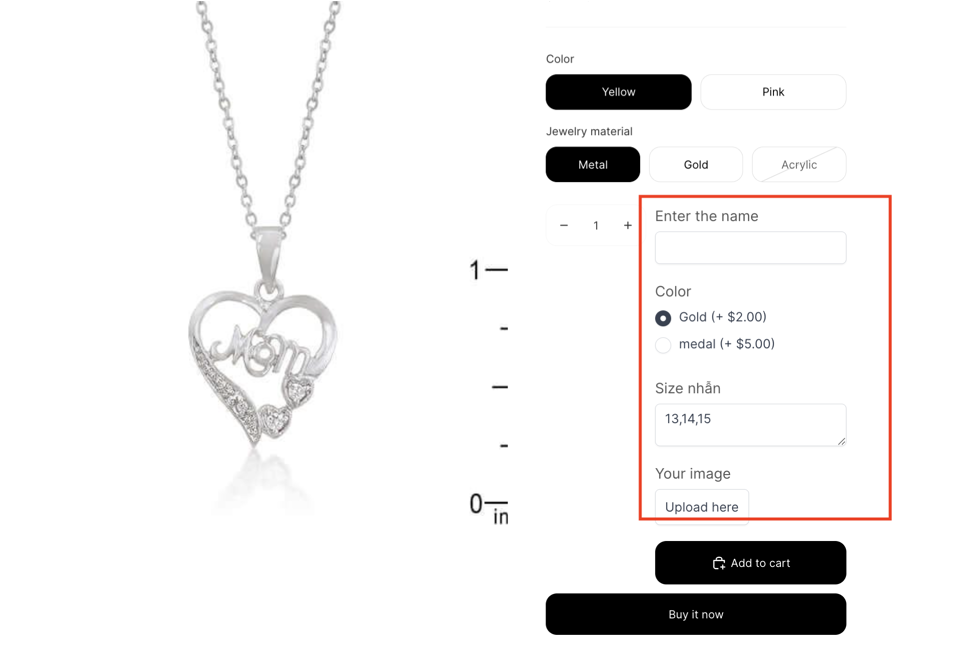
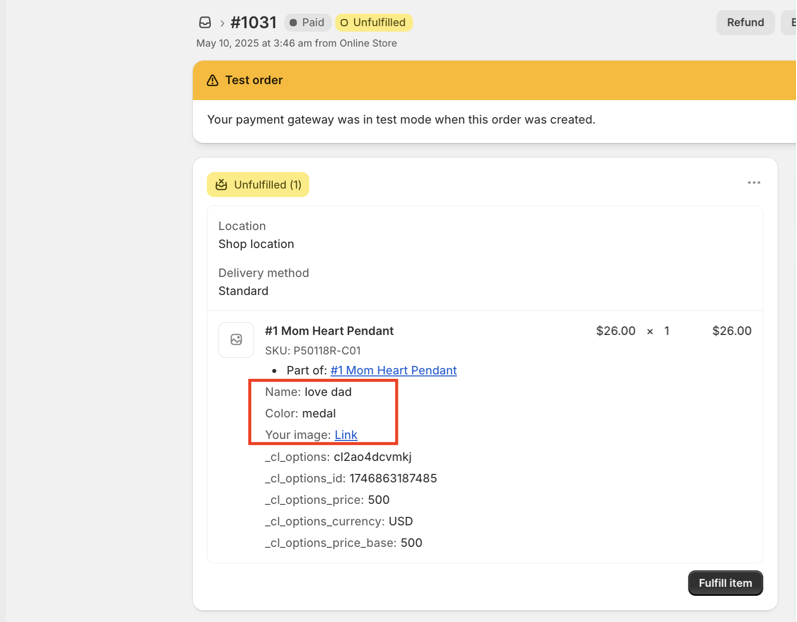
- Go to the Orders section in your admin panel to verify that the product options appear under the product name.
Step 2: Configure invoice settings in the Fordeer app
-
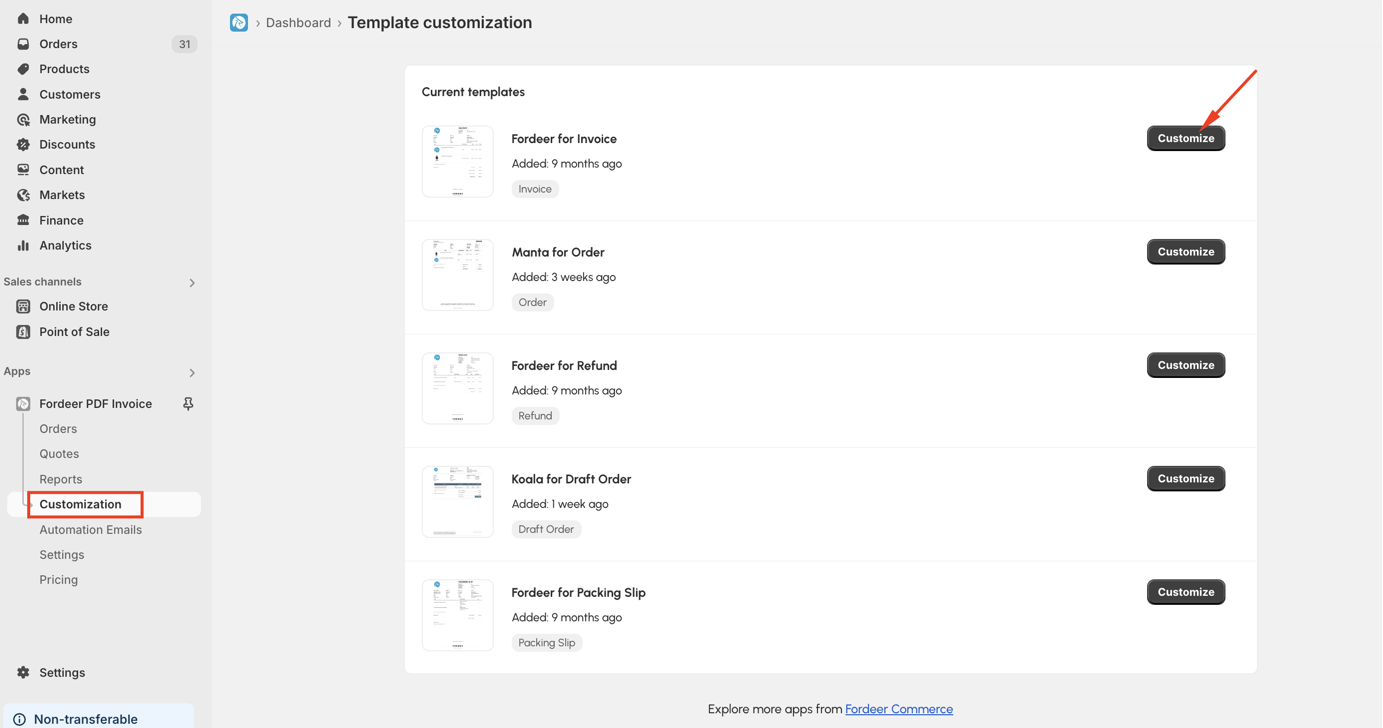
Open the Fordeer app and go to the Customization page.
-
Click the Customize button on the invoice template you want to edit.
- Navigate to the Line Items and Total section, then select the Description column
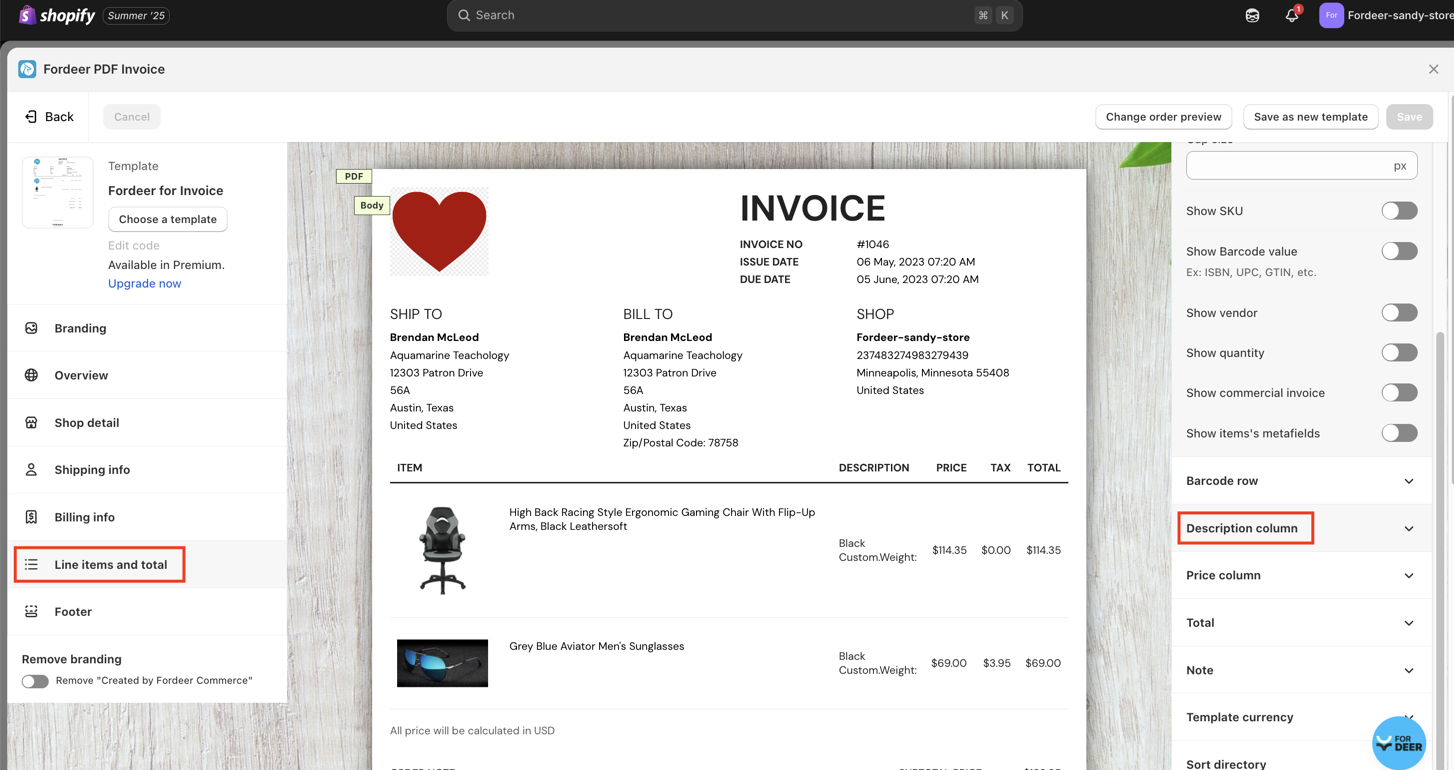
- Enable the Show custom attributes feature by toggling the button.
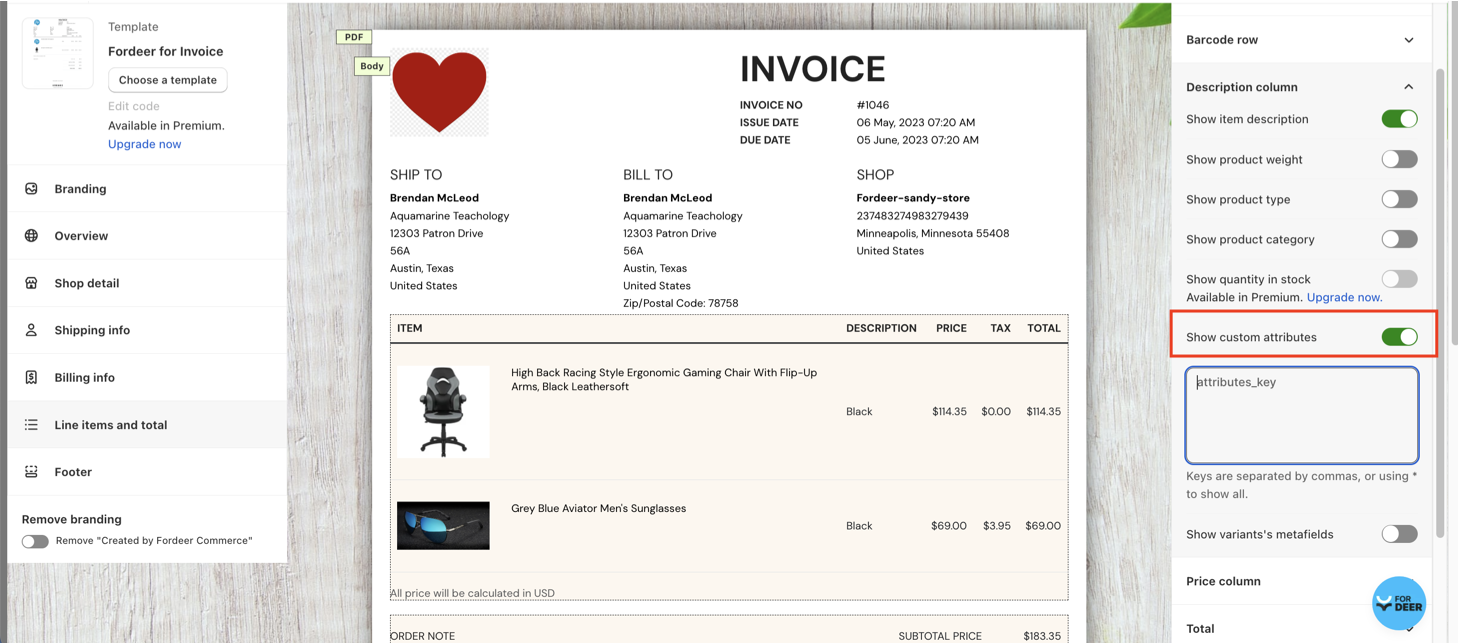
- Enter the attribute key (this is the name of the attribute as it appears in your order).
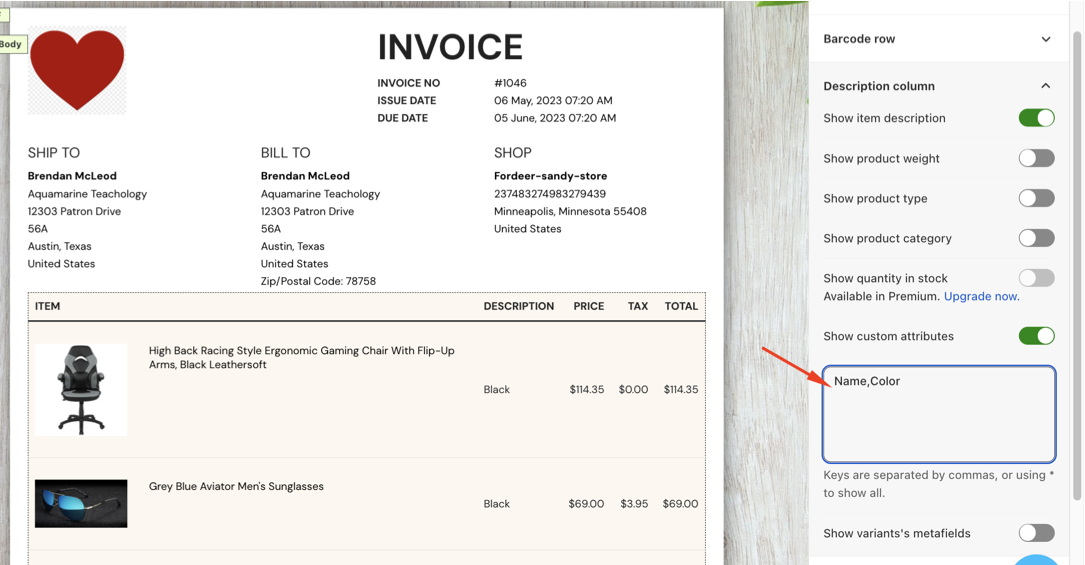
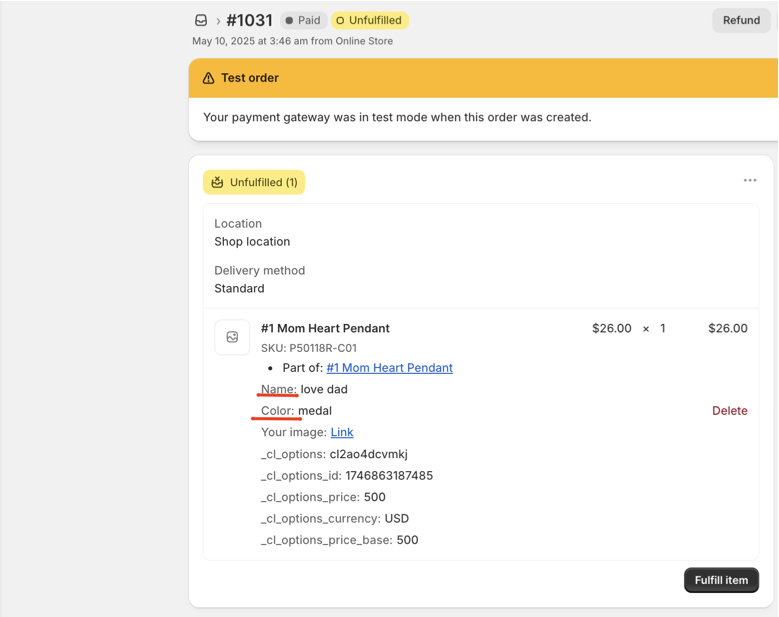
In this case, Name & Color are the attribute keys
Keys are separated by commas, or using * to show all.
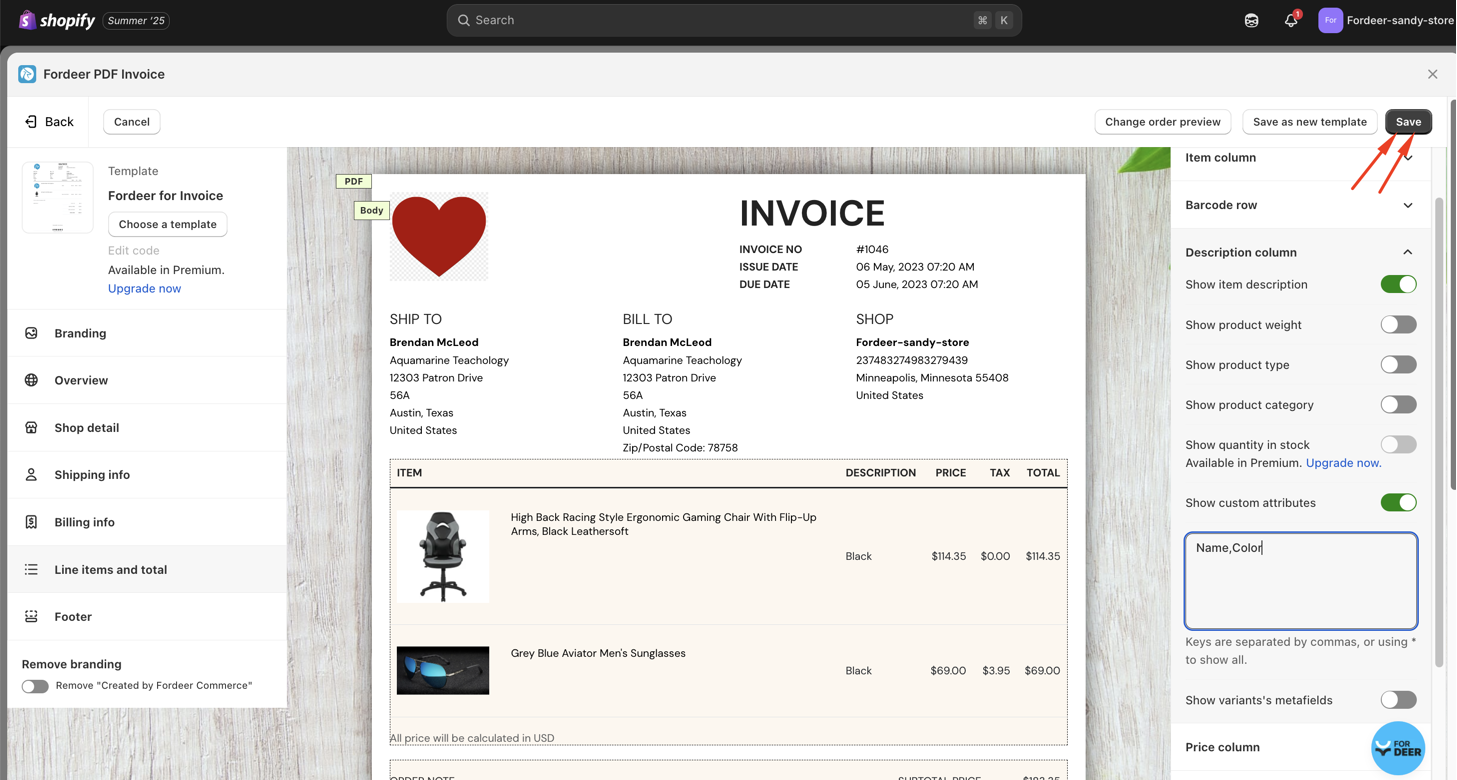
- Click the Save button to apply the changes.
You're all set!
Fordeer PDF Invoice app now supports displaying attributes for all product options on your invoices.
If you encounter any issues, feel free to contact our support team via live chat or email: support@fordeercommerce.io
We value your feedback — it helps us continuously improve app and provide you with a better experience.
👉 Chat with us: Share your feedback directly with our team.
👉 Explore more apps: Discover more Fordeer apps. special deals.
🕐 Working hours: 8:30 AM – 5:00 PM (UTC+7), Monday–Friday.
We typically reply to live chats within minutes and emails within a few hours.
Need help? Feel free to reach out anytime via live chat or email!