
Thank you for using Fordeer! This guide explains how to attach a PDF invoice to emails sent to customers.
To configure default settings for attaching PDF invoices in customer emails, follow these steps:
-
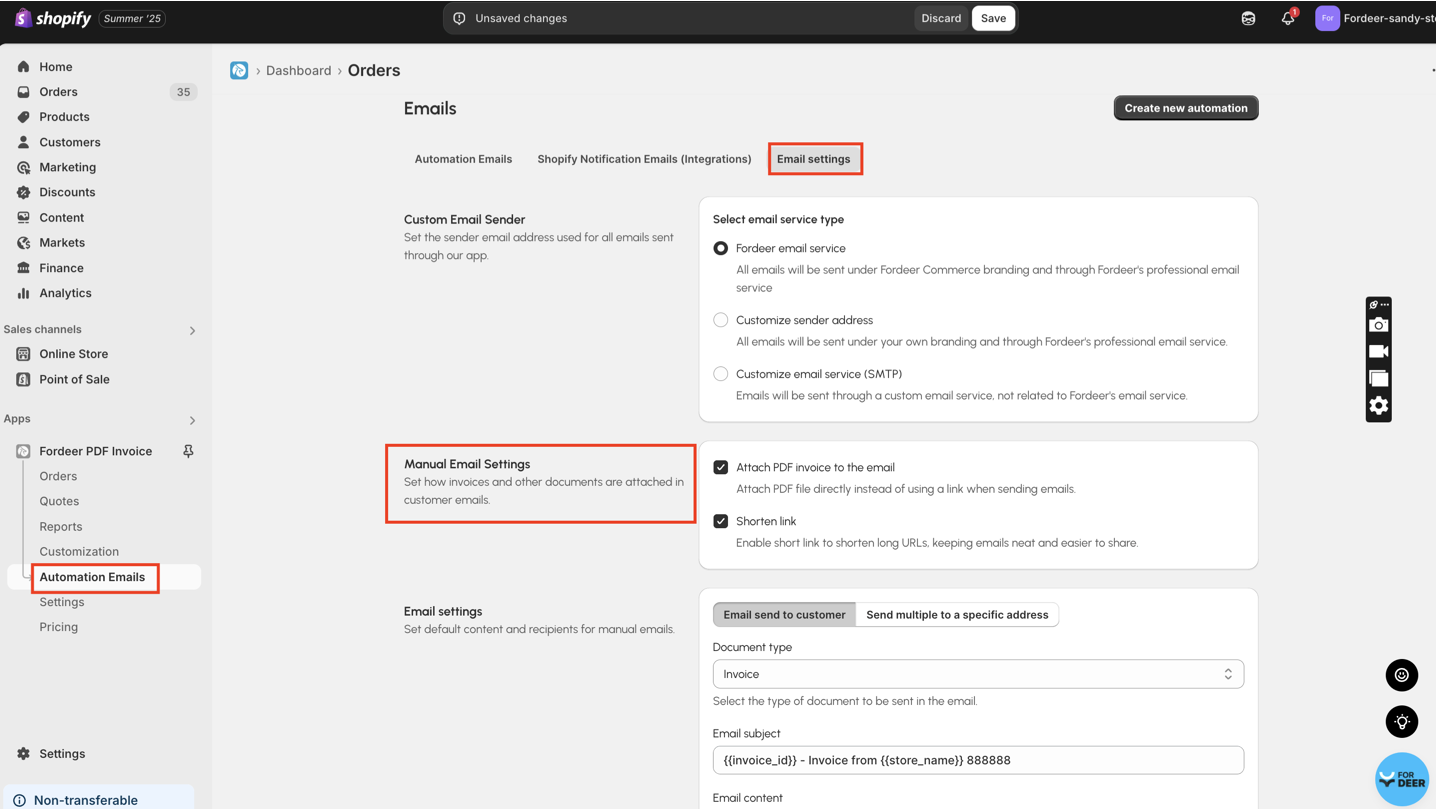
Navigate to Automation Emails in the sidebar menu.
-
Go to Email Settings > Manual Email Settings.
-
Enable the following options as needed:
-
Attach PDF invoice to the email: Directly attach the PDF file to the email instead of including a download link.
- Shorten link: Use a shortened download link when sending emails to customers.
-
Hit Save button at the end.
Once configured, these settings will apply when sending emails from the Orders section in our app. You can send emails directly to customers from this page.
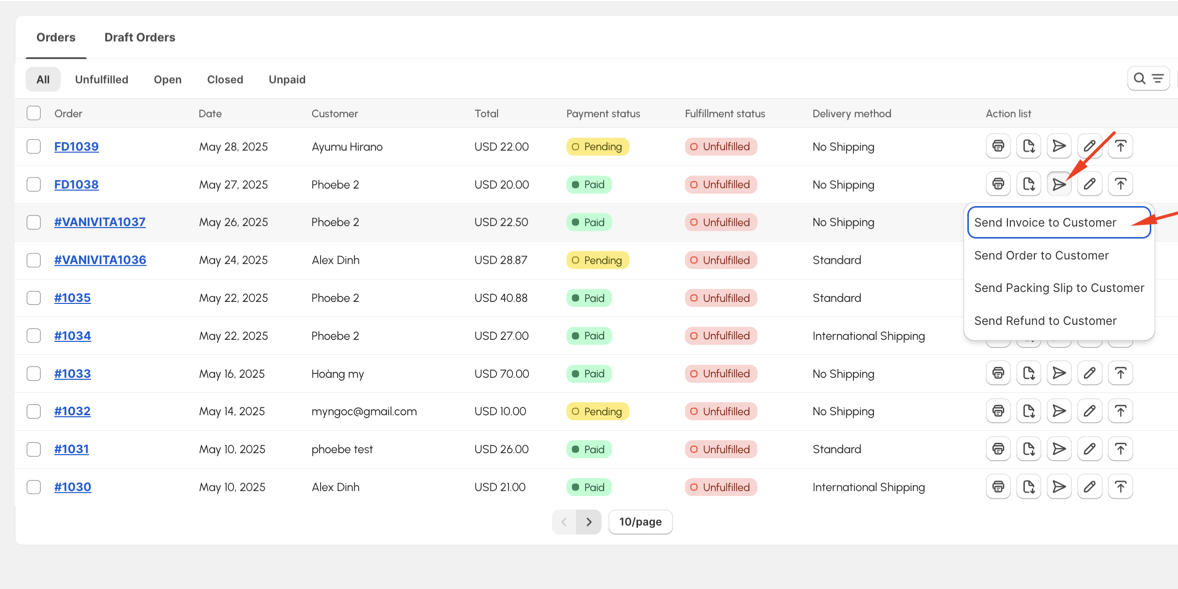
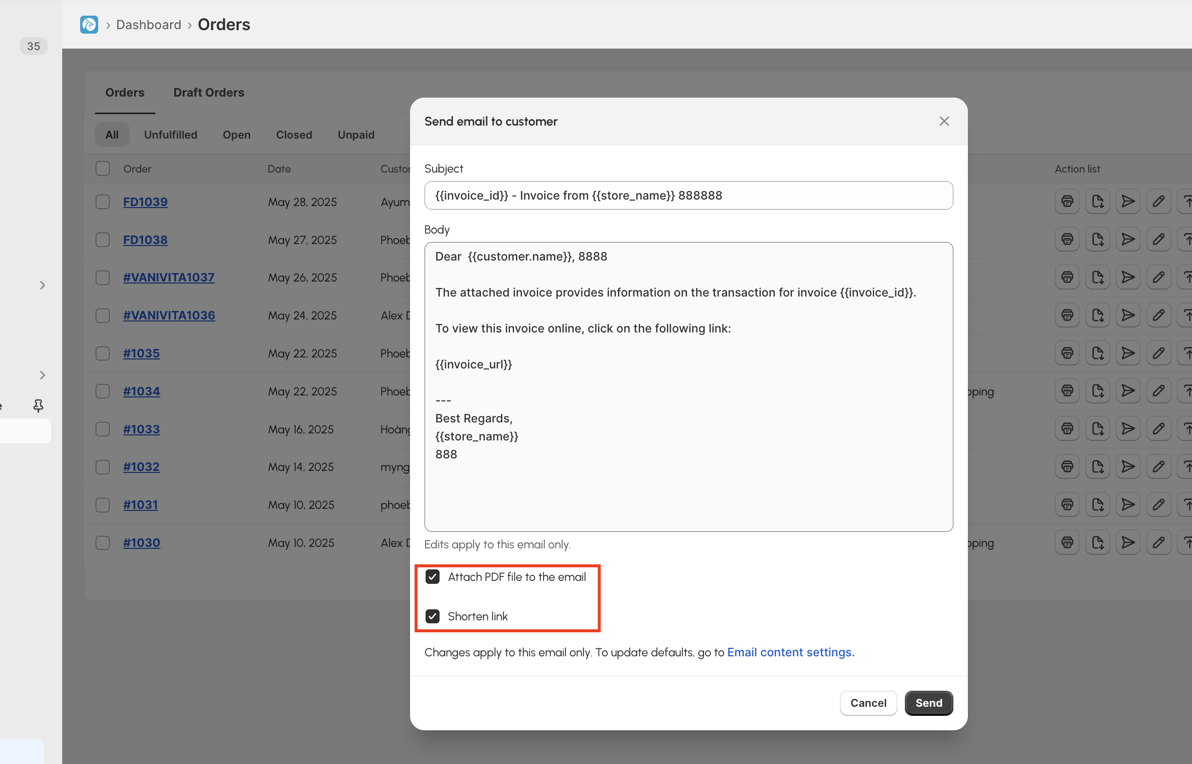
If you need to adjust these settings for a specific email, you can do so directly in the modal window within the Orders section.
For further assistance, feel free to contact our support team!
We value your feedback — it helps us continuously improve app and provide you with a better experience.
👉 Chat with us: Share your feedback directly with our team.
👉 Explore more apps: Discover more Fordeer apps. special deals.
🕐 Working hours: 8:30 AM – 5:00 PM (UTC+7), Monday–Friday.
We typically reply to live chats within minutes and emails within a few hours.
Need help? Feel free to reach out anytime via live chat or email!