

Overview
Fordeer Invoice allows you to display both the Invoice Number when using our Custom Invoice Number feature and the original Shopify Order Number on your documents.
This makes it easy to match each custom invoice number with its corresponding Shopify order.
Here’s how to display both numbers on your invoice.
How to display the invoice number and order number
Step 1. Open your invoice template
From your Shopify Admin:
-
Go to Fordeer Invoice.
-
Select Customization from the app menu.
-
Find the invoice template you want to edit.
-
Click Customize.
2. Enable the Invoice Number
In the template editor:
-
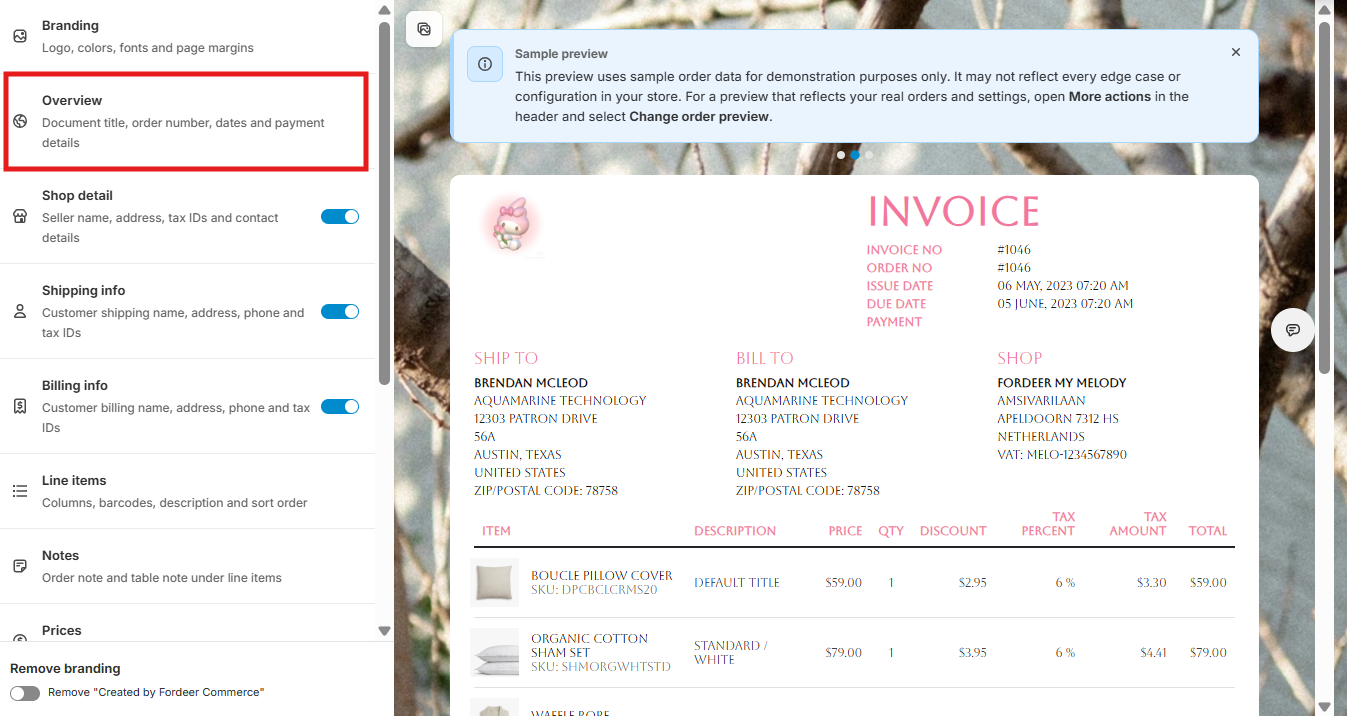
Select Overview.
-
Find Invoice no.
-
Make sure the Invoice no option is enabled.
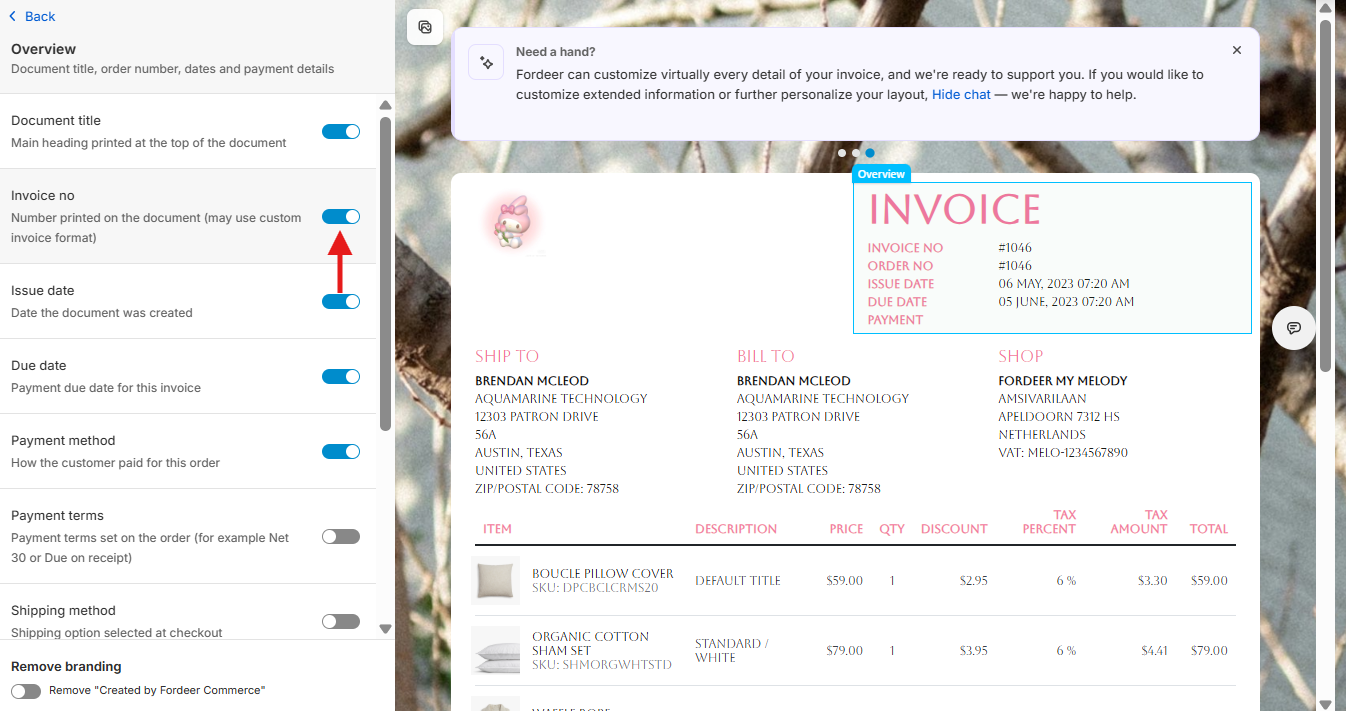
The invoice number will now be displayed on the document using your current invoice numbering format.
Tip: If you're using custom invoice numbering, the invoice number displayed here will follow the format you've configured.
Step 3. Enable the Shopify Order Number
To display the original Shopify order number as well:
-
In Overview, click Invoice no to open its settings.
-
Find Show order number.
-
Turn this option on.
-
Click Save to apply your changes.
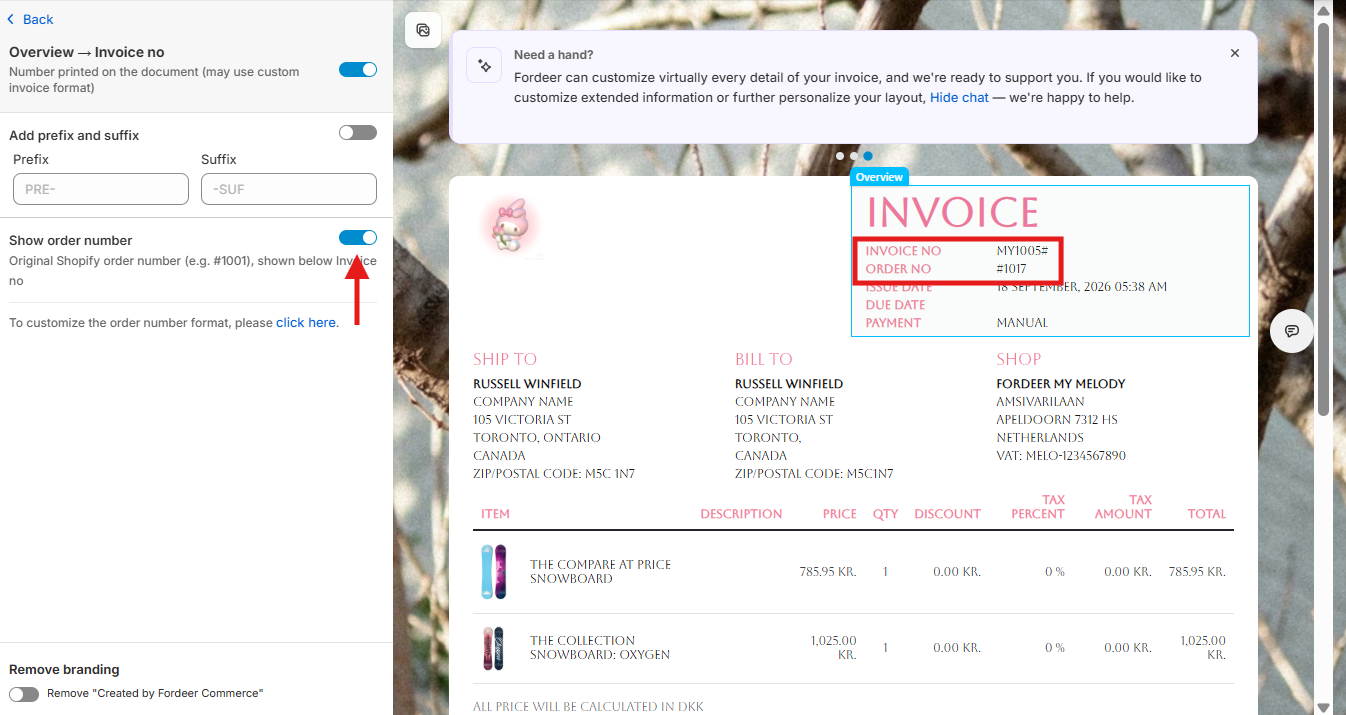
The original Shopify order number will appear below the invoice number on your document.
For example:
INVOICE NO: MY1004#
ORDER NO: #1016
Important: The Invoice Number and Order Number are two separate identifiers. The Invoice Number follows your invoice numbering settings, while the Order Number refers to the original Shopify order.
Show the Order Number in the Orders list
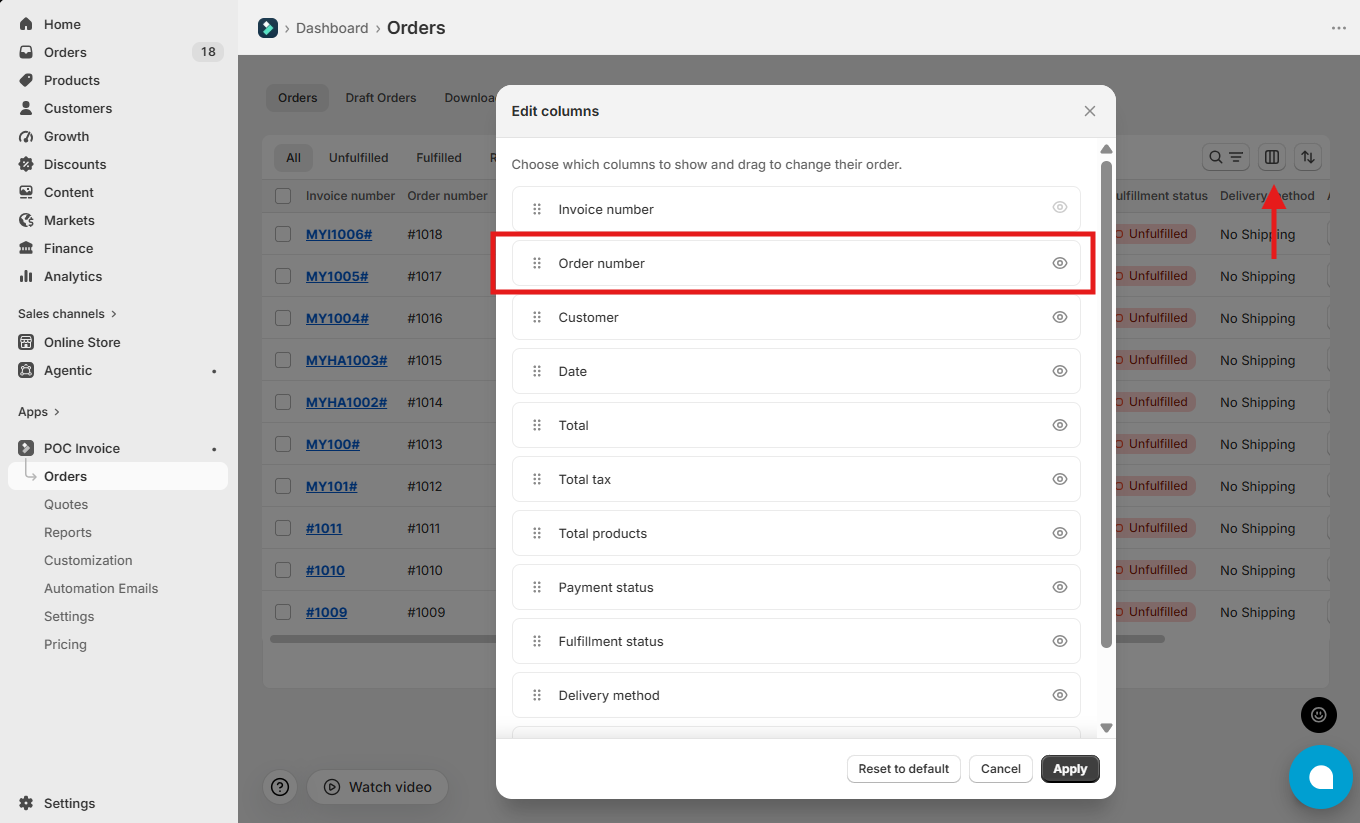
You can also display the Order Number alongside the Invoice Number in your Orders list.
-
Go to Orders page.
-
Click the Columns icon in the top-right corner.
-
Make sure Order Number is visible.
-
Drag and drop it to your preferred position.
-
Click Apply.
Tip: Displaying both numbers makes it easier to match each invoice with its original Shopify order.
Before you finish
After enabling both options:
-
Check the document preview to confirm that both numbers are displayed.
-
Click Save before leaving the template editor.
-
If you use multiple document templates, make sure the setting is enabled for each template where you want the order number to appear.
We value your feedback — it helps us continuously improve our app and provide you with a better experience.
👉 Chat with us: Share your feedback directly with our team.
👉 Explore more apps: Discover more Fordeer apps and special deals.
🕐 Working hours: 8:30 AM – 5:00 PM (UTC+7), Monday–Friday.
We typically reply to live chats within minutes and emails within a few hours.
Need help? Feel free to reach out anytime via live chat or email!