
When developing applications that need to send emails through Gmail, many developers encounter the familiar error message: "Username and Password not accepted", even when they're certain their credentials are correct.
This occurs because Google has enhanced security for Gmail accounts, preventing "less secure apps" from accessing them directly using regular passwords. Fortunately, Google provides a more secure alternative: App Passwords.
In this article, we'll explore how to set up and use Google App Password to authenticate with Gmail's SMTP service.
What is an App Password?
An App Password is a 16-character authentication code generated specifically for a particular application or device. App Passwords offer several advantages:
-
Enhanced security: Each application gets its own distinct password, which can be individually revoked
-
Convenience: No need to enter 2FA verification codes each time your application connects
-
Traceability: Ability to monitor which applications are currently accessing your account
Prerequisites
Before creating an App Password, you need to meet these requirements:
-
Two-Factor Authentication (2FA): Your Google account must have 2FA enabled
-
Account type: Works with personal Google accounts or Workspace accounts (if permitted by admin)
Step-by-Step Guide: Setting Up Two-Factor Authentication
If you haven't enabled 2FA yet, follow these steps:
-
Access Google security page: https://myaccount.google.com/security
-
Locate "2-Step Verification"
-
Click "Get started"
-
Verify your identity using your Google password
-
Enter your phone number and select your preferred verification method (SMS or call)
-
Enter the verification code sent to your phone
-
Enable 2-Step Verification by clicking "Turn on"
Creating App Password for Gmail SMTP
After enabling 2FA, create an App Password:
-
Access Google security page: https://myaccount.google.com/security
-
Locate "App passwords": https://myaccount.google.com/apppasswords
- Note: If this option isn't visible, you may not have enabled 2FA, your Workspace account may be restricted by admin, or you're using organizational login
- Select application and device:
-
In the "Select app" field, choose "Other (Custom name)" or "Mail"
-
Give it a memorable name like "SMTP Script" or "Email Service"
-
Click "Create"
- Save the generated password: Google will display a 16-character App Password. Copy and save this password immediately, as you won't be able to view it again.
Using App Password with Custom SMTP in Fordeer PDF Invoice
Fordeer PDF Invoice allows you to configure custom SMTP servers for sending invoices via email. Here's a detailed guide for setting up Gmail SMTP with App Password in Fordeer PDF Invoice:
Step 1: Log into Fordeer PDF Invoice Admin Dashboard
Access your Fordeer PDF Invoice application's admin dashboard and log in with your administrator credentials.
Step 2: Navigate to Email Settings
-
From the main menu, select Settings
-
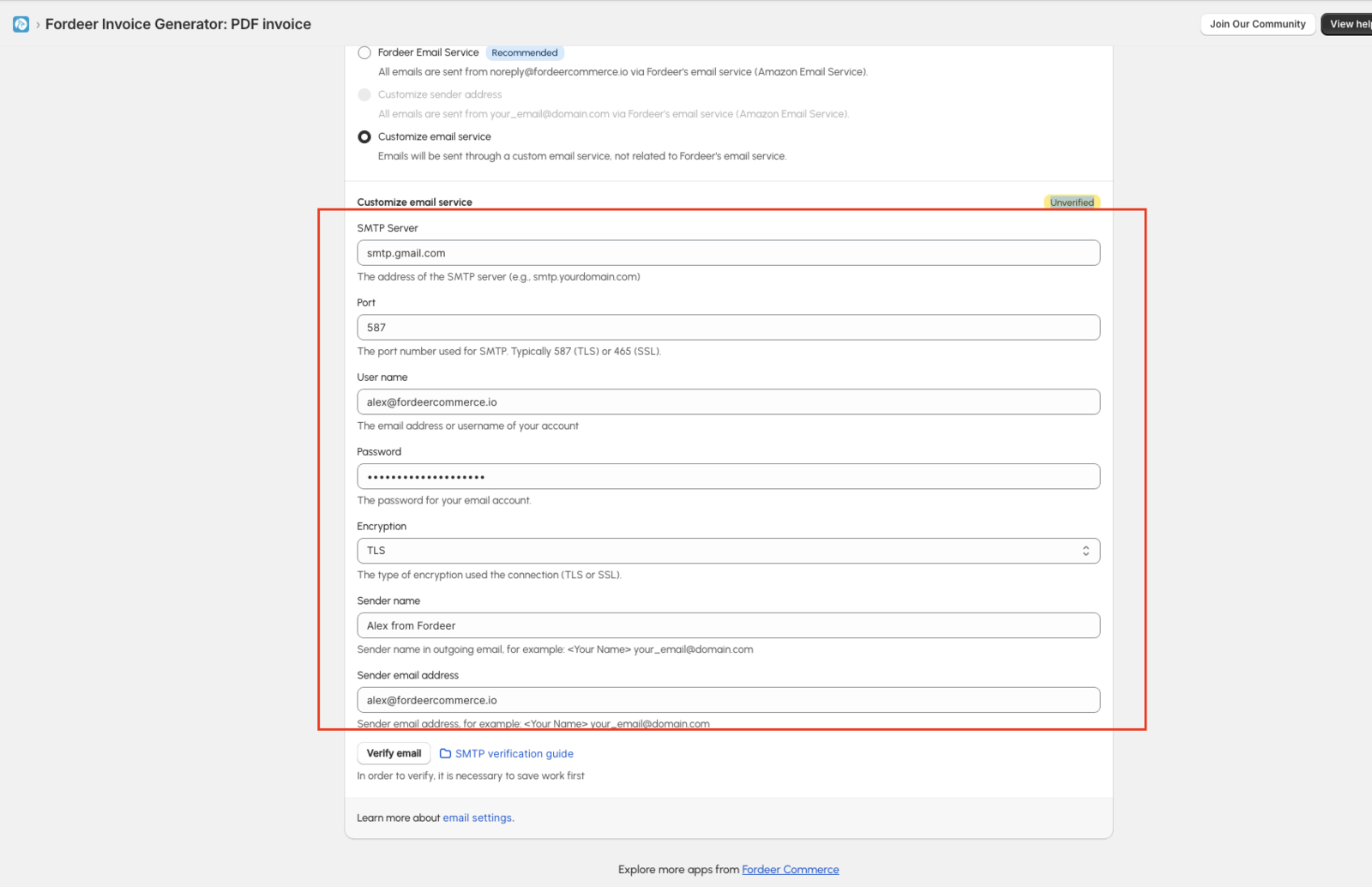
Locate and select Email Settings -> Change Email Settings -> Customize email service
Step 3: Configure SMTP with Gmail
Fill in the Gmail SMTP information with the following parameters:
-
SMTP Server:
smtp.gmail.com -
SMTP Port:
587(or465if using SSL) -
Encryption:
TLS(orSSLif using port 465) -
Sender Name: Display name for emails (e.g.,
ABC Invoice Service) -
Sender Email: Your Gmail address (e.g.,
your-email@gmail.com) -
SMTP Username: Your full Gmail address (e.g.,
your-email@gmail.com) -
SMTP Password: The App Password you generated from Google (without spaces)
Step 4: Test Connection and Save Settings
-
Click the *Verify email button to verify your configuration works
-
Enter the email you want to receive email
-
Check your email inbox
We value your feedback — it helps us continuously improve app and provide you with a better experience.
👉 Chat with us: Share your feedback directly with our team.
👉 Explore more apps: Discover more Fordeer apps. special deals.
🕐 Working hours: 8:30 AM – 5:00 PM (UTC+7), Monday–Friday.
We typically reply to live chats within minutes and emails within a few hours.
Need help? Feel free to reach out anytime via live chat or email!